Most database client reviews are a tour of the feature list. I wanted to know something narrower: when you open Navicat 18 and put it in front of a real table, which of the new features do you actually find, and which of them hold up?
So I connected it to PostgreSQL with a table of 10 million rows and went through the headline features one by one. This is the list of what I saw: what worked on the first try, what was hidden, and one AI answer that needed a second look.
What is Navicat, and who is it for?
A database holds your data, and to work with it you normally type SQL into a terminal (for PostgreSQL that is psql). A database client puts a window around that: you see the tables as a tree, write queries in an editor that warns you about mistakes, look at how a query will run, and move data between databases without writing scripts.
Navicat is one of the oldest of these clients. PremiumSoft, a company from Hong Kong, released the first version in 2002. Navicat Premium connects to many kinds of databases from one window: PostgreSQL, MySQL, MariaDB, Oracle, SQL Server, SQLite, MongoDB, Redis and Snowflake. It runs on Windows, macOS and Linux. It is commercial software, with a free Lite edition and a 14-day trial of the full version.
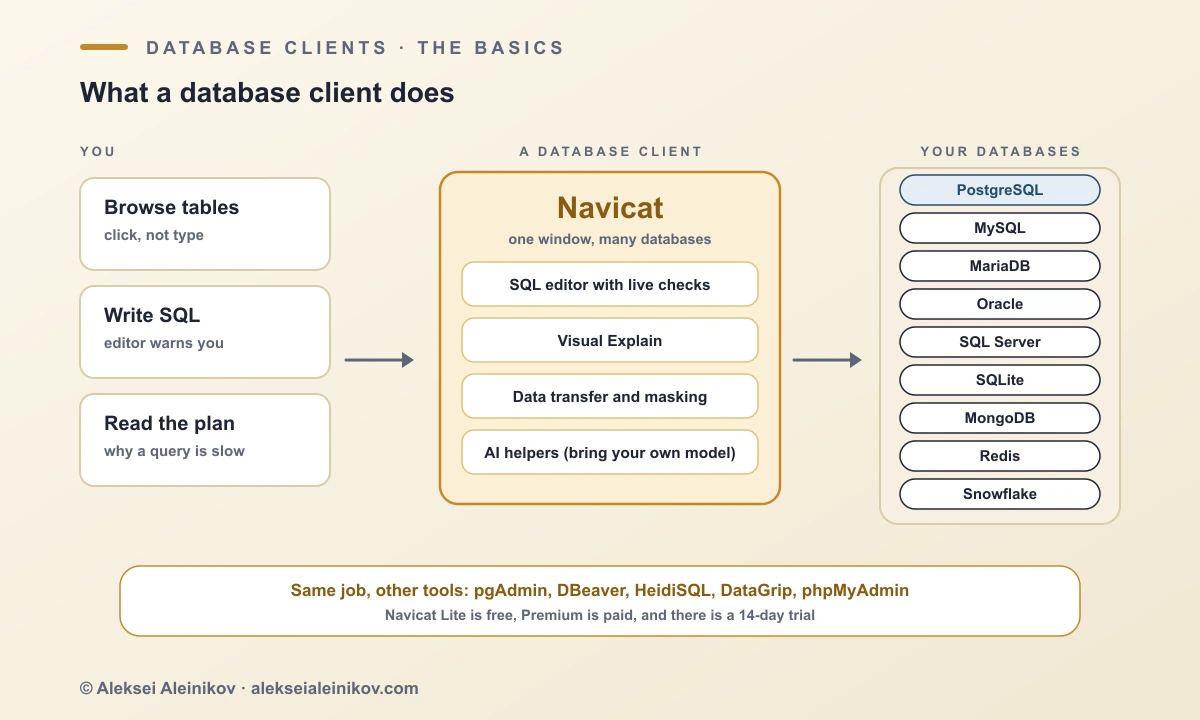
The verdict in 30 seconds
- Worked: the live error check, the Fix with AI preview, Explain with the real plan, Rename Symbol, and the Data Masking preview.
- Hid: Explain sits in the Query menu, code completion stays silent until you pick a schema, and Rename Symbol is greyed out while text is selected.
- Needs care: AI answers depend on the model you connect. The first Ask AI answer used column names that were not in my schema, so read the SQL before you run it. In my first Data Masking run, the e-mail, phone and IBAN columns came back as short numbers, so set the technique per column and read the preview.
- Not tested: AI Fill and moving data between different database types.
- Free Lite: keeps completion and the live error check. Refactoring, Visual Explain, Data Masking and AI error fixing are in the paid editions.
How I tested it
The database is a local PostgreSQL 17.6 server. It holds the events table with 10 million rows from my index benchmark, plus two small tables I added for this test: customers (50,000 rows of made-up names, emails, phone numbers, IBANs and card numbers) and orders (200,000 rows). Nothing in them is real.
The big table opened in the grid with the first rows, and the info panel listed its columns and types.
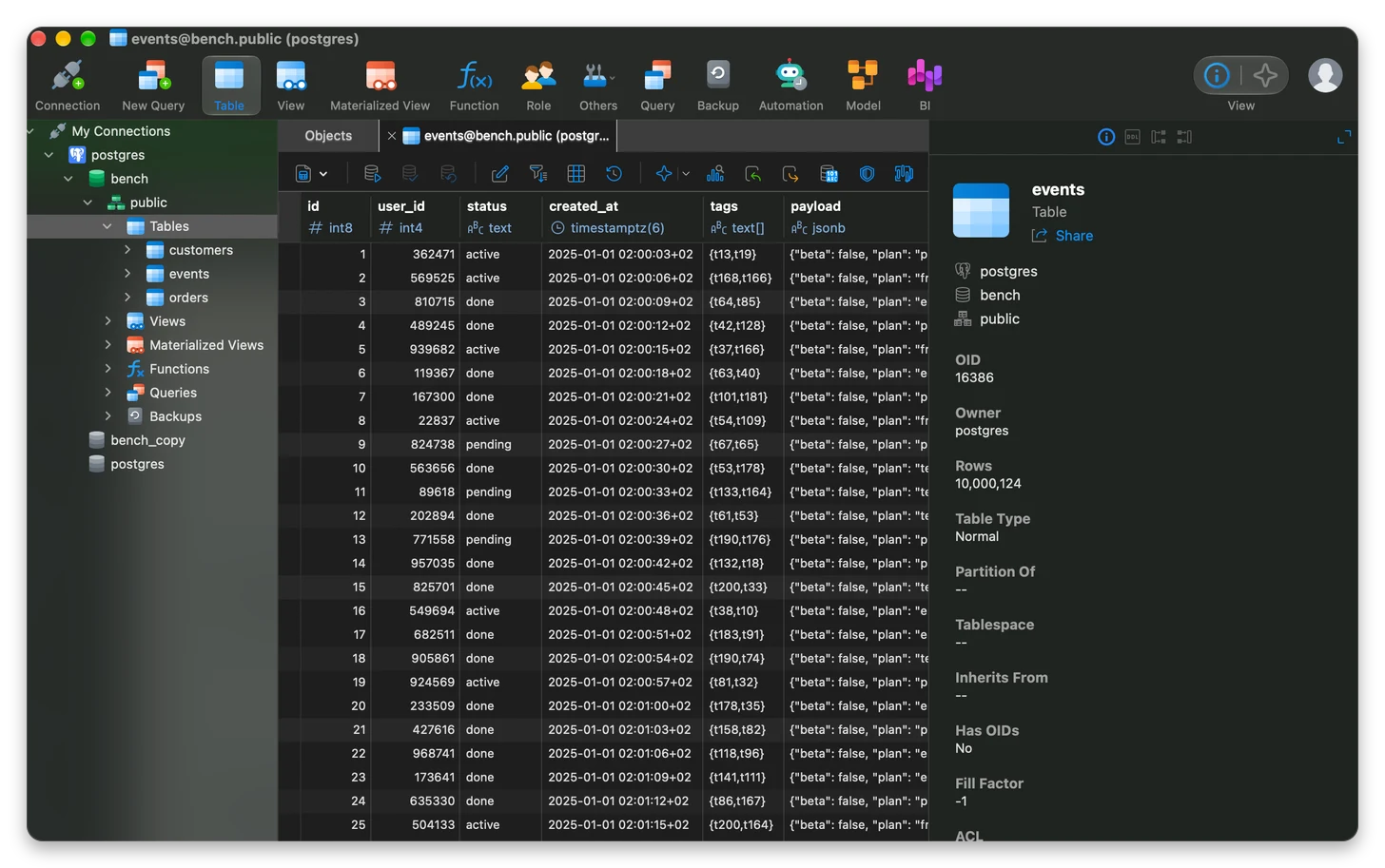
One detail is worth knowing. The info panel says Rows 10,000,124. The table has exactly 10,000,000 rows. The panel reads PostgreSQL’s planner statistics (pg_class.reltuples, which holds 10,000,124 here), not a count(*), and nothing marks the number as an estimate. It is a small thing, and an honest one to report.
Mistakes caught before you run the query
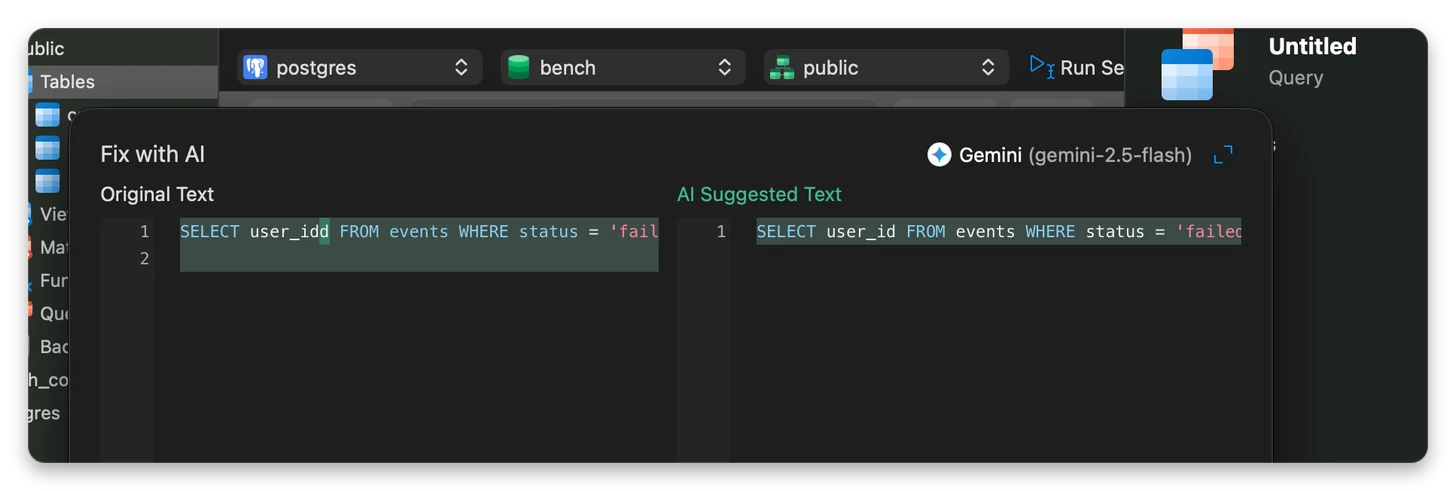
I typed SELECT user_idd FROM events WHERE status = 'failed', with a typo in the column name. Before I ran anything, user_idd was underlined in red. Hovering over it showed the message Identifier reference user_idd unfound in database [ln:1 col:8 len:8] with two buttons, Copy and Fix with AI.
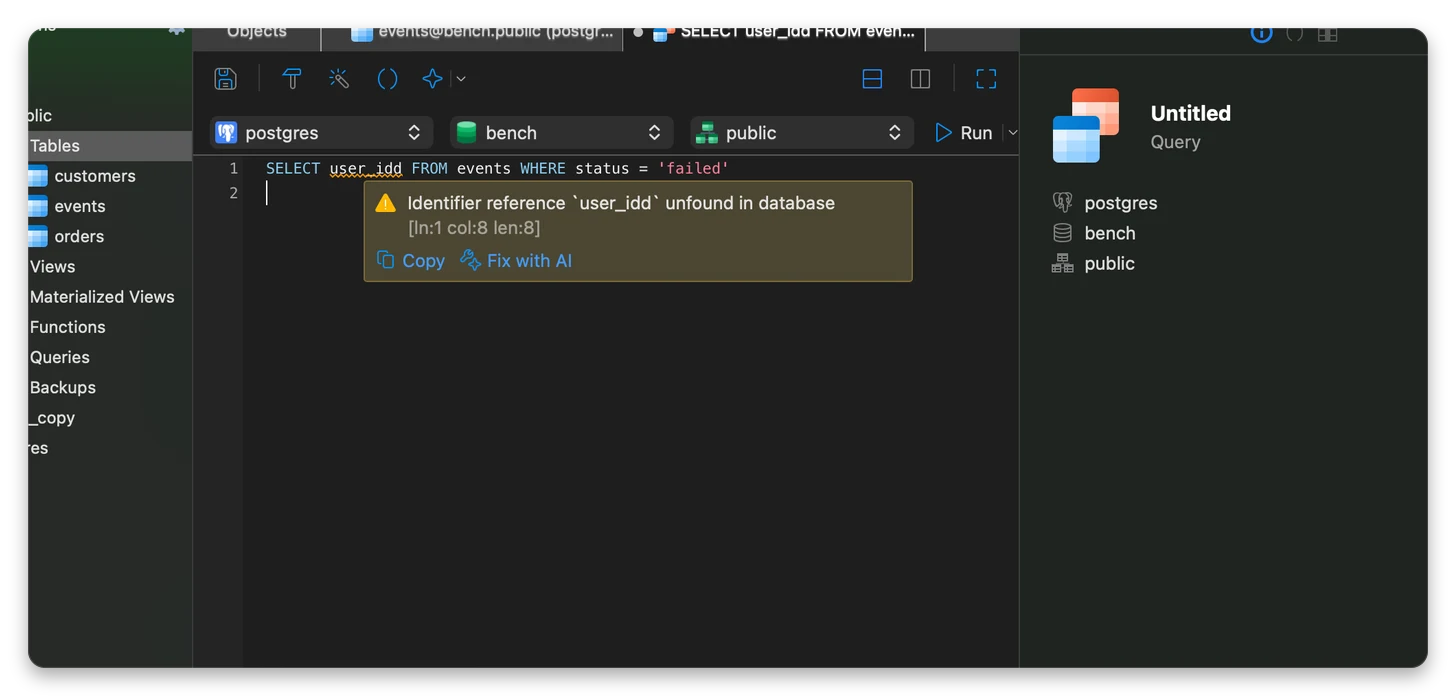
That is the live error check from the version 18 announcement, and it works. The check is against the real schema, not just against SQL syntax. The wording is a little stiff (“unfound in database”), and it does not suggest user_id on its own, but it points at the exact spot.
The suggestion comes from the second button. Fix with AI opens a dialog with the original text on the left and the AI’s text on the right, and nothing is replaced until you accept. Gemini 2.5 Flash corrected the typo to user_id. That preview-before-write behaviour matches what Navicat promises.
The AI needs an assistant first
There is no built-in model. Under Settings, AI the assistant list starts empty, and you add one with the plus button. The providers I saw: OpenAI ChatGPT, Google Gemini, Anthropic Claude, DeepSeek, xAI Grok, Alibaba Qwen, ByteDance Doubao, Moonshot Kimi, and then OpenAI Compatible, Ollama and LM Studio. There is also an option to compare answers from several assistants.
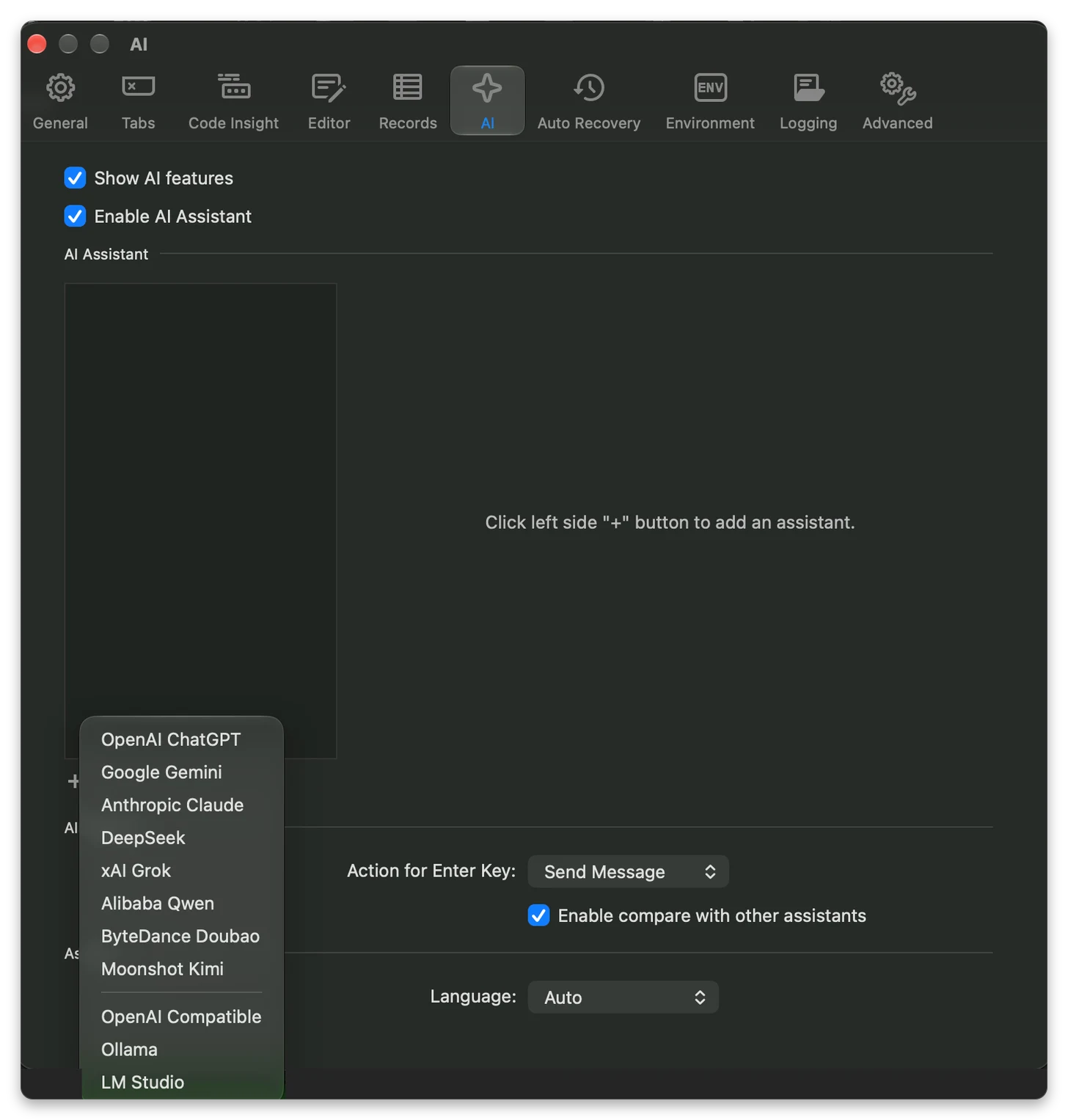
Two practical consequences. First, you bring your own assistant, so the AI features run on your provider’s key and terms. Second, the Attach Schema checkbox in the Fix with AI dialog was ticked, which means the table and column names go to the assistant you picked. That is a reason to try Ollama or LM Studio if your schema is sensitive.
Ask AI: read the SQL before you run it
I asked, in plain English: top 10 customers by total order amount. The suggestion came back with a preview, as before. It looked reasonable:
SELECT c.customer_id, c.customer_name, SUM(o.total_amount) AS total_order_amountFROM customers AS cJOIN orders AS o ON c.customer_id = o.customer_idGROUP BY c.customer_id, c.customer_nameORDER BY total_order_amount DESCLIMIT 10;It does not run as written. In my schema the columns are customers.id, customers.full_name and orders.total_cents. The three names the model chose are not in my schema, and PostgreSQL answered column c.customer_id does not exist.
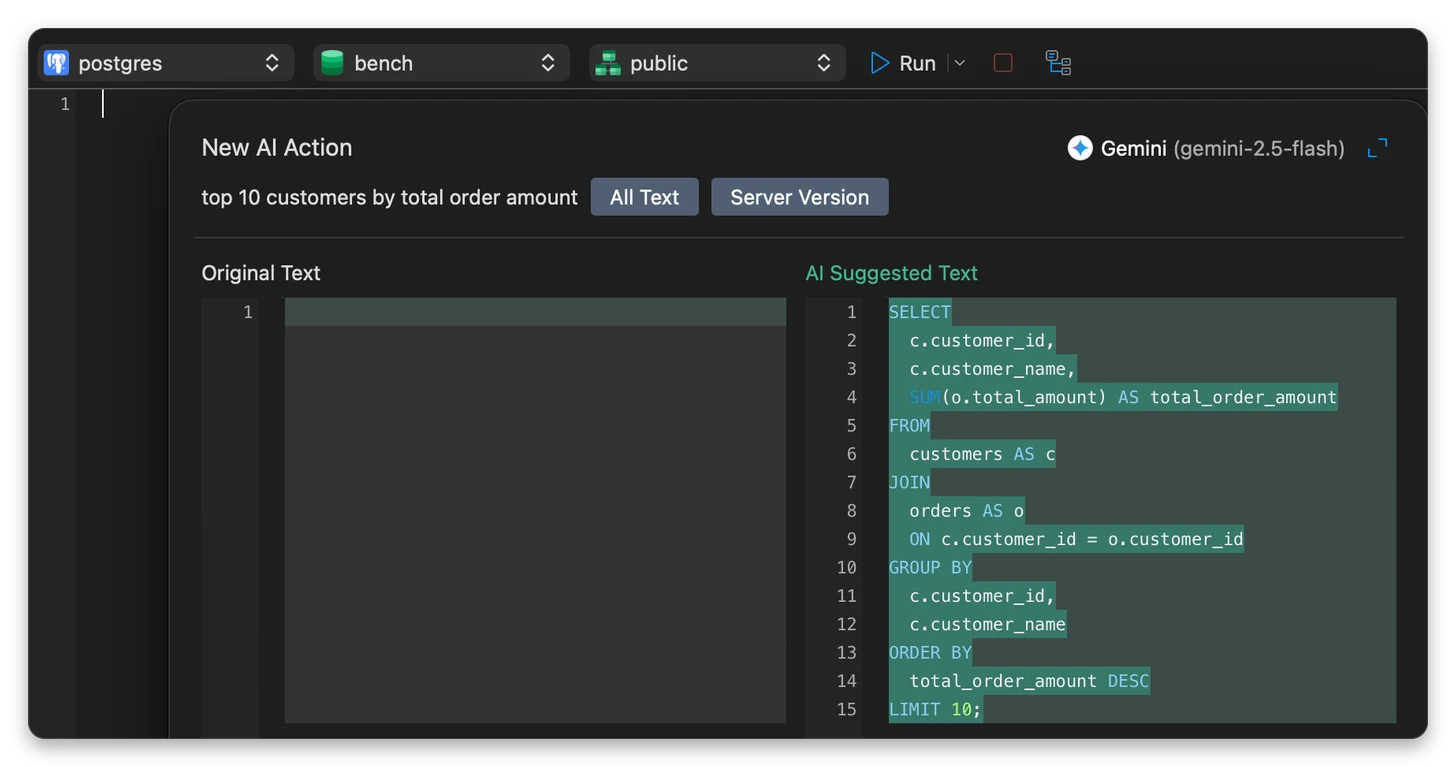
I do not claim this will happen to you. It is one answer from one model, and AI answers depend on the model you connect and on how much of your schema it sees. The dialog I saw had buttons named All Text and Server Version, and I did not find a way to attach the schema there, so the model may simply have guessed. The lesson holds either way: the preview shows the SQL, not whether it is correct. Read it, or run it on a copy, before you trust it.
Explain exists, but it is hidden
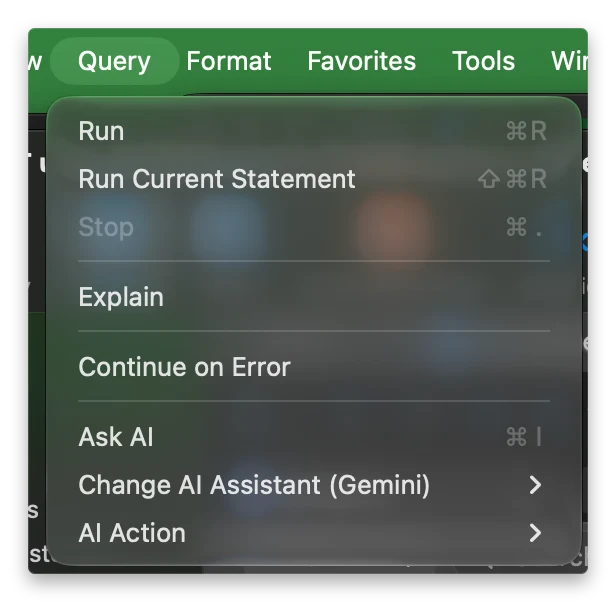
I fixed the query and looked for the plan. The Run button has a dropdown, and the dropdown holds Run, Run Current Statement and Continue on Error. No Explain. It is in the macOS menu bar under Query.
The plan opens in a panel with Visual, JSON, Text and Statistics views and a cost threshold slider. The visual plan for SELECT user_id FROM events WHERE status = 'failed' has two nodes: Gather (269593.38) and the table scan on events (260459.98), highlighted red as the expensive part.
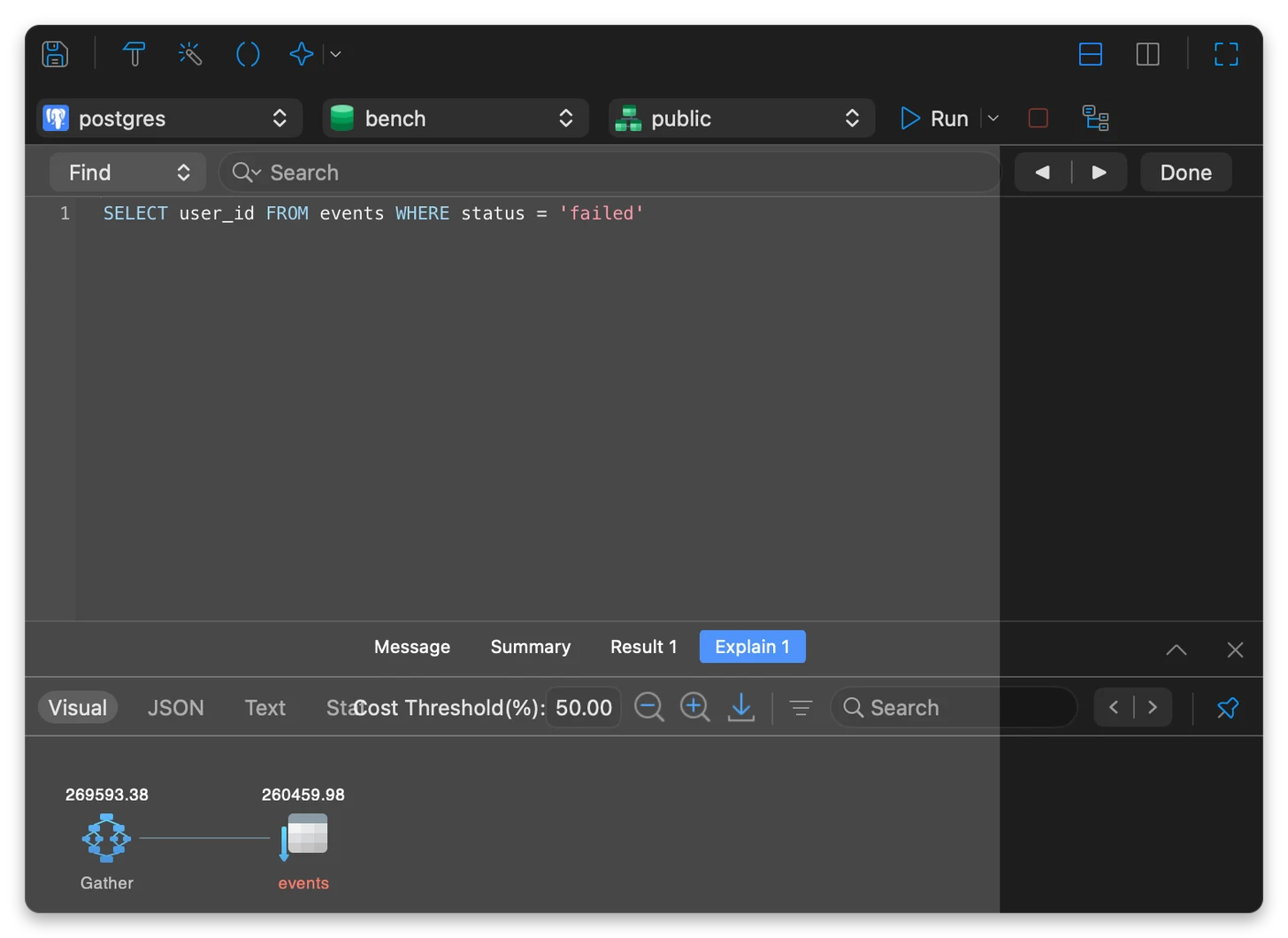
I ran EXPLAIN in psql on the same query to check, and the numbers match:
Gather (cost=1000.00..269593.38 rows=81334 width=4) Workers Planned: 2 -> Parallel Seq Scan on events (cost=0.00..260459.98 rows=33889 width=4) Filter: (status = 'failed'::text)So Navicat shows the real server plan, not an approximation. The costs are planner units, not milliseconds. With EXPLAIN ANALYZE the same query took about 205 ms and returned 84,979 rows, where the planner had expected 81,334. A sequential scan is what you should expect here: there is no index on status. In the index benchmark (run on PostgreSQL 18) a partial index on the rare failed rows answered this kind of query in about 0.125 ms.
Code completion works once a schema is selected
Navicat’s Code Insight settings had completion switched on. For a while it still suggested nothing. The reason was in the toolbar: after I reconnected, the schema selector next to the database was empty. Until I chose public, no table names were suggested and every identifier was flagged as unfound.
With public selected, typing FROM cust put customers first in the list, marked with its schema, followed by snippets, keywords and PostgreSQL functions.
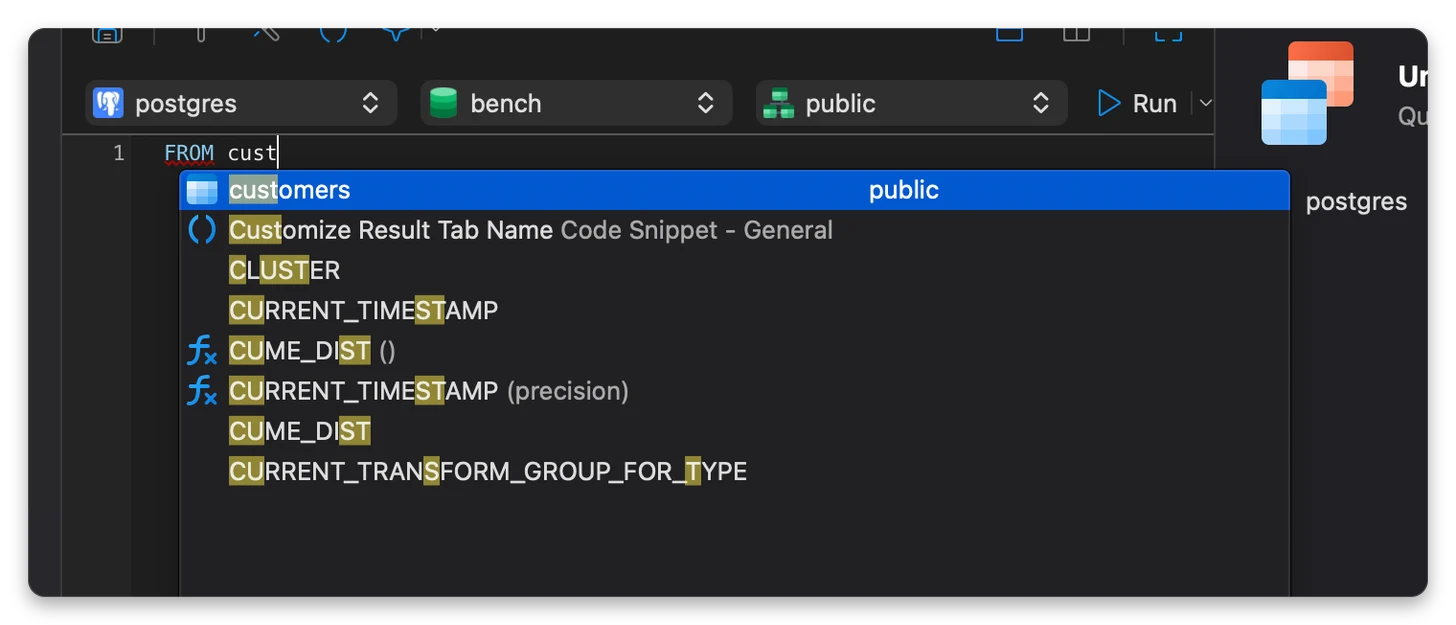
It is good once it runs. It is a silent failure until you know to check the schema selector, and a small warning there would save newcomers a few minutes.
Rename Symbol
I wrote SELECT c.full_name, o.total_cents FROM customers c JOIN orders o ON o.customer_id = c.id and tried to rename the alias c. The menu item (right-click, Refactor, Rename Symbol, shortcut Cmd+F2) was greyed out while I had text selected. With the cursor sitting inside the alias, it was enabled.
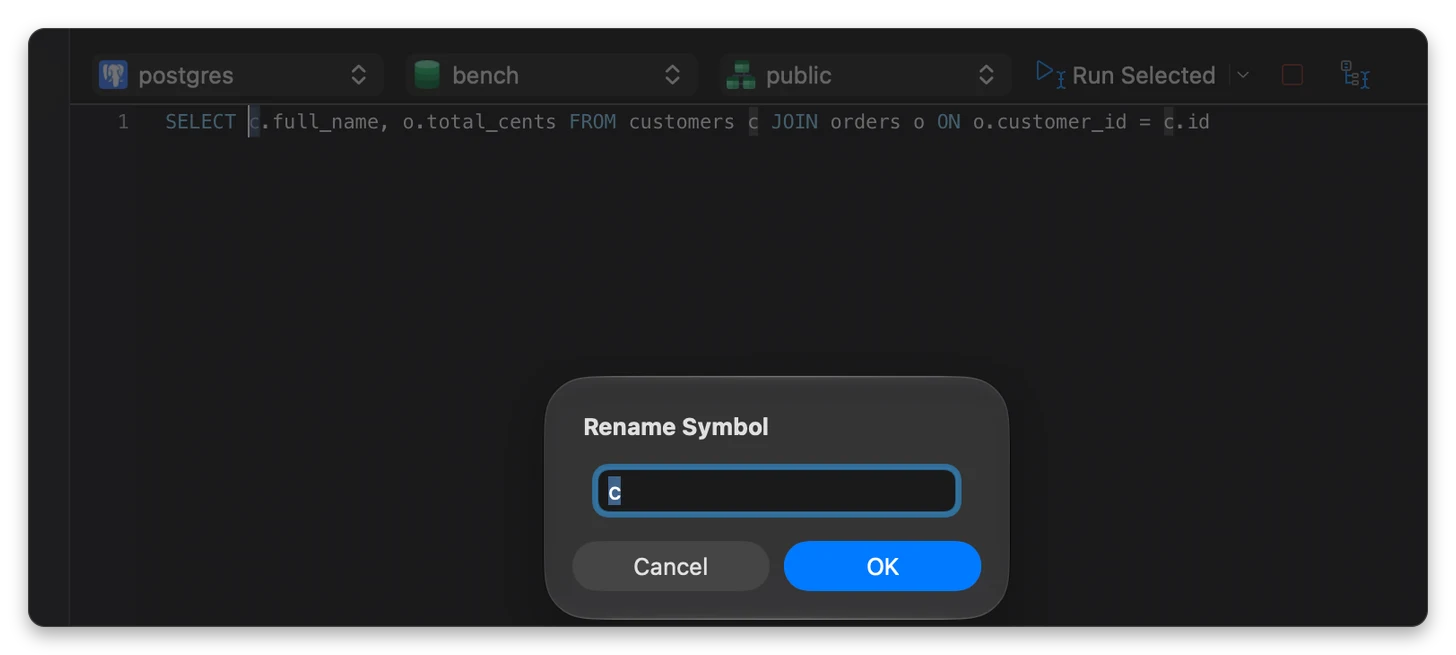
I typed cust. All three uses of the alias changed, the other alias o stayed untouched, and the query still ran.
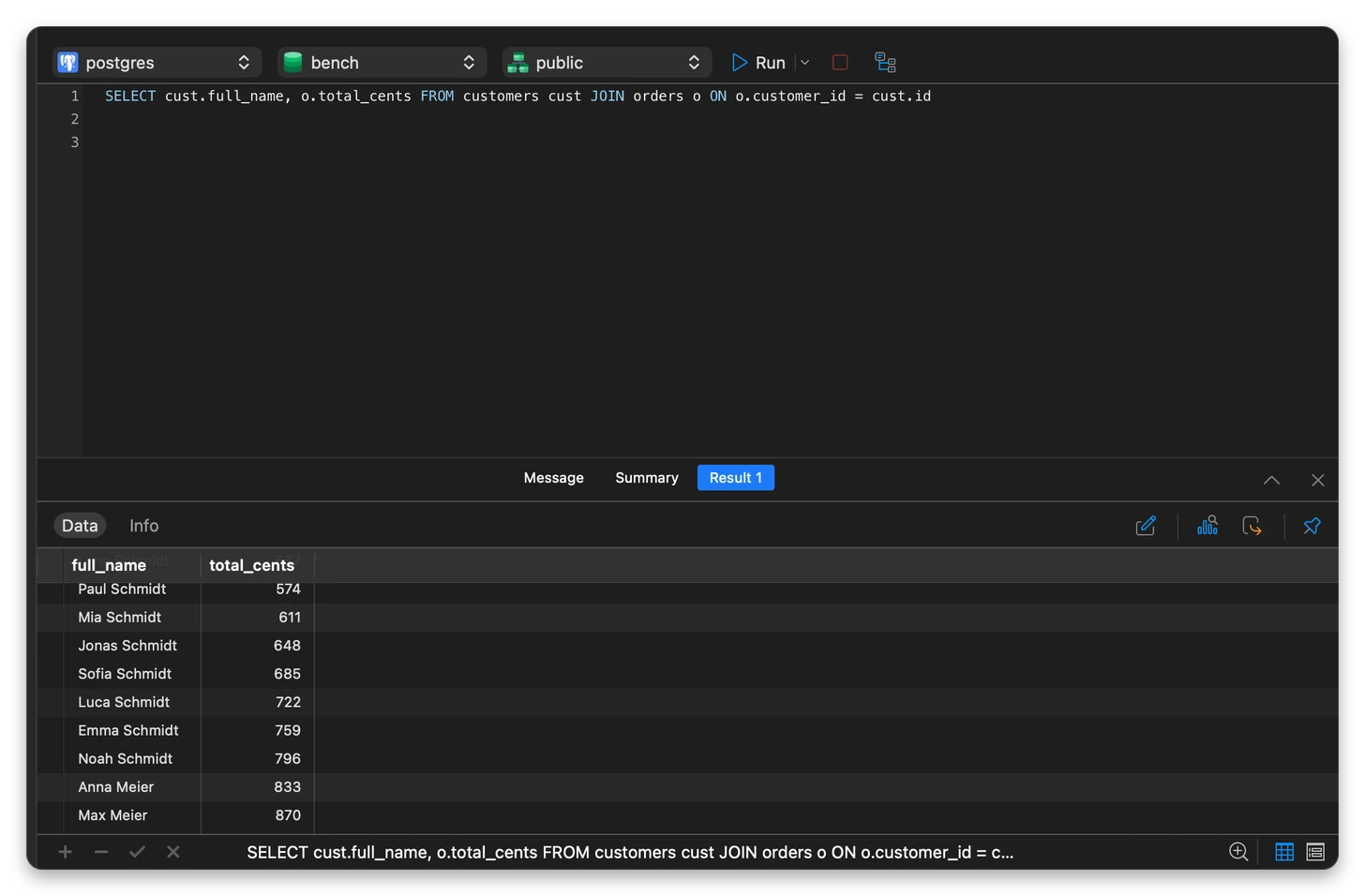
There is no separate list of changes to review in the dialog. The highlighting in the editor is the preview. For a query this size it was enough.
Data Masking: mask a copy and read the preview
Data Masking is in the context menu of a table, next to Data Generation, Data Dictionary and the import and export wizards.
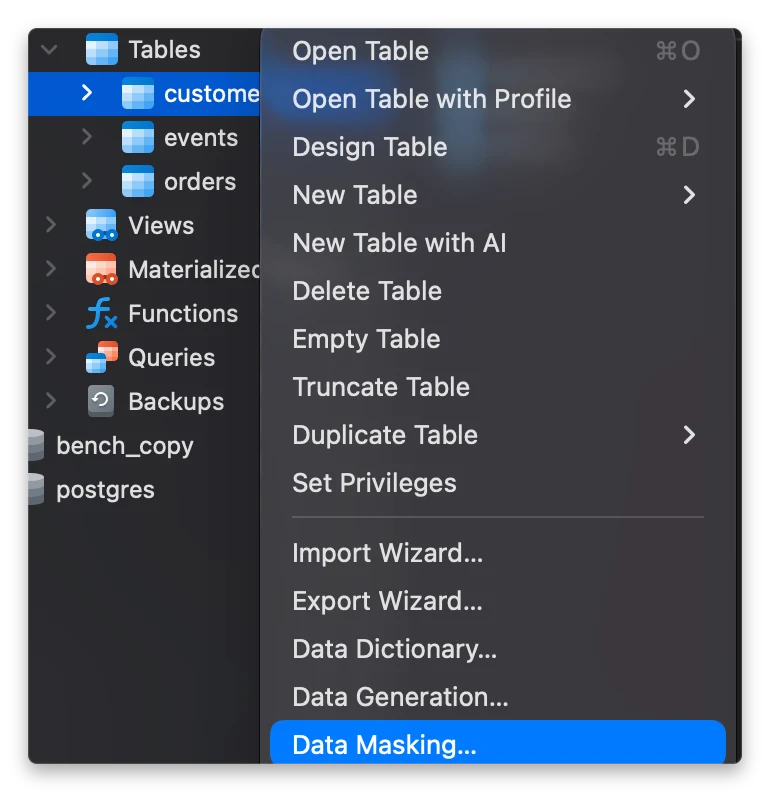
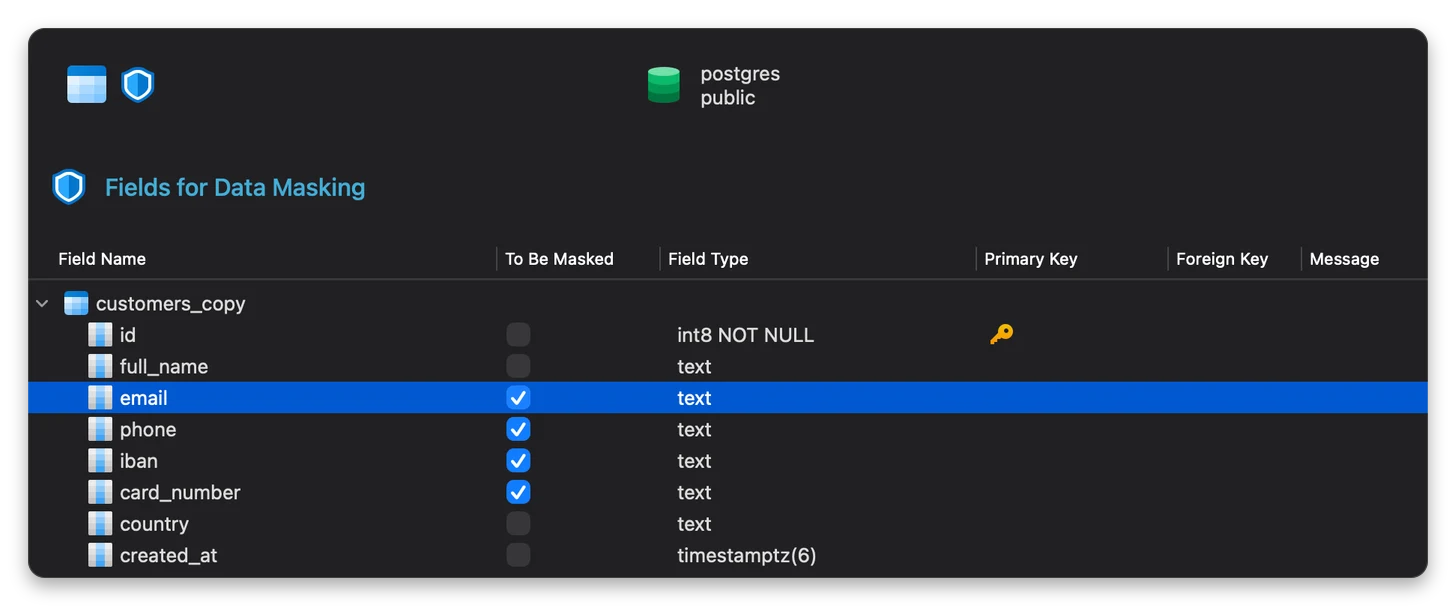
I ran it on a copy of customers: 50,000 rows with made-up names, e-mails, phone numbers, IBANs and card numbers. The first step lists every column with its type and key, so you do not mask a primary key by accident. I picked email, phone, iban and card_number.
Each column gets its own technique: Substitution, Variance, Hashing, Nulling or Shuffling. For card_number I used Substitution with the Credit Card Number category, kept the first 6 and last 4 characters and masked the rest with *. The preview pane shows input and output side by side before anything is written: 0000000015485863 becomes 000000******5863. My made-up numbers start with zeros, so the kept part looks plain here.
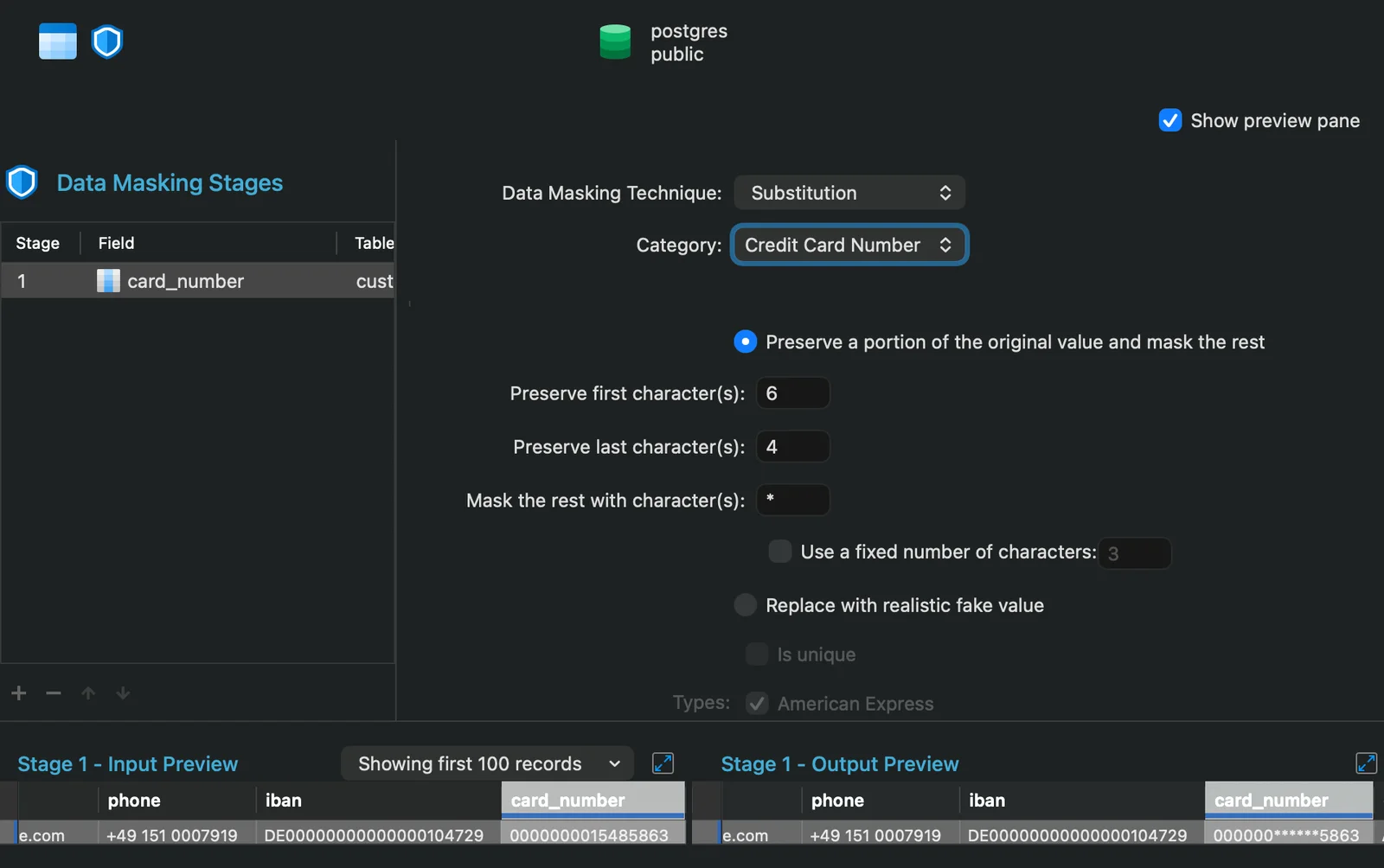
My first run was less tidy. The email, phone and iban columns came back as short numbers like -5 and 44 instead of text that looks like an e-mail address or a phone number. So the technique and category matter per column, and the preview is where you catch it before you write.
Two habits I would keep: run it on a copy, and read the preview for every column. I did not test the other techniques one by one, or masking on the 10 million row table.
What the free Lite edition covers
Navicat Premium Lite is free, and Navicat says it can be used commercially, with up to five complimentary user accounts per organization. It connects to PostgreSQL, MySQL, SQL Server, Oracle, MariaDB, Snowflake, MongoDB, Redis and SQLite from one app.
Navicat’s feature matrix (checked on 30 October) says what is in which edition. For the features I tried:
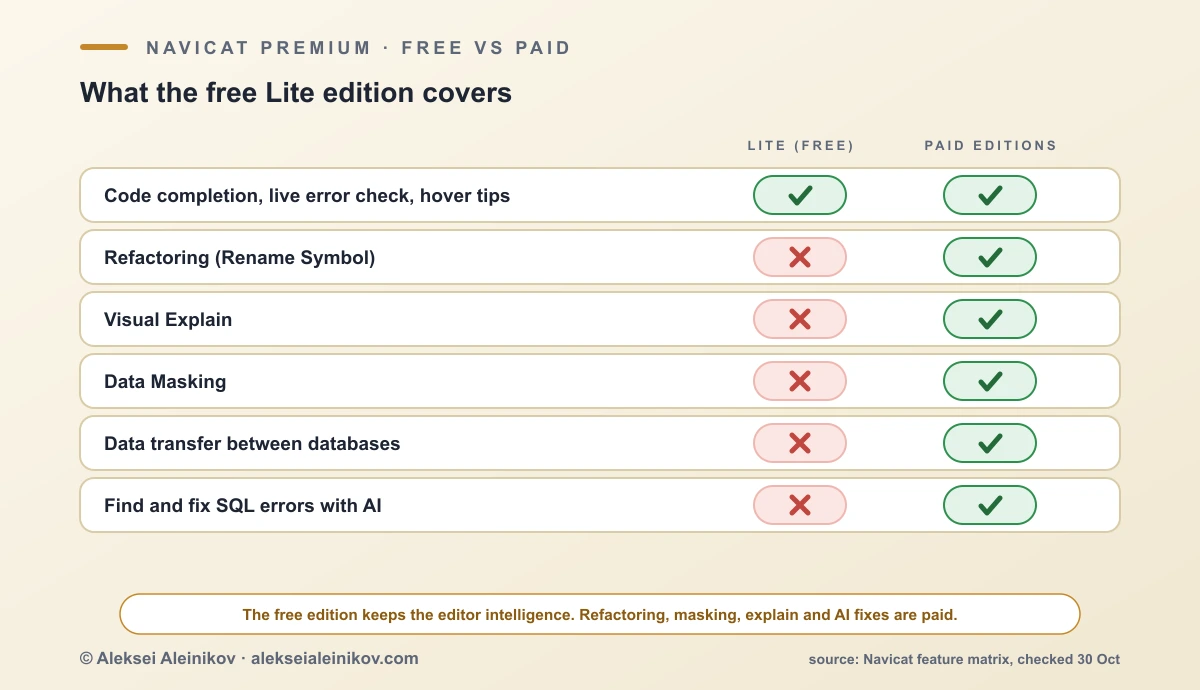
If you mostly write SQL against PostgreSQL, Navicat Premium Lite gets you the editor intelligence for free. The refactoring, Visual Explain and masking sit in the paid editions, and you can try them for 14 days from the Premium download page.
Navicat alternatives for PostgreSQL
Navicat is not the only way to do this. These are the clients people most often compare it with. I did not test them for this article, so this is only what each project says about itself:
| Tool | What it is | Cost |
|---|---|---|
| pgAdmin | The classic open-source admin tool made for PostgreSQL | Free |
| DBeaver | A client for many databases, with an open-source Community edition | Free Community edition, paid editions |
| HeidiSQL | A lightweight, open-source client, popular with MySQL and MariaDB users | Free |
| DataGrip | The database IDE from JetBrains | Commercial |
| phpMyAdmin | A browser-based tool for MySQL and MariaDB | Free |
If you only work with PostgreSQL and the budget is zero, pgAdmin, DBeaver Community or Navicat Lite will all do the basics. Navicat Premium is for people who want many database types in one polished window and are willing to pay for it.
What other users say
Independent reviews are few. On TrustRadius, Navicat has 4.45 out of 5 (8.9 out of 10) from 15 reviews, as of 31 October. Reviewers praise the clear interface, connecting several database types in one tool, and auto-complete. The common complaints are the price, a short trial and uneven documentation. AlternativeTo, which lists Navicat next to DBeaver, HeidiSQL and phpMyAdmin, shows about 80 likes. Treat both as small samples: some TrustRadius reviews are marked as incentivized.
The Bottom Line
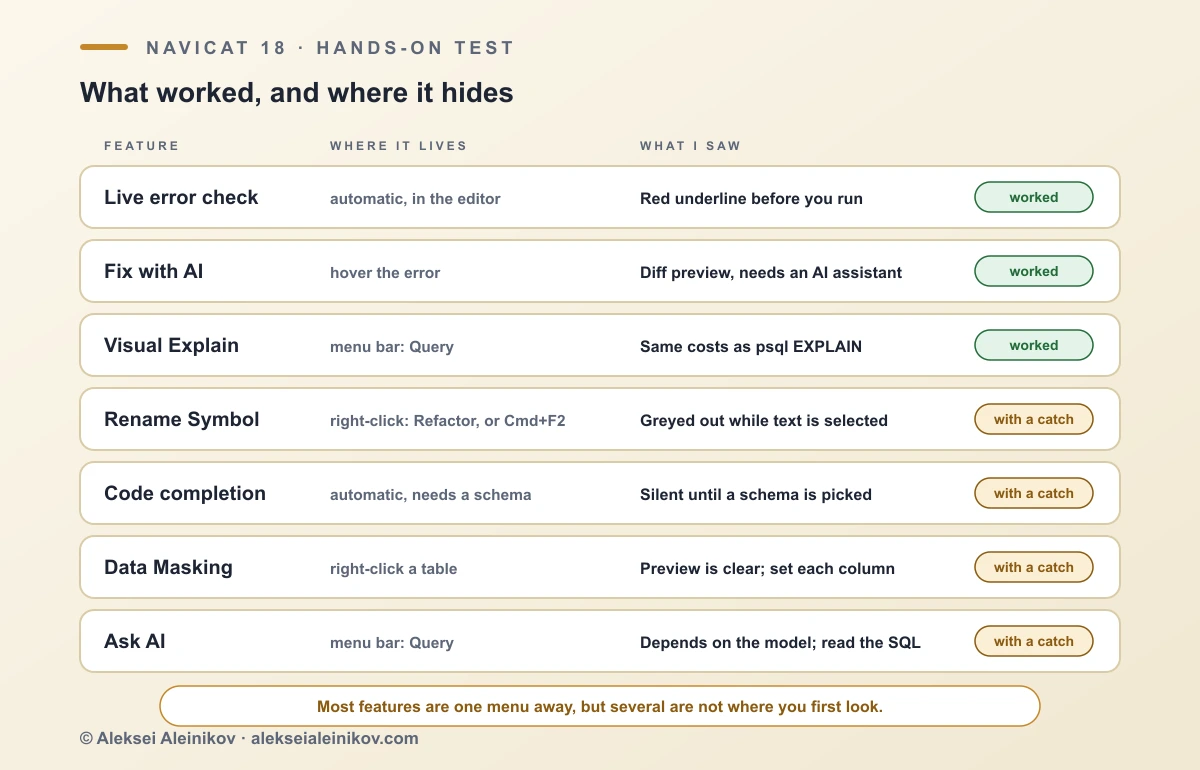
The live error check and the Fix with AI preview did what Navicat promises. Explain gives you the real plan, and Rename Symbol is useful. The weak spots are discoverability, not capability: Explain is in a menu you would not look at, Rename is greyed out for a reason you have to guess, and completion is silent until you set a schema.
The AI answer I got needed a fix, and a preview does not tell you whether the SQL is right. Treat Ask AI like any other suggestion: read it, and run it on a copy. If privacy matters, point the assistant at Ollama or LM Studio.
Who it fits. If you write SQL against PostgreSQL every day and want the editor to catch mistakes early, the free Lite edition already covers a good part of that. The paid editions make sense if you would use Rename Symbol, Visual Explain or masking regularly, or if you work across several database types, which I did not test here.
A preview shows you what will be written. It does not tell you whether it is right.
Giveaway: three Navicat licenses
Navicat is giving away three one-year licenses: Navicat Premium, Navicat BI and Navicat Monitor. Enter with your email below, and winners are drawn at random from the confirmed entries. Subscribing to my newsletter is an optional bonus checkbox and is not required to take part.
Originally published at alekseialeinikov.com


