Finding the right code editor for Python development can be tricky. Many developers explore numerous editors as they grow and learn. To choose the right code editor, you have to start by knowing which features are important to you. Then, you can try to find editors that have those features. One of the most feature-rich editors available is Emacs.
Emacs started in the mid-1970s as a set of macro extensions for a different code editor. It was adopted into the GNU project by Richard Stallman in the early 1980s, and GNU Emacs has been continuously maintained and developed ever since. To this day, GNU Emacs and the XEmacs variant are available on every major platform, and GNU Emacs continues to be a combatant in the Editor Wars.
In this tutorial, you’ll learn about using Emacs for Python development, including how to:
- Install Emacs on your selected platform
- Set up an Emacs initialization file to configure Emacs
- Build a basic Python configuration for Emacs
- Write Python code to explore Emacs capabilities
- Run and Test Python code in the Emacs environment
- Debug Python code using integrated Emacs tools
- Add source control functionality using Git
For this tutorial, you’ll use GNU Emacs 26 or later, although most of the techniques shown will work on older versions (and XEmacs) as well. You should have some experience developing in Python, and your machine should have a Python distribution already installed and ready to go.
Updates:
- 10/09/2019: Major update adding new code samples, updated package availability and info, basic tutorial, Jupyter walk-through, debugging walk-through, testing walk-through, and updated visuals.
- 11/03/2015: Initial tutorial published.
You can download all the files referenced in this tutorial at the link below:
Download Code: Click here to download the code you’ll use to learn about Emacs for Python in this tutorial.
Installation and Basics
Before you can explore Emacs and all it has to offer a Python developer, you need to install it and learn some of the basics.
Installation
When you install Emacs, you have to consider your platform. This guide, provided by ErgoEmacs, provides everything you need to get up and running with a basic Emacs installation on Linux, Mac, or Windows.
Once the installation has finished, you can start Emacs:
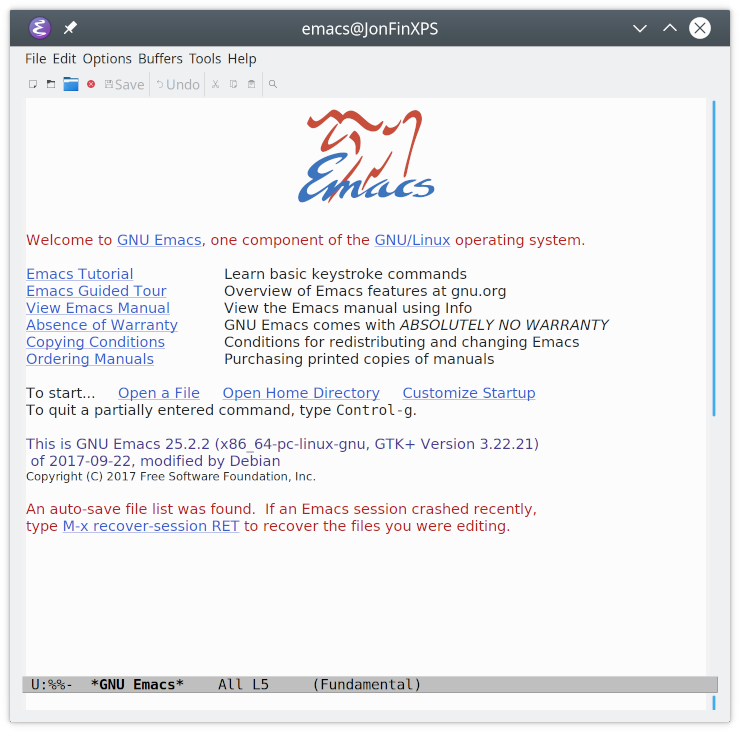
You should be greeted with the default startup screen.
Basic Emacs
First, let’s go through a quick example to cover some basic Emacs for Python development. You’ll see how to edit a program using vanilla Emacs, and how much Python support is built into the program. With Emacs open, use the following steps to create a quick Python program:
- Hit Ctrl+X Ctrl+F to open a new file.
- Type
sieve.pyto name the file. - Hit Enter.
- Emacs may ask you to confirm your choice. If so, then hit Enter again.
Now type the following code:
1MAX_PRIME = 100 2 3sieve = [True] * MAX_PRIME 4for i in range(2, MAX_PRIME): 5 if sieve[i]: 6 print(i) 7 for j in range(i * i, MAX_PRIME, i): 8 sieve[j] = False You may recognize this code as the Sieve of Eratosthenes, which finds all primes below a given maximum. As you type the code, you’ll notice:
- Emacs highlights variables and constants differently from Python keywords.
- Emacs indents lines following
forandifstatements automatically. - Emacs changes the indentation to appropriate locations when you hit Tab on an indented line.
- Emacs highlights the opening bracket or parenthesis whenever you type a closing bracket or parenthesis.
- Emacs responds as expected to the arrow keys, as well as the Enter, Backspace, Del, Home, End, and Tab keys.
There are some odd key mappings in Emacs, however. If you try to paste code into Emacs, for instance, then you may find the standard Ctrl+V keystroke doesn’t work.
The easiest way to learn which keys do what in Emacs is to follow the built-in tutorial. You can access it by positioning the cursor over the words Emacs Tutorial on the Emacs start screen and pressing Enter, or by typing Ctrl+H T at any time thereafter. You’ll be greeted with the following passage:
Read the full article at https://realpython.com/emacs-the-best-python-editor/ »
[ Improve Your Python With 🐍 Python Tricks 💌 – Get a short & sweet Python Trick delivered to your inbox every couple of days. >> Click here to learn more and see examples ]


