When I started learning computer programming late in the last millennium, it was driven by my desire to write computer games. I tried to figure out how to write games in every language and on every platform I learned, including Python. That’s how I discovered pygame and learned how to use it to write games and other graphical programs. At the time, I really wanted a primer on pygame.
By the end of this article, you’ll be able to:
- Draw items on your screen
- Play sound effects and music
- Handle user input
- Implement event loops
- Describe how game programming differs from standard procedural Python programming
This primer assumes you have a basic understanding of writing Python programs, including user-defined functions, imports, loops, and conditionals. You should also be familiar with how to open files on your platform. A basic understanding of object-oriented Python is helpful as well. pygame works with most versions of Python, but Python 3.13 is recommended and used throughout this article.
You can get all of the code in this article to follow along:
Sample Code: Click here to get the complete game code, images, and sounds used in this tutorial.
Take the Quiz: Test your knowledge with our interactive “Pygame: A Primer on Game Programming in Python” quiz. You’ll receive a score upon completion to help you track your learning progress:
Interactive Quiz
Pygame: A Primer on Game Programming in PythonTest your understanding of Pygame by working through questions on surfaces, the game loop, sprite groups, collision detection, and frame rate.
Background and Setup
pygame is a Python wrapper for the SDL library, which stands for Simple DirectMedia Layer. SDL provides cross-platform access to your system’s underlying multimedia hardware components, such as sound, video, mouse, keyboard, and joystick. pygame started life as a replacement for the stalled PySDL project. The cross-platform nature of both SDL and pygame means you can write games and rich multimedia Python programs for every platform that supports them!
To install pygame on your platform, use the appropriate pip command:
$ pip install pygame You can verify the install by loading one of the examples that comes with the library:
$ python3 -m pygame.examples.aliens If a game window appears, then pygame is installed properly! If you run into problems, then the Getting Started guide outlines some known issues and caveats for all platforms.
Basic Pygame Program
Before getting down to specifics, let’s take a look at a basic pygame program. This program creates a window, fills the background with white, and draws a blue circle in the middle of it:
1# Simple pygame program 2 3# Import and initialize the pygame library 4import pygame 5pygame.init() 6 7# Set up the drawing window 8screen = pygame.display.set_mode([500, 500]) 9 10# Run until the user asks to quit 11running = True 12while running: 13 14 # Did the user click the window close button? 15 for event in pygame.event.get(): 16 if event.type == pygame.QUIT: 17 running = False 18 19 # Fill the background with white 20 screen.fill((255, 255, 255)) 21 22 # Draw a solid blue circle in the center 23 pygame.draw.circle(screen, (0, 0, 255), (250, 250), 75) 24 25 # Flip the display 26 pygame.display.flip() 27 28# Done! Time to quit. 29pygame.quit() When you run this program, you’ll see a window that looks like this:
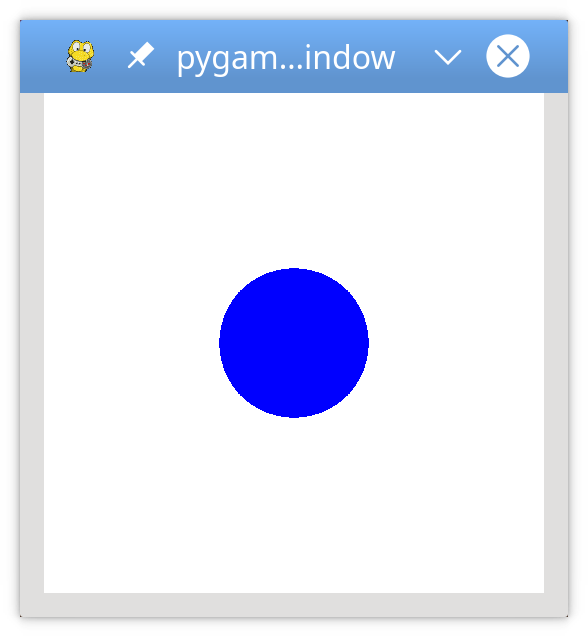
Let’s break this code down, section by section:
-
Lines 4 and 5 import and initialize the
pygamelibrary. Without these lines, there is nopygame. -
Line 8 sets up your program’s display window. You provide either a list or a tuple that specifies the width and height of the window to create. This program uses a list to create a square window with 500 pixels on each side.
-
Lines 11 and 12 set up a game loop to control when the program ends. You’ll cover game loops later on in this tutorial.
-
Lines 15 to 17 scan and handle events within the game loop. You’ll get to events a bit later as well. In this case, the only event handled is
pygame.QUIT, which occurs when the user clicks the window close button. -
Line 20 fills the window with a solid color.
screen.fill()accepts either a list or tuple specifying the RGB values for the color. Since(255, 255, 255)was provided, the window is filled with white. -
Line 23 draws a circle in the window, using the following parameters:
screen: the window on which to draw(0, 0, 255): a tuple containing RGB color values(250, 250): a tuple specifying the center coordinates of the circle75: the radius of the circle to draw in pixels
-
Line 26 updates the contents of the display to the screen. Without this call, nothing appears in the window!
-
Line 29 exits
pygame. This only happens once the loop finishes.
That’s the pygame version of “Hello, World.” Now let’s dig a little deeper into the concepts behind this code.
Pygame Concepts
As pygame and the SDL library are portable across different platforms and devices, they both need to define and work with abstractions for various hardware realities. Understanding those concepts and abstractions will help you design and develop your own games.
Initialization and Modules
Read the full article at https://realpython.com/pygame-a-primer/ »
[ Improve Your Python With 🐍 Python Tricks 💌 – Get a short & sweet Python Trick delivered to your inbox every couple of days. >> Click here to learn more and see examples ]


