Choosing the best IDE or code editor for Python means weighing your skill level, project type, and workflow in a landscape that has changed dramatically in recent years. AI-first editors have arrived, and well-established tools have added AI integrations. This guide cuts through the noise and maps each tool to the situations where it fits best.
The Python ecosystem now spans six categories of coding tools. You’ll walk through each one, learn what distinguishes the tools within each category, and end with a flowchart that maps common scenarios to concrete recommendations.
Here’s a quick overview of the situations you’re most likely to encounter and the tools that fit each one:
| Situation | Tools to Consider |
|---|---|
| Learning or teaching Python | IDLE, Thonny |
| Professional development (GUI) | Visual Studio Code, PyCharm, GitHub Codespaces |
| Professional development (terminal) | Neovim (Vim), Emacs |
| Data science or machine learning | JupyterLab, Google Colab, marimo, Spyder, Positron |
| AI-assisted coding | Cursor, Kiro, Zed, PyCharm with JetBrains AI Assistant, or VS Code with GitHub Copilot |
| Coding in the browser with no local setup | GitHub Codespaces, Google Colab, Real Python Exercises |
With this overview, you’re ready to explore the main features of these tools. First, you’ll get a quick peek at what makes a good code editor for Python.
Get Your Cheat Sheet: Click here to download your free Python IDEs and code editors cheat sheet (PDF) and match the right tool to your skill level, project type, and workflow.
Take the Quiz: Test your knowledge with our interactive “The Best IDEs and Code Editors for Python (Guide)” quiz. You’ll receive a score upon completion to help you track your learning progress:
Interactive Quiz
The Best IDEs and Code Editors for Python (Guide)Test your grasp of Python IDEs and code editors, from beginner-friendly tools to notebooks, AI-first editors, and cloud workspaces.
What Makes a Good Python Code Editor?
Before you dive into specific tools, it helps to know what features matter when choosing a Python integrated development environment (IDE) or code editor.
Most general-purpose Python editors provide these basic features:
- Syntax highlighting: Color-codes keywords, strings, and identifiers so you can scan code at a glance.
- Code completion: Autocompletes names as you type, drawing not just on the current file but also on your installed packages and type stubs.
- Linting and type checking: Flags likely bugs before you run the code, using tools like Pylint, Ruff, or mypy.
- Integrated debugging: Lets you step through code, inspect variables, and set breakpoints without leaving the editor.
- Virtual environment and package management awareness: Detects active virtual environments automatically and uses the right Python interpreter and packages.
- Code formatting: Keeps your code consistently styled using formatters like Black or Ruff, with no manual effort.
Other features are less universal, but they’ve become standard in modern professional workflows:
- Git integration: Staging, committing, and reviewing diffs in place saves you the context switching of a separate Git client.
- AI assistance: Ranges from inline completions to multi-file chat and agentic refactoring, and from lightweight extensions to editors designed around AI.
Nowadays, the level of AI integration you want is one of the main axes for choosing a coding tool. If deep AI integration is what you’re looking for, then you can skip ahead to the section on AI-first editors. However, if you’re new to Python, then you’ll want to avoid tooling complexity, and the beginner-friendly IDEs and editors in the next section are a better starting point.
Beginner-Friendly IDEs and Editors
If you’re just starting with Python, the worst thing an editor can do is get in your way before you write a single line of code. The two tools in this category are designed around that principle: minimal setup, clear feedback, and no configuration.
IDLE
IDLE is the standard Python IDE and ships with the official Python installer on Windows and macOS. You can launch it from the Start menu on Windows and from the Launchpad on macOS.
On Linux, you can install IDLE separately with the sudo apt install idle command on Ubuntu or Debian. Then run idle in the terminal to start the Python shell with a code editor attached. There’s nothing to configure and no account to create.
Here’s where to read the docs, grab the installer, and go deeper with Real Python’s IDLE resources:
| Resource | Link |
|---|---|
| Documentation | docs.python.org/idle |
| Download or install | python.org/downloads |
| Real Python | Getting Started With Python IDLE and Starting With Python IDLE |
The editor includes syntax highlighting, a basic debugger, and an interactive REPL that lets you test code ideas immediately. The interface is minimal by design. You get the essentials and nothing more.
IDLE is a practical choice for working through the Python documentation, experimenting with short scripts, or teaching a single concept in a classroom setting where you can’t rely on students having anything else installed.
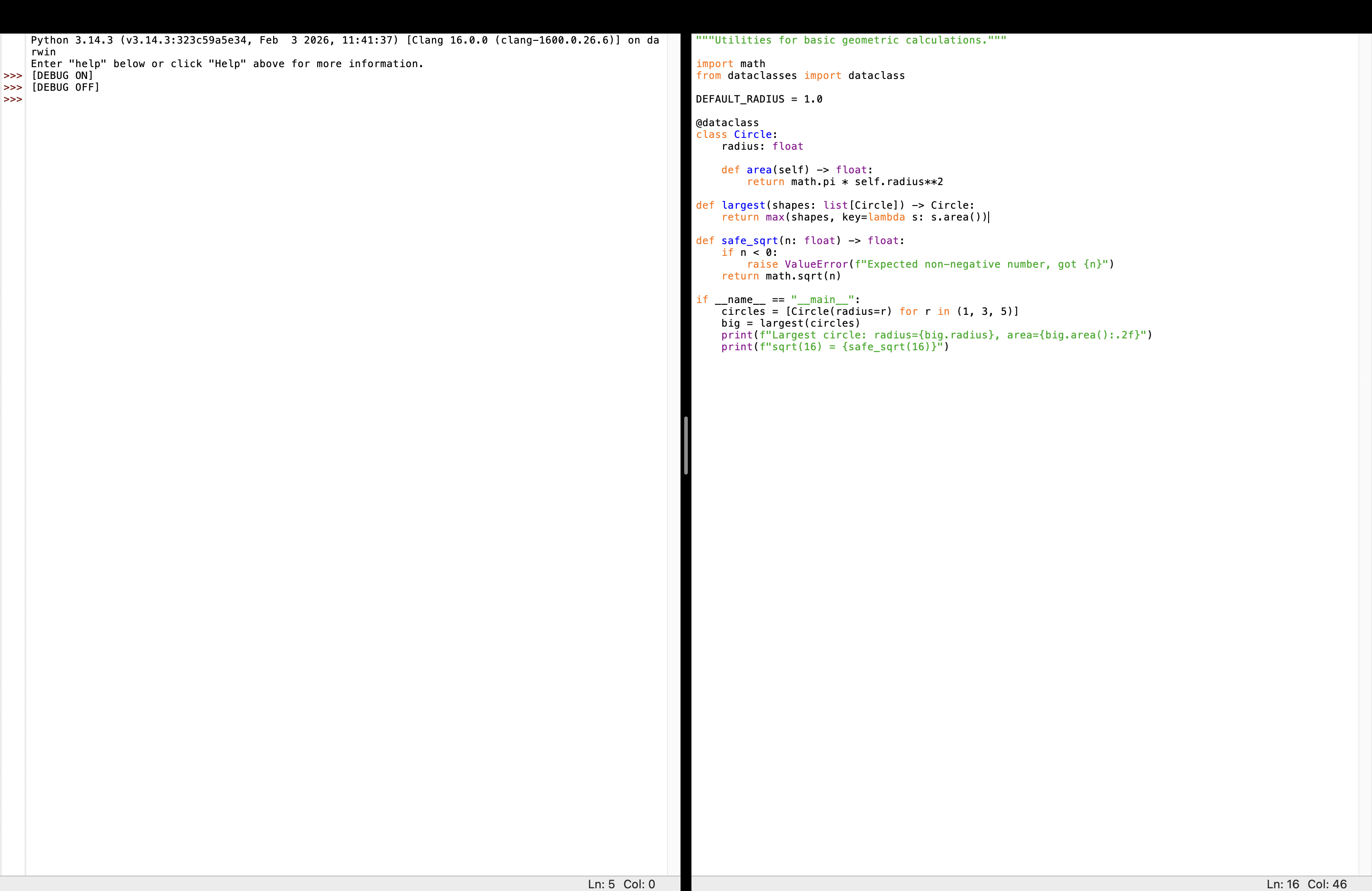
Here’s IDLE’s main interface, with its REPL and editor window side by side:
Read the full article at https://realpython.com/python-ides-code-editors-guide/ »
[ Improve Your Python With 🐍 Python Tricks 💌 – Get a short & sweet Python Trick delivered to your inbox every couple of days. >> Click here to learn more and see examples ]


