Organizations often use audit logs to track who did what to which data in the database, and when. Previously, AWS CloudTrail data events provided visibility into connection attempts to Amazon Aurora DSQL clusters, but not into the SQL statements that ran after a connection was established. With audit logging, Aurora DSQL now extends this visibility to SQL statements and delivers the audit logs to Amazon Simple Storage Service (Amazon S3).
Organizations that implement audit logging often ask three questions. Can every operation be recorded, including SELECT? How much log volume does recording everything produce? And can you limit recording to the roles and operations that need it?
In this post, we give an overview of Aurora DSQL audit logging. We show how to configure it with the AWS Command Line Interface (AWS CLI) and psql to choose which statements to record. We also explain the main fields of an audit record, how to query the audit logs in Amazon S3 with Amazon Athena, and how to match them with Aurora DSQL change data capture (CDC) records by transaction ID. Finally, we list what to review before you adopt audit logging.
Overview of audit logging
Audit logging records the SQL statements that you choose to log. Aurora DSQL groups statements into classes, following the same approach as PostgreSQL Audit Extension (pgAudit), and you choose what to record by class. In the configuration, you list class names separated by commas, such as read,write. To exclude a class, put a minus sign (-) in front of it, as in all,-misc. Class names aren’t case sensitive.
| Class | Examples |
READ | SELECT, COPY |
WRITE | INSERT, UPDATE, DELETE |
DDL | All DDL that is not included in the ROLE class |
ROLE | GRANT, REVOKE, CREATE / ALTER / DROP ROLE |
FUNCTION | Function calls |
MISC | Other commands, such as SHOW and SET. Includes MISC_SET. |
MISC_SET | SET and RESET commands only. Records for these statements show the class MISC. |
ALL | All of the preceding classes |
NONE | None of the preceding classes. Changes to audit settings are still recorded. |
Aurora DSQL delivers the audit records to the S3 bucket that you specify, through Amazon CloudWatch vended log delivery. By default, each file is gzip-compressed JSON with one record per line. The following figure shows how audit records flow from the cluster to the S3 bucket.
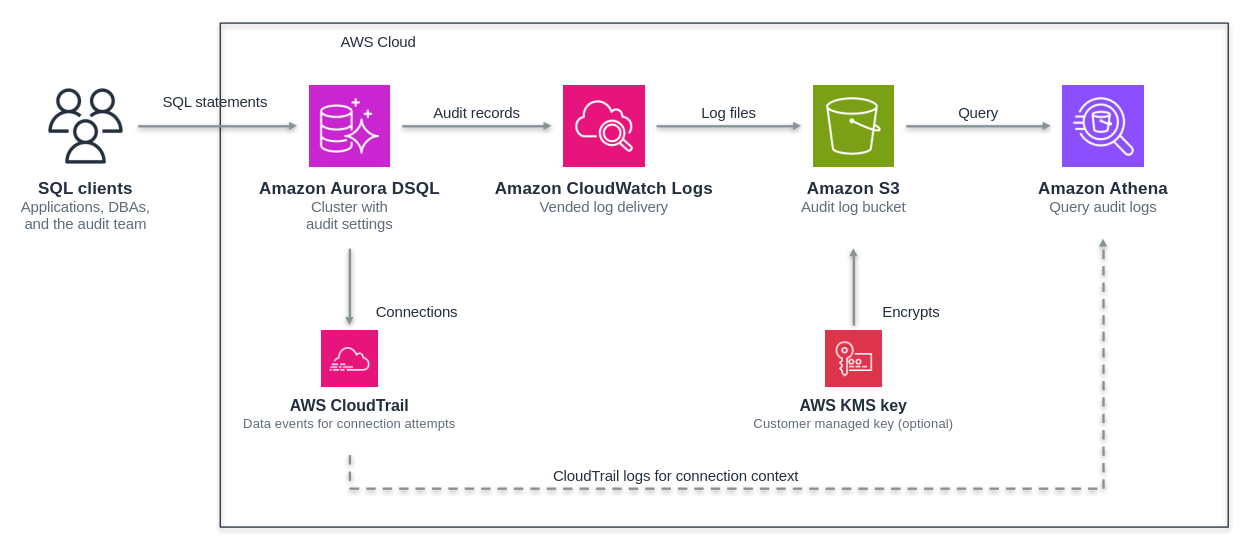
Figure 1: How audit records flow from an Aurora DSQL cluster to the destination S3 bucket
Audit logging records SQL statements executed within a session. To track connection attempts to the cluster, use CloudTrail data events. CloudTrail records these attempts as DbConnect events for roles other than admin and DbConnectAdmin events for the admin role. To identify the source of a connection, enable CloudTrail data events alongside audit logging. CloudTrail data events are disabled by default and incur additional charges. For instructions on enabling data events for your cluster, see Logging Aurora DSQL operations using AWS CloudTrail in the Aurora DSQL User Guide.
Configure audit logging
Organizations that implement audit logging typically consider the following:
- Identify who performed an operation.
- Record the operations in scope.
- Protect the records from tampering and from unnecessary access, especially when they contain sensitive data.
- Keep the records for a set period.
- Prevent the people being audited from stopping the recording.
This section shows how you can address each one with an audit setting, a destination configuration, or a CloudTrail event. It then walks through a setup that separates the duties of the audit team from those of database administrators (DBAs). Work with your security and audit teams to determine the configuration that fits your organization.
Two things to configure
Aurora DSQL starts producing audit logs when you configure two things: where to send the logs and what to record. Neither is configured by default, so Aurora DSQL doesn’t produce audit logs until you set up both.
| Setting | Where you set it | How you set it |
| Where to send logs (destination) | AWS APIs | Amazon CloudWatch Logs vended log delivery APIs (AWS Management Console, AWS CLI, AWS SDKs, or AWS CloudFormation) |
| What to record | SQL in the database | ALTER SYSTEM SET for the cluster baseline, and ALTER ROLE ... SET or the SQL function sys.set_audit_config for individual roles |
AWS Identity and Access Management (IAM) controls access to the destination, and CloudTrail logs any changes to it. A PostgreSQL role that holds the audit administration privilege sets what to record, and you map that role to the IAM role that your audit team uses.
You set a baseline for the whole cluster with ALTER SYSTEM SET and override it for the roles that need different recording. For example, you can record more for administrators than for other roles. As admin, you can set a role’s recording with ALTER ROLE ... SET, as in ALTER ROLE db_admin SET dsql_audit.log = 'ddl,role,write,read'. If you separate the duties of DBAs and the audit team, a dedicated audit administration role sets it with the SQL function sys.set_audit_config instead, as the walkthrough later in this post shows.
In a multi-Region cluster, the baseline and the per-role settings apply to the peered clusters in every Region. Log delivery is configured for each cluster, so set up a delivery for each peered cluster. Until every Region has a delivery source, Aurora DSQL rejects changes to audit settings.
When changes take effect
Changes to per-role settings apply only to new sessions that connect using the specified role and may take a few minutes to propagate. These settings do not apply to roles that inherit membership in the specified role. Existing sessions retain the settings that were in effect when they connected.
Unlike per-role changes, baseline changes also affect existing sessions. After a baseline change, an existing session may encounter a single OC002 error (SQLSTATE 40001) on its next statement. Subsequent statements execute using the updated baseline settings. Creating or deleting a delivery source has the same effect on existing sessions.
Before modifying the baseline or creating or deleting a delivery source, ensure that your applications can retry statements that fail with OC002.
What stops audit logging
If you delete the delivery with the Amazon CloudWatch Logs DeleteDelivery API, audit logging stops in that Region within a few minutes, and statements that run while there is no delivery aren’t recorded. If you delete the destination S3 bucket instead, Aurora DSQL keeps generating audit records and attempting delivery, but they can’t be delivered.
Delivery is set up for the cluster that you register as the delivery source. A cluster restored from a backup is a different cluster. It keeps the audit settings, but it records nothing until you set up delivery for it. Set up delivery for the restored cluster before you send traffic to it.
You can set the following five settings as the cluster baseline or for individual roles.
| Setting | Default | Description |
dsql_audit.log | none | Specifies which classes of statements are logged. |
dsql_audit.log_rows | off | Specifies that audit logging should include the number of rows retrieved or affected by a statement, in the rows_affected field. When off, records do not include the field. |
dsql_audit.log_parameter | off | Specifies that audit logging should include the parameters that were passed with the statement, in the parameters field. |
dsql_audit.log_parameter_max_size | 0 (no limit) | Specifies that parameter values longer than this setting (in bytes) should not be logged, but replaced with <long param suppressed>. |
dsql_audit.log_statement | on | Specifies whether logging will include the statement text and parameters (if turned on). Records of audit setting changes always include the statement text. |
How each requirement maps to settings
To address these common requirements, you combine the audit settings with the configuration of the destination S3 bucket, as the following table shows.
| Requirement | How Aurora DSQL and the destination meet it |
| Separation of duties | Only the audit administration role and the admin role can set what to record. Do not let DBAs connect as admin. Only IAM principals that you allow can change the destination. |
| Scope of recording | Choose the statement classes to record, as a cluster baseline and for individual roles. |
| Handling sensitive data | Aurora DSQL doesn’t record bound values by default, and you can turn off recording of SQL statement text. For clusters that use a customer managed key, Aurora DSQL encrypts the SQL statement text and bound values with that key. |
| Tamper protection and retention | S3 Object Lock and S3 lifecycle rules. |
| Identifying who performed an operation | Records include the IAM identity and the PostgreSQL role. CloudTrail data events provide the connection source. |
Separation of duties
Separation of duties means that the DBAs being audited can’t stop or narrow the recording of their own operations. In Aurora DSQL, only a role with the audit administration privilege (pg_dsql_audit_admin) can set what to record. You can grant this privilege to a role other than the DBA role. An audited role can’t change its own settings with sys.set_audit_config, SET, ALTER ROLE, or ALTER SYSTEM. A DBA role that has the CREATEROLE attribute still can’t grant itself the audit administration privilege or modify the audit administration role.
Only IAM principals that you allow can change the destination. Together, these two controls separate the permissions of DBAs from those of the audit team. This separation holds only if you create a dedicated audit administration role and do not give the audit privilege to DBAs.
The admin role can also change audit settings, so do not let DBAs connect as admin: allow the IAM action dsql:DbConnectAdmin only to a small group of cluster administrators, such as a break-glass role. Have DBAs connect through a separate IAM role that is mapped to a PostgreSQL role that doesn’t hold the audit administration privilege.
Changes to audit settings are always recorded, even when the role that makes the change records nothing else and even when the change is made as admin. The admin role and roles with the audit administration privilege can stop recording for their own session with SET, but the SET statement itself is recorded. Deleting the delivery or changing the key policy of the cluster’s KMS key, by contrast, stops audit logging without an error. Set up notifications for these operations, and do not give DBAs permission to perform them.
Scope of recording
The scope of recording depends on which operations you need to record. If you need to record data access itself, you need the READ class, which covers SELECT. Applications usually run far more SELECT statements than writes, so recording READ can multiply log volume. One approach is to record permission changes (ROLE), schema changes (DDL), and data changes (WRITE) in the baseline, and add READ for administrators and other roles that people use directly. To also record how many rows each statement processed, turn on dsql_audit.log_rows.
Because you can’t narrow the scope to specific tables, one option is to move processing that touches sensitive data to dedicated database roles and add READ only for those roles. Start by recording broadly in a test environment and measuring the volume. Then decide the production scope based on the results. This helps you avoid both gaps in the record and excessive log volume.
Sensitive data
For sensitive data, the records themselves can be a risk, because SQL statement text and bound values can contain names, account numbers, card numbers, and similar data. Aurora DSQL doesn’t record bound values by default. If you do not need to keep the values, it’s safer to leave the setting off. If you do record them, you can leave out long values with dsql_audit.log_parameter_max_size. This doesn’t mask values. Short values are recorded as they are.
However, values written directly in a SQL statement remain in the statement text regardless of the bound value settings. For roles where the statement class is enough, you can turn off dsql_audit.log_statement so that the statement text isn’t recorded either. For statements other than DDL, the statement text is the only field that shows which tables were accessed, so turning it off also removes that information.
If your cluster uses an AWS Key Management Service (AWS KMS) customer managed key, Aurora DSQL encrypts the SQL statement text and bound values with that key before delivery. The key policy needs two statements. One lets Aurora DSQL (dsql.amazonaws.com) use the key to encrypt these fields. The other lets the log delivery service (delivery.logs.amazonaws.com) use the key to decrypt them when it delivers the records. Otherwise, the records are dropped rather than sent in plaintext. When you change the key policy, confirm that audit logs keep arriving. For the statements to add, see Key management in the Aurora DSQL User Guide.
Encrypt the destination bucket with server-side encryption with AWS KMS keys (SSE-KMS) and use the bucket policy to allow only the audit team to read it. If you encrypt the bucket with SSE-KMS, use a customer managed key and allow the log delivery service (delivery.logs.amazonaws.com) to use it in the key policy. For the key policy statement to add, see the Amazon S3 bucket server-side encryption section of Logs sent to Amazon S3 in the Amazon CloudWatch Logs User Guide. Without that key policy statement, the log delivery service can’t deliver any files to the bucket. When you create the delivery, CloudWatch Logs adds a statement to the bucket policy that lets the log delivery service write to the bucket and keeps any existing statements. If the bucket policy contains a NotAction or NotPrincipal element, add that statement yourself before you create the delivery.
Tamper protection and retention
You handle tamper protection and retention in the destination S3 bucket. In a bucket with S3 Object Lock turned on, an object with a retention period can’t be overwritten or deleted until the period ends. Because a bucket that contains objects can’t be deleted, this also keeps the destination bucket from being deleted while audit logs are under retention. Compliance mode gives the strongest protection, because no user, including the root user, can delete the objects during the retention period. However, a mistake in its configuration leaves you with objects that you can’t delete. Test the behavior in governance mode first, then switch to compliance mode. In governance mode, users with the s3:BypassGovernanceRetention permission can delete protected objects. Deny that permission while you test to confirm that the protection works as expected.
Delivery works with buckets that have Object Lock turned on, and each delivered file gets the bucket’s default retention period. Set the retention period to match your organization’s requirements and policies, and use lifecycle rules to move logs that are rarely accessed to a lower-cost storage class. For example, you can keep recent logs in S3 Standard so that you can query them with Athena, and then use lifecycle rules to move older logs to an Amazon S3 Glacier storage class.
Identifying who performed an operation
To identify who performed an operation, use the IAM identity in each record. Because you connect to Aurora DSQL with IAM authentication, a single audit log record shows which IAM role acted as which database role. The audit log doesn’t include the client IP address. To find it, match the audit records with the connection records in CloudTrail. A CloudTrail connection event shows the result of IAM authorization, not whether the database login succeeded.
Set up audit logging with separation of duties
In this walkthrough, you set up audit logging with a dedicated audit administration role, a DBA role that can’t change audit settings, and an application role.
Prerequisites
You need an Aurora DSQL cluster, a destination S3 bucket, the AWS CLI, and psql. Use the latest version of the AWS CLI. The examples use the US East (N. Virginia) AWS Region (us-east-1), the cluster ID <cluster-id>, and the S3 bucket <audit-bucket>. The steps take about 30 minutes. These steps assume that the cluster already exists. The IAM principal that runs the steps needs the following permissions:
- To set up delivery:
logs:PutDeliverySource,logs:PutDeliveryDestination, andlogs:CreateDelivery. To clean up:logs:DescribeDeliveries,logs:DeleteDelivery,logs:DeleteDeliverySource, andlogs:DeleteDeliveryDestination. - To allow log delivery for the cluster:
dsql:AllowVendedLogDeliveryForResourceon the cluster. TheAmazonAuroraDSQLFullAccessandAmazonAuroraDSQLConsoleFullAccessmanaged policies include it. - To add the bucket policy:
s3:GetBucketPolicyands3:PutBucketPolicy. - To connect:
dsql:DbConnectAdminto connect asadmin, anddsql:DbConnectto connect as other roles.
At this point, Aurora DSQL doesn’t produce audit logs yet.
Step 1: Create the log delivery
First, register the S3 bucket as the destination for audit logs. For details about each command, see Setting up audit log delivery in the Aurora DSQL User Guide. When you create the delivery, CloudWatch Logs adds a bucket policy that lets the log delivery service write to AWSLogs/<account-id>/dsql/ in the bucket, so you do not need to write the policy yourself.
Step 2: Create the database roles
Next, connect as admin, create three database roles, and map each one to an existing IAM role:
audit_admin, which only manages audit settings, to AuditTeam.db_admin, a DBA who creates tables and grants privileges, to DbaTeam.app_user, which the application uses, to AppRole.
To connect, generate an authentication token with the AWS CLI and pass it to psql as the password. To connect as a role other than admin, use generate-db-connect-auth-token instead, and set --username to the database role.
Then run the following statements.
pg_dsql_admin is a built-in role that has the database administration privileges that admin has by default, without audit authority. It doesn’t let a role create roles or access schemas that admin creates, so grant CREATEROLE and the schema privileges separately, as shown in the preceding example. Do not grant pg_dsql_audit_admin to db_admin.
Each of the three IAM roles needs dsql:DbConnect on the cluster to connect as its database role. AuditTeam also needs read access to the destination bucket (s3:GetObject, plus kms:Decrypt if the bucket uses SSE-KMS) to review the logs. Do not give DbaTeam dsql:DbConnectAdmin, or permission to delete the delivery or change the cluster’s key policy, so that DBAs can’t connect as admin or stop audit logging.
Step 3: Set what to record
Then, using the audit team’s IAM role, connect as audit_admin, set what to record for each role, and finally set the cluster baseline. With a baseline, operations by roles that DBAs create later are also recorded. In this example, db_admin, which people use directly, records READ as well, and app_user, which the application uses, records everything except READ. Both record the number of rows processed.
The settings apply to new sessions that connect as each role. Reconnect as db_admin, run the following statement, and confirm that it shows ddl,role,write,read. If it shows none, wait a few minutes and reconnect.
Step 4: Run test statements
Finally, to confirm that statements are recorded, run DDL, a permission change, and a SELECT as db_admin, and DML and a SELECT as app_user. Aurora DSQL runs each DDL statement in its own transaction, so leave psql in autocommit mode.
The following table shows the records that these operations should produce. The sys.set_audit_config calls by audit_admin are also recorded as audit setting changes. You check the actual records later in “Query audit logs in S3 with Amazon Athena.”
| Role | Statement | Class | Recorded? |
db_admin | CREATE TABLE | DDL | Yes, plus a CREATE INDEX record for app.orders_pkey |
db_admin | GRANT | ROLE | Yes |
db_admin | SELECT | READ | Yes (READ is set) |
app_user | INSERT, UPDATE, DELETE | WRITE | Yes, with the number of rows processed (3, 2, and 1) |
app_user | SELECT | READ | No (READ isn’t set) |
Use audit log fields
This section explains what the main fields in an audit log record tell you. The other fields identify the cluster, the session, and the position of the statement within the session.
Who performed the operation: IAM identity and PostgreSQL role
The iam_arn field records the ARN of the IAM role used to connect, iam_principal records the unique ID of that role, and session_user records the PostgreSQL session user. Because you connect to Aurora DSQL with IAM authentication, both appear in the same record, so a single record shows which IAM role acted as which database role. The ARN doesn’t include the IAM session name, so if several people assume the same IAM role, the audit log alone can’t tell them apart. To identify individuals, give each person or team its own IAM role. To find the client IP address, join the audit records with the CloudTrail connection records on session_id. The Athena section later in this post shows how.
Which operations ran together: Transaction ID
The transaction_id field records the ID of the transaction in which the statement ran. Grouping records by this ID shows the operations that ran in one transaction.
If you use Aurora DSQL CDC, you can use the transaction ID to match audit log records with CDC change records. CDC records the full new row for INSERT and UPDATE, and the primary key for DELETE, so you can trace which IAM role ran the statement that set each row to its new value. For a setup that keeps CDC change records as history, see Unlocking real-time analytics: Streaming Aurora DSQL changes into Apache Iceberg. SELECT doesn’t change data, so it doesn’t appear in CDC, and only the audit log records reads.
The audit log transaction_id and the CDC source.txId hold the same value, so you can join them directly. There are two differences. Statements from a rolled-back transaction appear in the audit log but not in CDC. And when one transaction changes the same row several times, CDC delivers only the final state of the row, but the audit log records each statement. The following example joins the audit records of data changes with CDC records that you saved from Amazon Kinesis Data Streams as one JSON document per line in cdc.jsonl.
For the operations in the hands-on in the previous section, the output looks like the following. Transaction IDs and the account ID are replaced with placeholders, and row IDs are shortened.
When one statement changes several rows, its record appears once for each changed row. In this example, one INSERT statement changed three rows, and one UPDATE statement changed two. Every change is attributed to AppRole, connected as app_user.
What was done: SQL statement and bound values
The class and command fields record the statement class and command, and statement_text records the full text of the SQL statement, so you can see which tables a statement touched. For DDL and calls to user-defined functions, object_type and object_name also identify the target object. Calls to built-in functions in pg_catalog and sys do not produce FUNCTION records. For GRANT and REVOKE on an object, object_type shows the type of the object. When you investigate permission or schema changes, filter by class and then read the statement text to show exactly what changed.
The parameters field records the values bound to a prepared statement, as a single comma-separated values (CSV) string in the same format as pgAudit, such as c-bind,42. Values that contain commas or quotation marks are quoted, so standard CSV parsers can read them. Applications usually pass search conditions and new values as bound values, so decide on this setting based on whether you need to keep the values. For example, turn it on if you need to trace which customer’s data was read, and leave it off if the statement type and target table are enough. When bound values aren’t recorded, the field shows <not logged>, and for statements without bound values it shows <none>. If you turn it on, design access control and retention for the destination together, as described in Configure audit logging.
How much was processed: Row count
The rows_affected field records the number of rows that the statement changed, or for SELECT, the number of rows it returned. Row counts are recorded only for roles with dsql_audit.log_rows turned on. For other roles, records do not include the rows_affected field. A SELECT that returns a large number of rows can be a sign of data exfiltration, and a DML statement that changes many more rows at once than usual can be a sign of a mistake.
Query audit logs in S3 with Amazon Athena
In this section, you create an Athena table over the audit logs in S3 and run example queries for common audit tasks. You first confirm that the operations from the previous section were recorded. At the end, you match the records with CloudTrail connection records to add the connection source.
Create the table
Audit logs are stored under AWSLogs/<account-id>/dsql/<region>/yyyy/MM/dd/HH/ in the bucket, with file names such as <account-id>_dsql_audit_logs_<region>_<yyyyMMddTHH>Z_<id>.log.gz. Because the path includes the date and hour, you can use Athena partition projection to compute time ranges from the path. You do not need to add partitions, and queries read only the files for the hours you specify.
database is a reserved word in Athena DDL, so enclose it in backticks. Fields that do not apply to a statement, such as object_name or rows_affected, are left out of the record, and Athena returns NULL for them. The table defines rows_affected as a string and the queries convert it with TRY_CAST, so that a value that isn’t a number doesn’t stop a query. The log_hour column is a string such as 2026/11/02/10. Always filter on this column in your queries. Otherwise, Athena reads every stored file, which takes time and costs more.
S3 destinations can also receive audit logs in Apache Parquet format instead of JSON. If you specify --output-format parquet in aws logs put-delivery-destination, files arrive at the same path with names that end in .log.parquet, and row counts and statement numbers are stored as numbers. Athena reads only the columns that a query needs, so Parquet suits logs that you keep for a long time and query repeatedly. To use Parquet, change the table definition as follows. Because the numeric columns are defined as bigint, the queries do not need TRY_CAST.
Check the records
First, confirm that the operations from the previous section were recorded. The following query lists the records for the relevant hours in the order they ran. The example queries in this post show times in UTC. To show local time, add AT TIME ZONE with your time zone, such as AT TIME ZONE 'America/New_York'.
Confirm that the records match the table in the previous section: the SELECT by db_admin is included, the SELECT by app_user isn’t, and the INSERT, UPDATE, and DELETE by app_user statements include the number of rows processed. Records can take several minutes to reach S3 after the statements run. The following figure shows example results of this query.
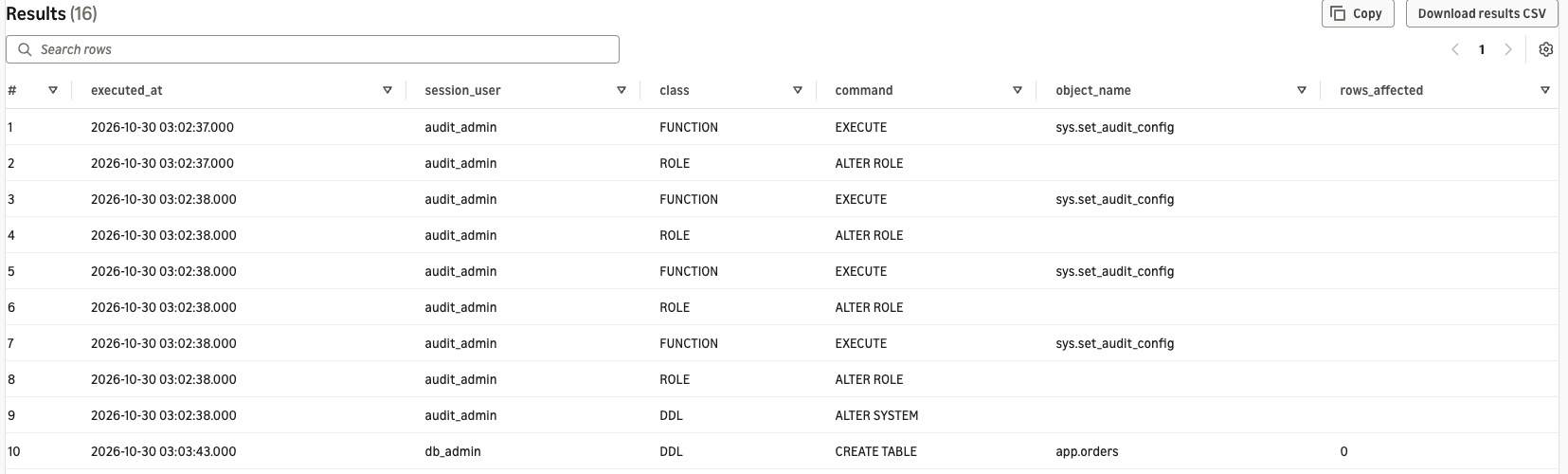
Figure 2: Example Athena query results listing the recorded audit log statements in the order they ran
Investigate permission changes
To review permission changes, select records in the ROLE class. The query lists GRANT, REVOKE, and role creation and deletion, together with the IAM role that ran each one. To investigate DDL changes, change the condition to class = 'DDL'.
Summarize who ran what, and how much
For regular reports, a summary of which operations each IAM role ran, and how many, is more useful than individual statements.
Find unusual activity
To find signs of unauthorized activity, check statements that processed many rows at once and activity outside business hours. The following query finds DML statements that changed 1,000 rows or more, and statements that ran between 22:00 and 06:00 UTC. Set the threshold and hours to match your system’s normal behavior. When you find a suspicious statement, filter by its session_id to follow, in time order, what else ran in the same session.
Add the client IP address
Audit log records do not include the client IP address. To show who connected from where and ran which statement, match the records with the connection records in CloudTrail. First, create a table over the CloudTrail logs in your trail’s bucket, with only the columns needed for matching. For the full table definition, see Create the table for CloudTrail logs in Athena using partition projection in the Amazon Athena User Guide. If you use an organization trail, the logs are under AWSLogs/<organization-id>/<account-id>/CloudTrail/<region>/, so adjust LOCATION and storage.location.template to match.
In a CloudTrail connection event, the requestID field holds the ID of the session that the connection opened. This is the same value as session_id in the audit log, so you can join the two records exactly, session by session. The following query shows, for each audit log session, the time of the first statement, the number of statements, and the client IP address.
Connections that fail authentication appear only in CloudTrail, as events with errorcode set, and have no matching session in the audit log. To investigate failed connections, remove errorcode IS NULL from the connects conditions and query the CloudTrail side alone. Note that userIdentity in CloudTrail connection events doesn’t include the ARN of the IAM principal that connected. Use iam_arn in the audit log to see which IAM role connected.
Things to review before you adopt audit logging
Before you adopt audit logging, review the following points about what it records and how you operate it.
Audit logging records each statement as it executes, rather than when its transaction ends, so statements from a rolled-back transaction are also recorded. This behavior is consistent with pgAudit. Records also have no field that shows whether a statement succeeded or failed. Statements that have syntax errors, reference a nonexistent table, or fail a permission check aren’t recorded. You choose the scope by statement class. You can’t narrow it to specific tables or columns.
On the operational side, the more classes you record, the larger the volume of audit records. Audit logging can incur Aurora DSQL DPU charges, charges for log delivery through CloudWatch Logs, and charges for storing audit records in Amazon S3. Querying the logs with Athena also incurs charges. For pricing information, see Amazon Aurora DSQL pricing, Amazon CloudWatch pricing, Amazon S3 pricing, and Amazon Athena pricing. Before using audit logging in production, turn it on in a development or staging environment and check its effect on performance and the volume of logs.
Clean up
To avoid ongoing charges, delete the resources you created. Reset the SQL settings first, and then delete the delivery, because audit settings can’t be changed after the delivery is deleted. A database role that is still mapped to an IAM role can’t be dropped, so run AWS IAM REVOKE before DROP ROLE.


