Apple HomeView: Two-minute review
Apple's first smart display is a strong start, even if it's a somewhat strange first-generation product. The HomeView gets a lot right, from its distinctly Apple design and excellent audio to its personalized experience and genuinely useful Siri AI capabilities. And after eight days of living with two HomeViews, I really like what Apple has delivered.
First and foremost, though, the HomeView is for folks already invested in the Apple ecosystem. You'll need an iPhone to get the most out of it, and ideally an Apple Intelligence-enabled model to take full advantage of Siri AI and Personal Context. This integration is what makes the HomeView special, letting Siri find information in your messages, control your smart home, and surface personal content without you constantly having to reach for your phone.
The hardware is excellent, with a compact, premium design and a vibrant 7-inch display. I've been using the speaker-mounted 'countertop' HomeView in my kitchen, and the wall-mounted version in my entryway, and both fit naturally into my daily routine. I especially love the Photos clock face, which intelligently cycles through pictures of my dog Rosie, family, and friends.
Audio is another standout. The standard HomeView delivers surprisingly powerful bass, a wide soundstage, and enough volume to fill my kitchen and living room. Music support is so strong that I've actually been occasionally using it as my main speaker.
Siri AI is impressive, too, particularly when tapping into Personal Context, though it's not always the fastest. Simple smart-home requests are generally quick, while more complex tasks can take 10 to 15 seconds. Still, the ability to ask Siri to find a song a friend recommended in my messages and then play it is pretty neat.
There are some limitations, though. There's no App Store at launch, third-party apps are restricted, and video options are limited. While I'd have liked to see more flexibility, I suspect Apple's curated approach is intentional. HomeView feels designed to be a more mindful, ambient device that surfaces information when you need it rather than another screen constantly demanding your attention. That being said, I wouldn’t be shocked if, when WWDC 27 rolls around, a dedicated 'home' OS is announced, and the app experience opens up.
At $299 / £299 / AU$449, the HomeView certainly isn't cheap, but it also doesn't feel like an unfinished first-generation experiment. It's already great for FaceTime calls, quickly checking messages, playing music, controlling smart home devices, and displaying personalized clock faces. These are the kinds of everyday interactions that make it easy to appreciate having the HomeView around, rather than feeling like you're searching for reasons to use it.
Ultimately, the Apple HomeView feels like a natural companion to your iPhone, giving you a reason to leave it in your pocket rather than constantly reaching for it. It's a smart-home controller, digital photo frame, surprisingly capable speaker, and personal assistant rolled into one, but it's also perfectly happy just showing you the time or a favorite photo. It's not perfect, but Apple has delivered a thoughtful, genuinely useful first-generation product that feels like a very strong start, especially if you're already deep in its ecosystem.
- Value score: 4 / 5
Apple HomeView: Design
- Premium, distinctly Apple design with a vibrant 7-inch Liquid Retina display
- Two designs: tabletop and wall-mounted, with the same core features
- Excellent customizable clock faces
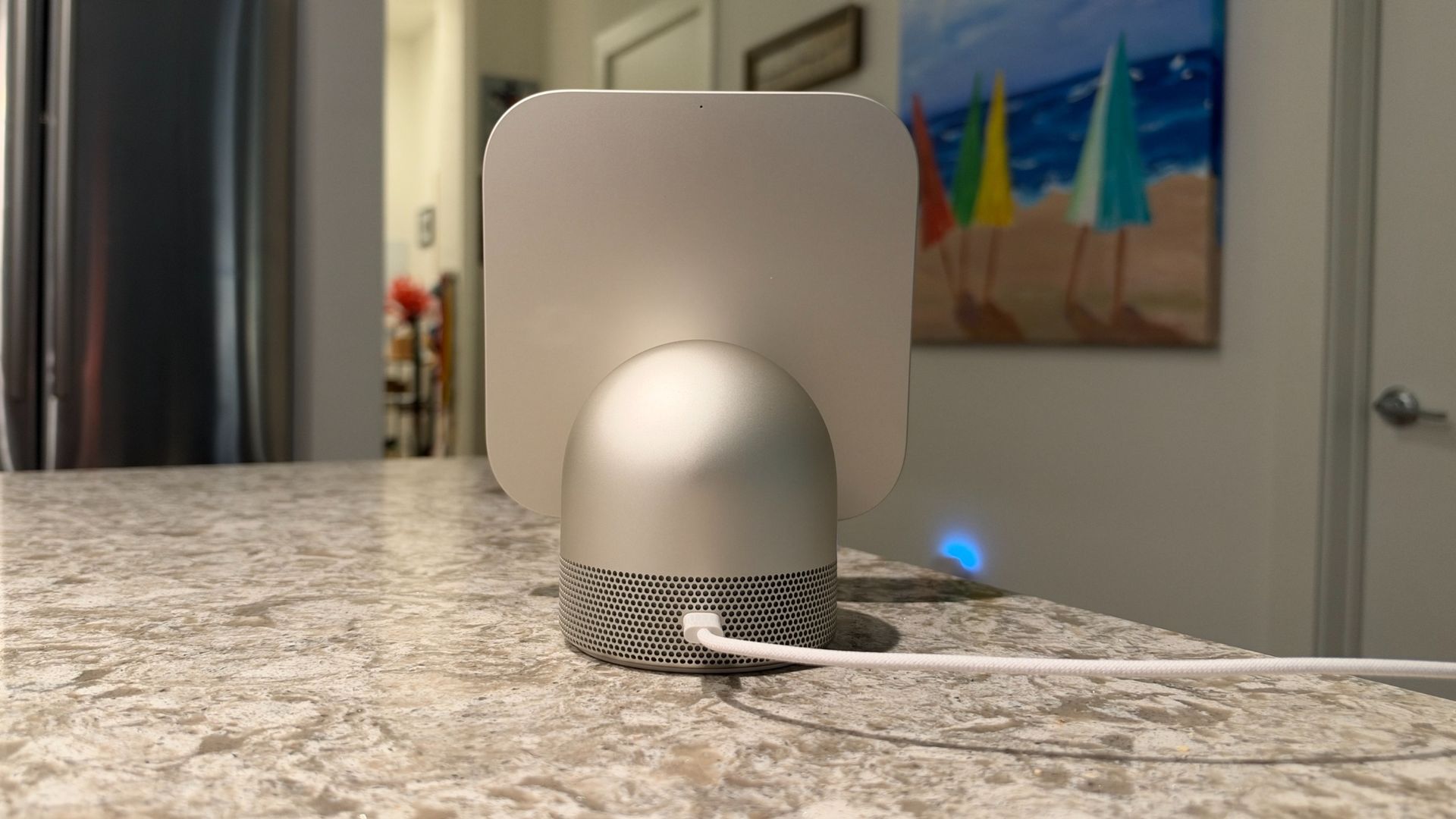
The HomeView comes in two distinct styles: standard and wall-mounted. The standard HomeView will likely be the more popular option, and features a square 7-inch Liquid Retina display with soft, rounded corners that sits on an arm extending from a domed, circular base.
It's smaller than you might expect, and pretty cute. It comes in four colors: Starlight, Space Gray, Rose Pink, and Silver. I've been testing Starlight, which looks like an airy gold or more silver depending on how the light hits it. Apple also includes a color-matched USB-C cable and wall adapter, making physical setup straightforward.
The design is distinctly Apple, with a premium aluminum build combining brushed finishes and polished accents, particularly around the hinge connecting the display to the base. At first glance, it's almost like an oversized Apple Watch — perhaps an earlier generation thanks to the fairly thick bezels. There's also a bit of the iconic, potted-plant-like iMac G4 in its DNA, and I quite like that.
The display can tilt up or down, but not left or right. For that, you'll need to manually turn the entire HomeView, though the rubberized bottom, similar to a HomePod or HomePod mini, keeps it firmly planted. And while it’s easy enough to turn it left or right with the display, a swivel mechanism built in here would have made this more seamless.
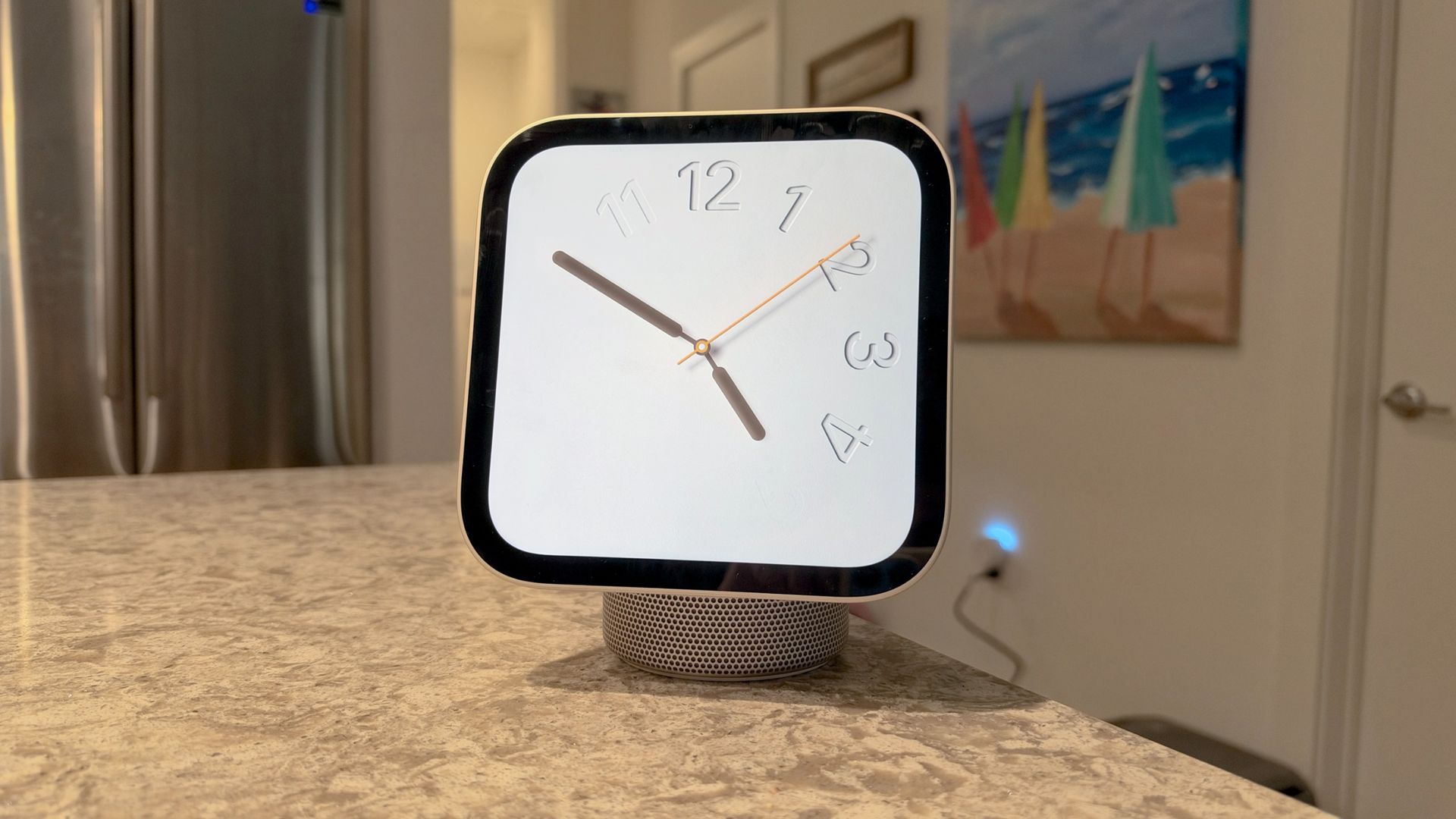
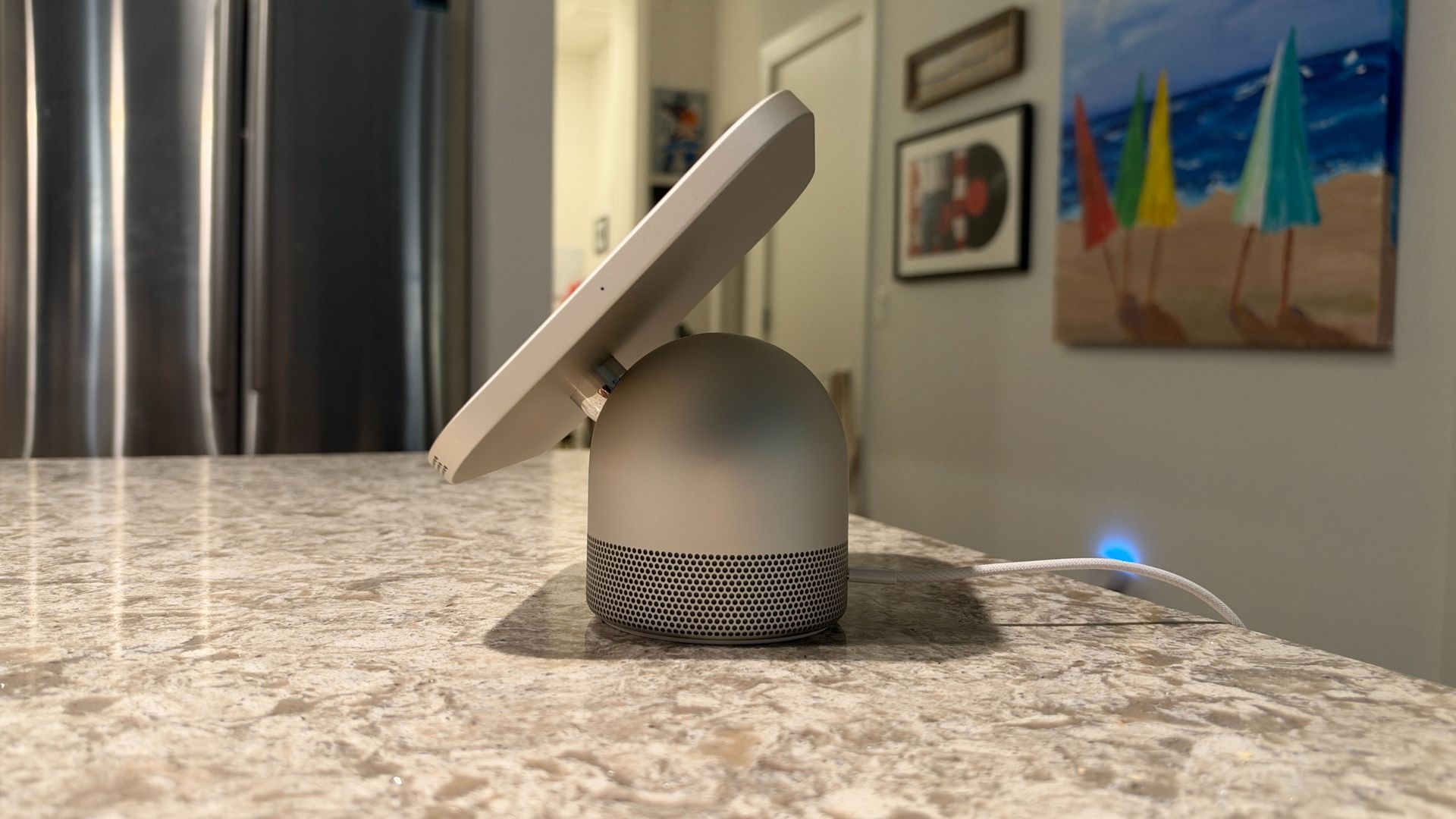
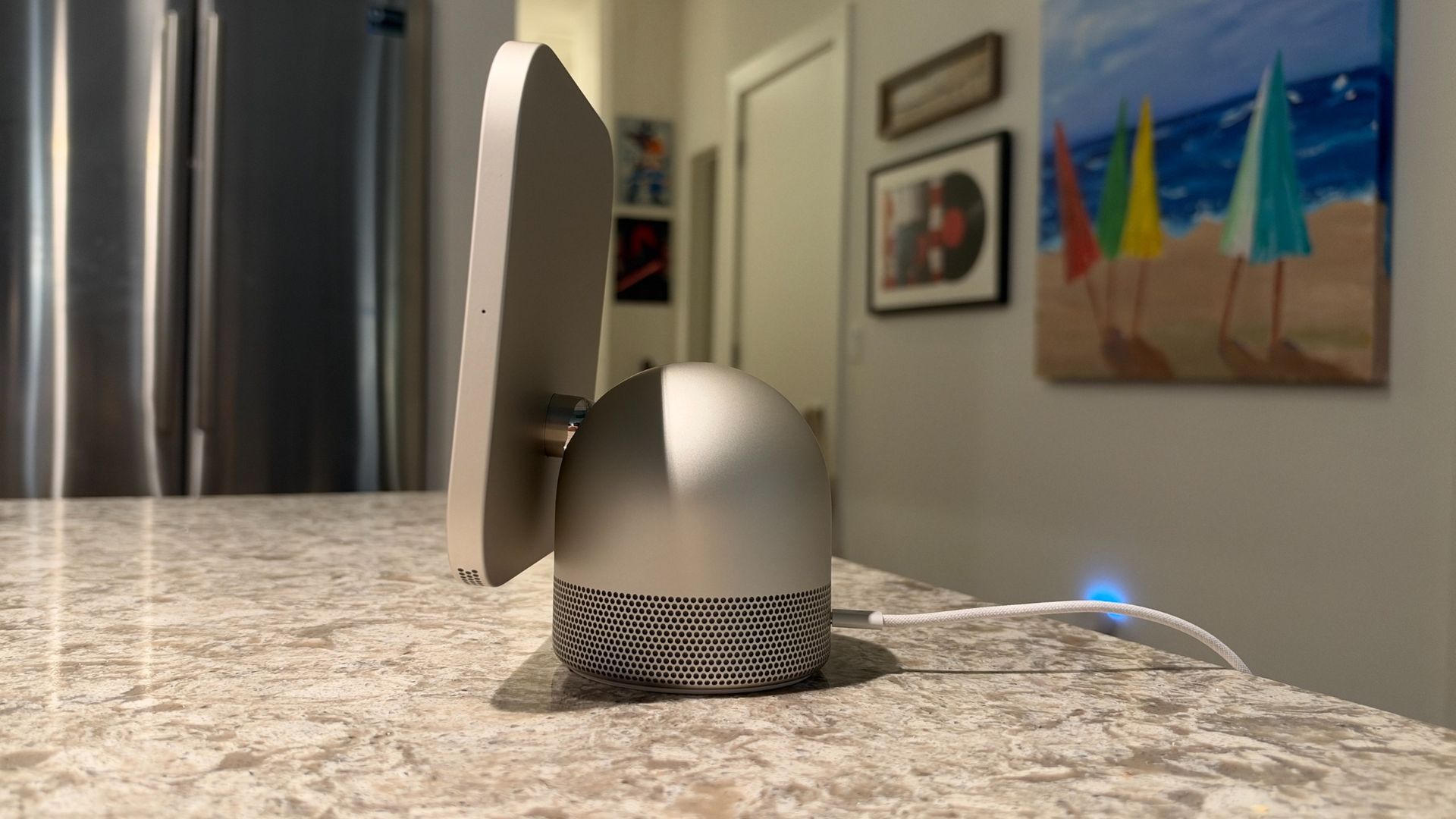
I've been testing the standard HomeView in my apartment, where the kitchen flows right into the living space, and I've found a natural home for it on my kitchen island. Thanks to its compact size, I can easily slide it around or turn it to face wherever I am, whether I'm making coffee, cooking dinner, or hopping on a FaceTime call. Center Stage does a good job of keeping me in frame, but it can only follow me so far before I need to turn the display manually. A motorized arm would be pretty dope, and I'm holding out hope for one in a future generation.
The 7-inch Liquid Retina display looks great, with clear text, vibrant photos, and plenty of brightness, though its glossy finish can still catch reflections even when the brightness is cranked up, and I would be surprised if Nano-Texture or a similar coating might be ushered in a future generation.
Apple says it can dim down to just 0.3 nits, the lowest of any display in its lineup, which is likely handy for bedrooms and helps ensure it’s not glowing in the middle of the night or in dimmer conditions. It's excellent for displaying photos, album artwork, or lyrics in Apple Music, and I've never had an issue reading text.
It's also noticeably thicker than an iPad or even Apple's now touch-enabled MacBook Pro, though that's understandable given everything packed inside. Above the display sits a 12-megapixel Ultra Wide camera, while tiny microphone openings are dotted around the frame, including near the camera, along the sides, and on the rear. You won't find any physical buttons or a camera shutter, though, as Apple is betting almost entirely on touch and voice. The only port is USB-C for power.
The base is where much of the audio hardware lives, with dozens of precisely drilled holes around its lower half. There are two full-range drivers built into the display section, while the base houses a downward-firing woofer and two force-canceling passive radiators. I'll dig deeper into sound quality below, but it's surprisingly robust for something this small, with plenty of low-end punch without causing HomeView to vibrate excessively or topple over.
Overall, HomeView feels a good bit more premium than older Echo smart displays or Google's Nest Hub, though it takes a markedly different approach from Amazon's newer Echo Show 8, 11, and forthcoming Echo Show 16. It fits neatly into Apple's broader design ethos, even if the colors, somewhat ironically, don't necessarily match those of the HomePod or HomePod mini.
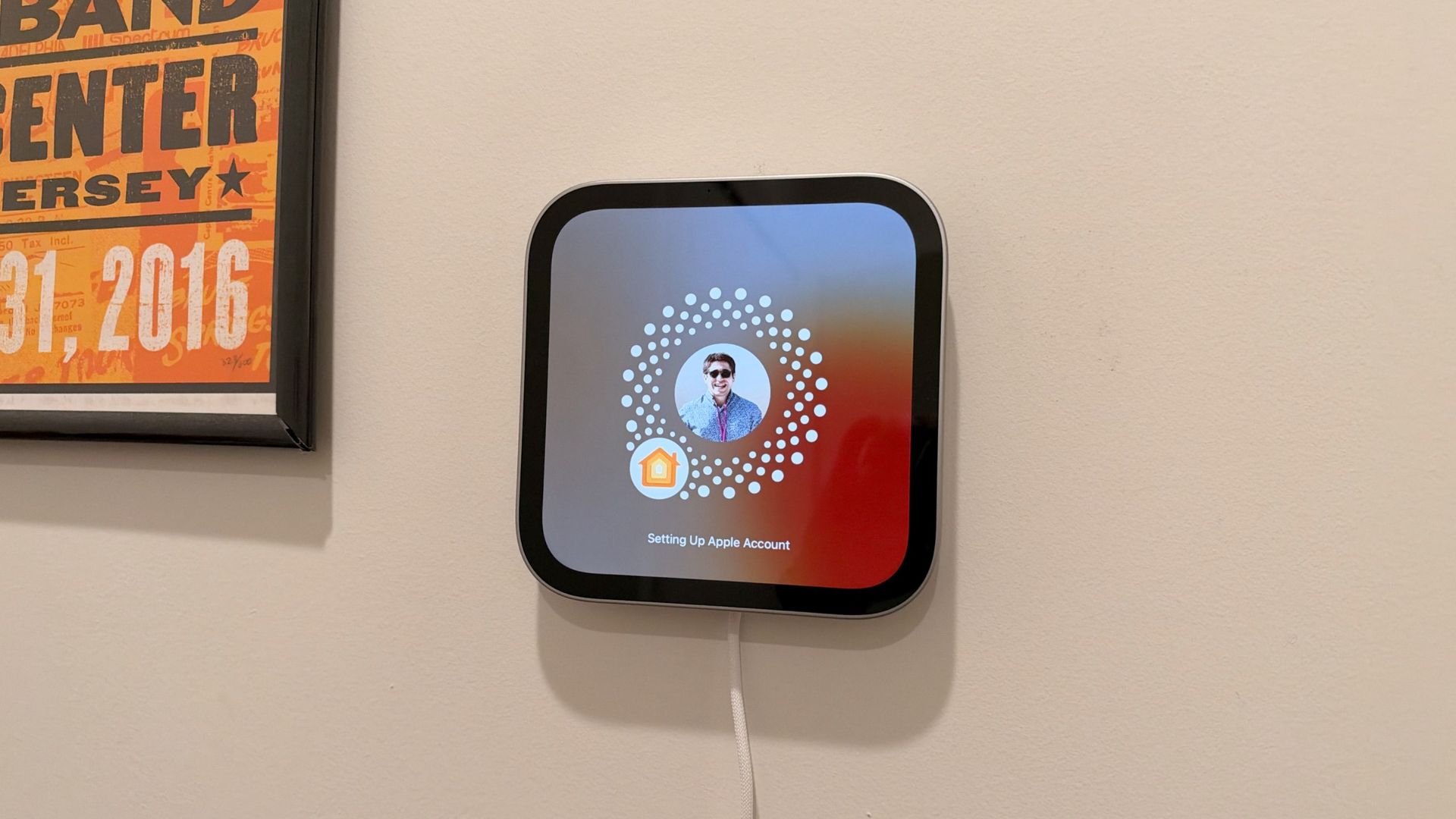
I've also been testing the second version, which Apple calls HomeView (Wall Mounted). While the standard model is more versatile, there's a lot to like about having Apple's smart display permanently positioned on a wall.
Unboxing is considerably simpler, as you're essentially getting just the display, without the arm or speaker base. On the back is a USB-C port, which is designed to work with compatible mounts, including those from Schneider Electric, which were developed specifically for HomeView.
Importantly, you're not sacrificing the core experience. The wall-mounted version has the same processor, display, cameras, sensors, and software as the tabletop model. The biggest hardware difference is audio, handled by two custom drivers rather than the more elaborate speaker system in the standard HomeView. It's by no means tinny and still offers a surprisingly wide soundstage, but there's less oomph, particularly in the low end.
I suspect most folks opting for the wall-mounted model will want to wire it directly into the wall for the cleanest possible look. But as a renter, I went with Schneider Electric's USB-C wall mount, and it was one of the simplest mounting experiences I've had with a smart home device. Two drilled holes, anchors, screws, and probably less than 15 minutes later, it was on the wall. From there, I connected the lengthy USB-C cable to a power adapter, which you'll need to supply yourself.
I've been using the wall-mounted HomeView in my entryway, and it's a great fit. Walking in to see photos of my pup Rosie, my nieces, or family and friends is a lovely touch, while the customizable Smart Home face turns it into a central control panel. I'll dig into that experience, including some surprisingly useful features, more below.
Ultimately, the standard HomeView likely offers better overall value thanks to its more powerful audio system and flexibility to move between rooms. But the wall-mounted version feels especially well suited to an entryway, kitchen, or another central location where you want information and smart home controls available at a glance. Both feel thoughtfully designed, and Apple has delivered two distinct approaches to what a smart home display can look like.
- Design score: 4 / 5
Apple HomeView: Performance
- Siri AI and Personal Context deliver genuinely useful, personalized experiences
- Excellent sound quality, responsive smart home controls, and impressive FaceTime performance
- Limited third-party apps and streaming options, and complex Siri requests can be slow
I've been living with two HomeViews for eight days, with one serving me well on the entryway wall of my apartment, and the other primarily living in my kitchen. The standard model has also spent some time in my office and even the bedroom, and I've been putting both through their paces.
HomeView is built around your iPhone, and that tight integration is central to the experience. You'll also want an Apple Intelligence-enabled model to get the most out of Siri AI and Personal Context. Thankfully, it all works quite well.
I've used HomeView for everything from music and FaceTime calls to smart home controls, checking messages, and displaying photos. I've even watched some Apple TV, though it's hardly the ideal screen for that.
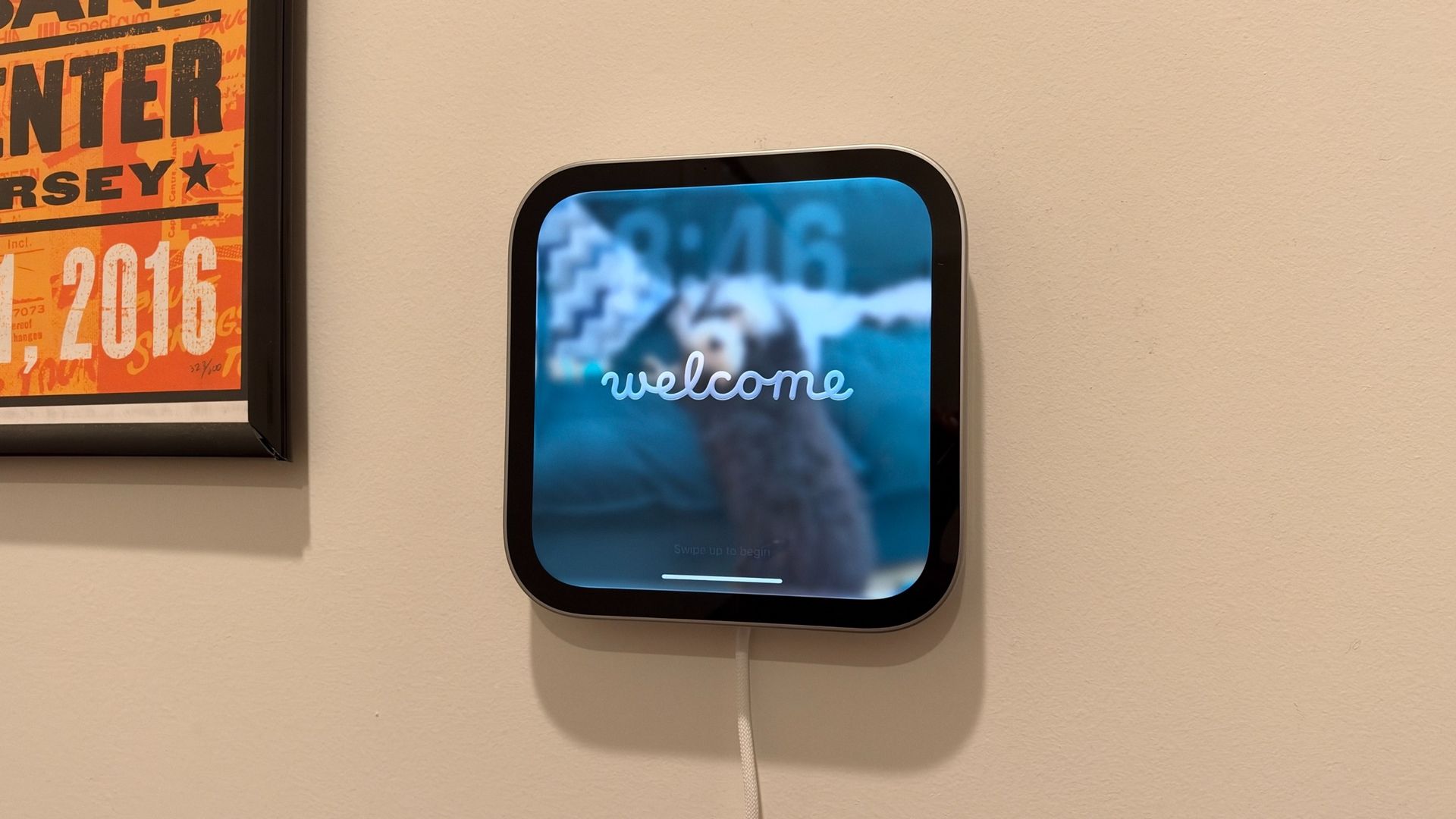
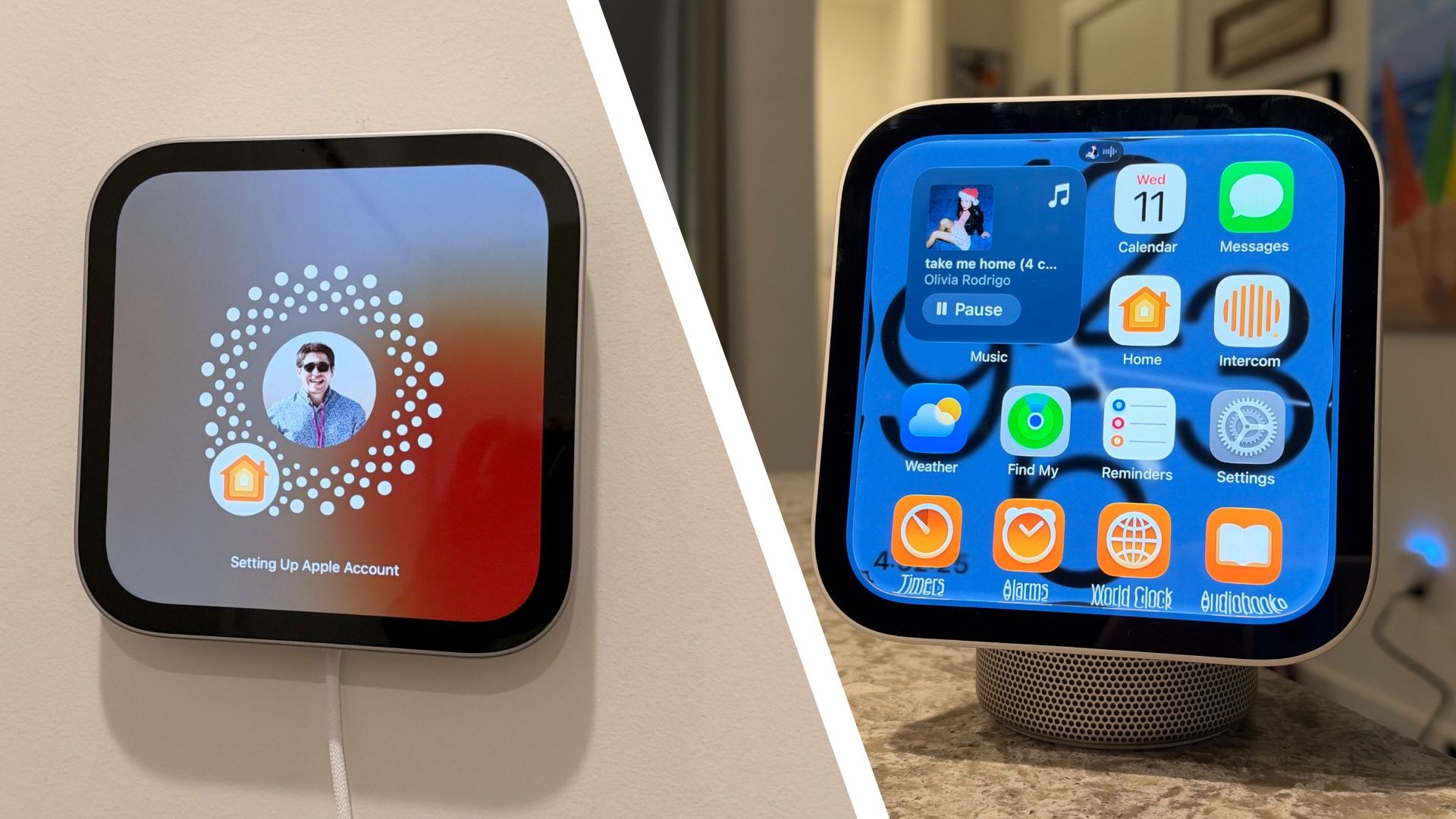
Setup feels familiar if you've ever paired an Apple Watch or AirPods with an iPhone. Plug HomeView in, wait for it to boot up and say hello, then bring your iPhone nearby. From there, you scan a graphic to pair the devices and follow a few steps, including choosing who you're setting it up for.
HomeView is designed to be communal, sitting in a shared space where multiple people can use it, but also personal when the situation calls for it. It supports up to six registered users, and adding someone starts on HomeView before handing the process over to their iPhone. They'll also need to be part of your Apple Home.
The personalization works particularly well. For instance, while I was viewing my messages, my dad walked into the camera's view, and HomeView immediately stopped showing my personal content until it could recognize me again. It's a clever safeguard, especially for a device that's meant to live in a shared space.
It does mean, though, that some items you’d think would be shared among users are missing. For example, there's no calendar — likely because it might contain confidential items, and Apple wants to make sure those are shown to a registered user. But that does mean the HomeView doesn’t offer a shared calendar like, say a Skylight or an Echo. One solution would be a shared calendar that is shared with each person (up to six) who is registered on the HomeView.
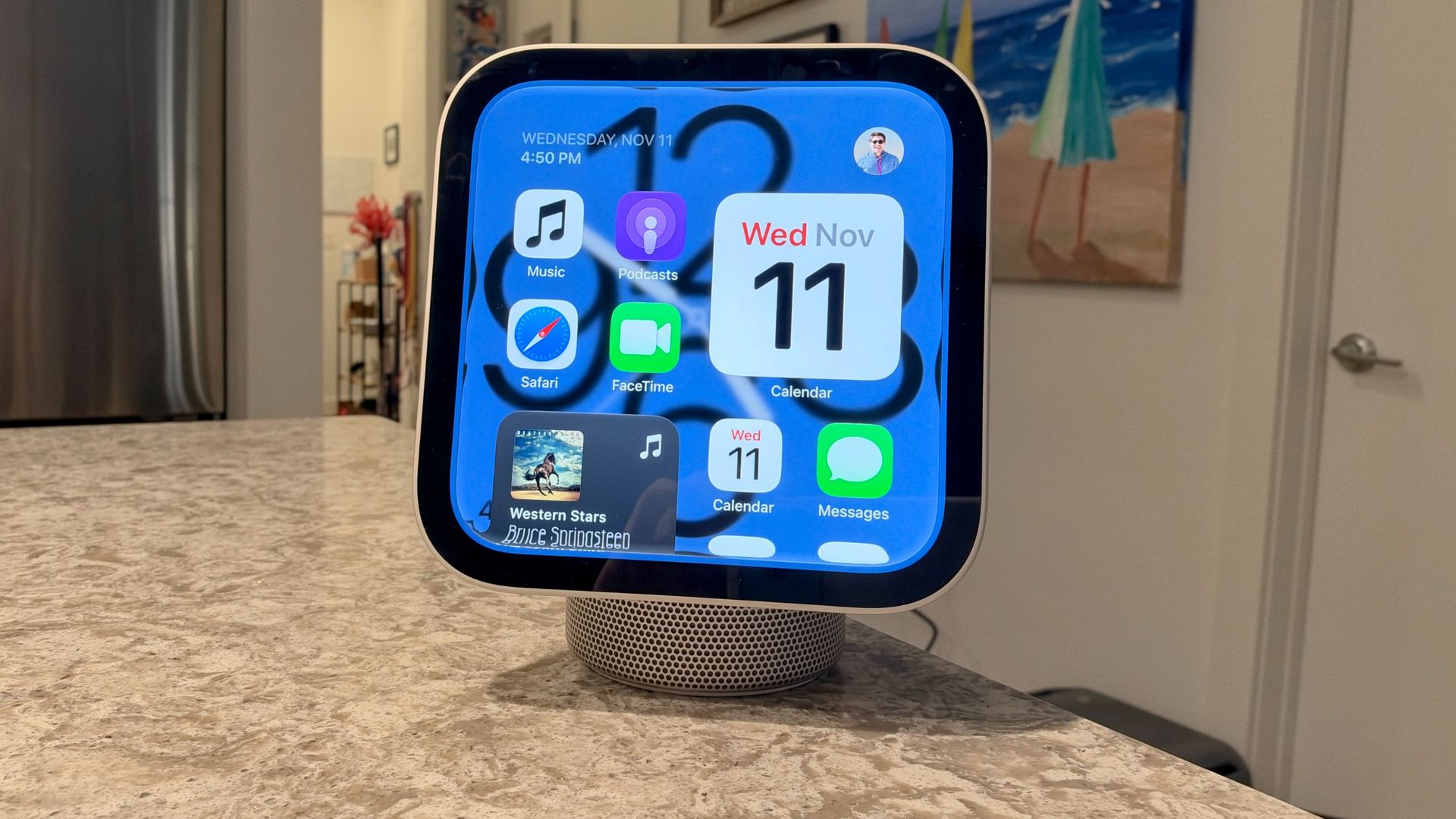
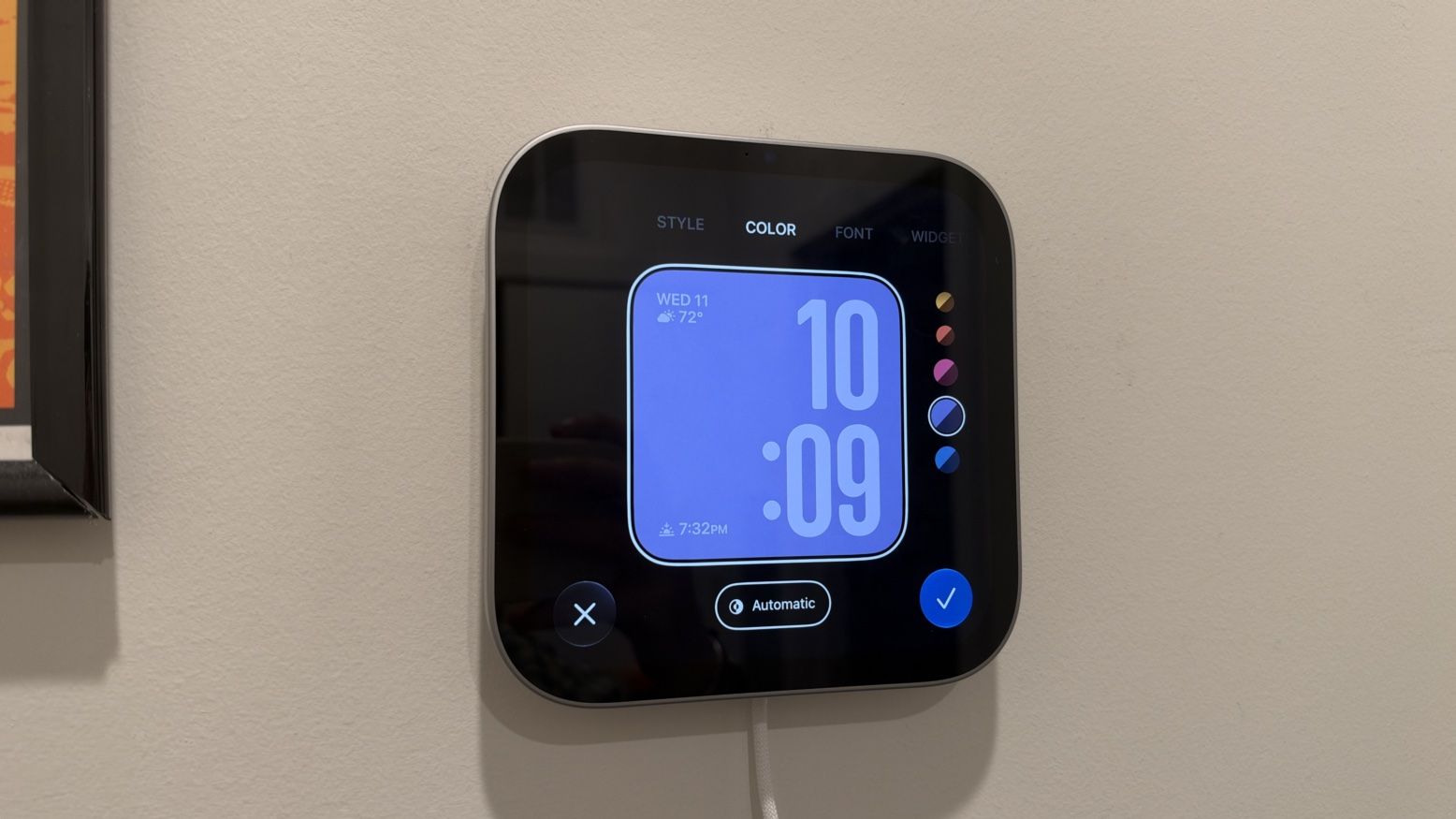
The HomeView runs custom software, not HomeViewOS, that borrows heavily from iOS and watchOS. The app grid, including its tint and customizable widgets, feels like iOS, while customizing the clock faces is more akin to watchOS, complete with complications. It's a bit of a Frankenstein-like approach, but it works.
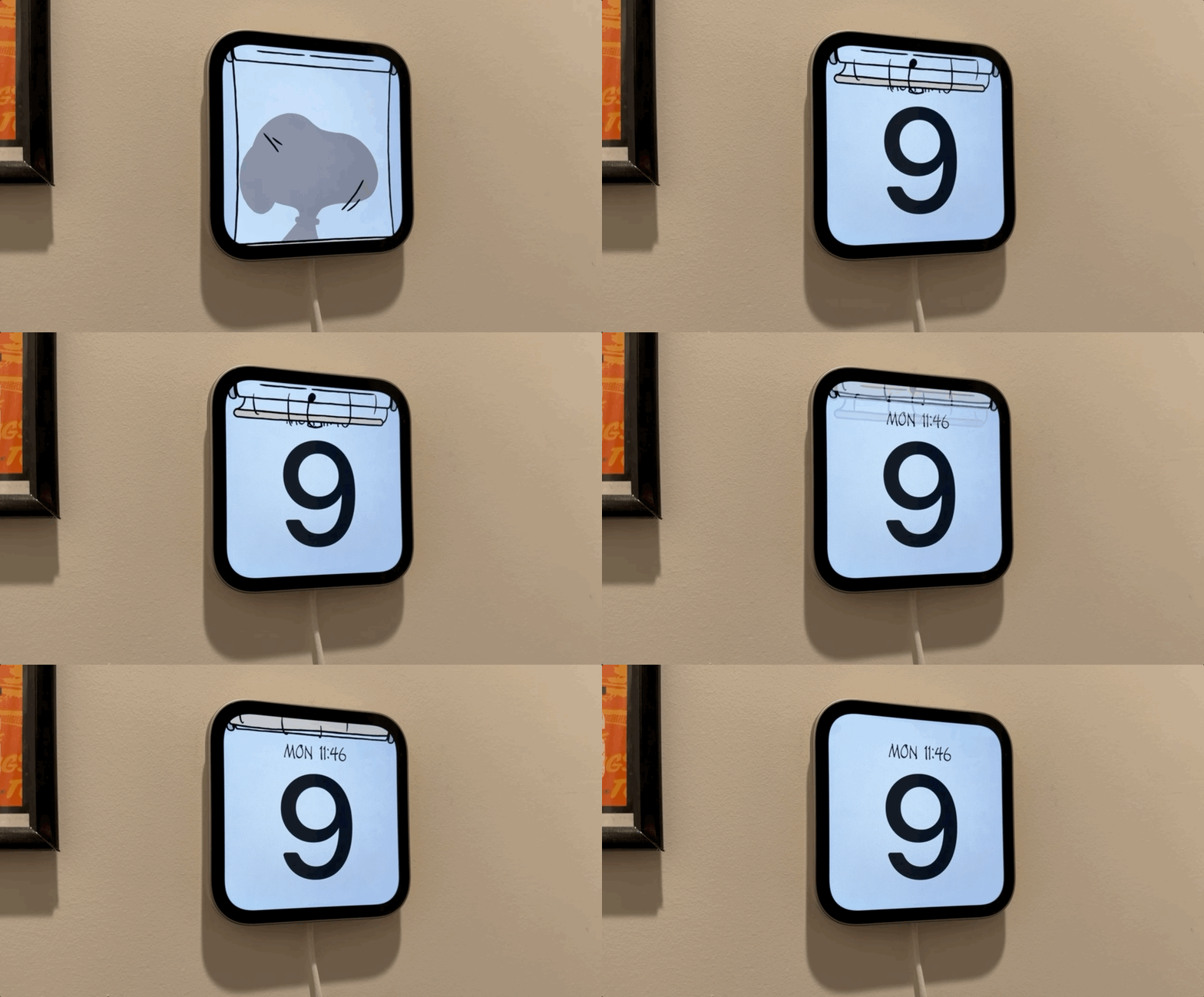
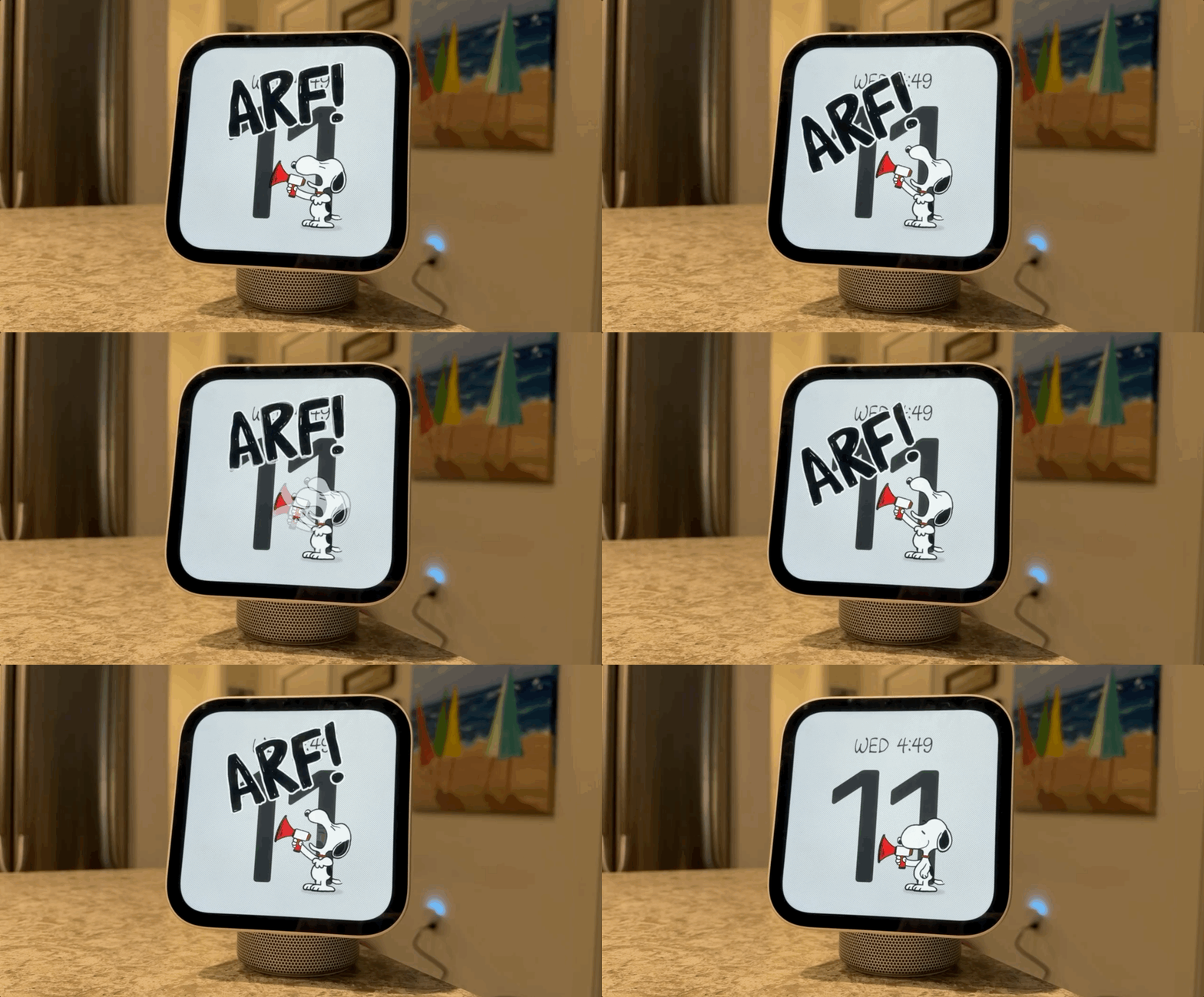
And speaking of clock faces, they're one of my favorite parts of HomeView. Snoopy is especially delightful, with custom-designed artwork and animations separate from what you'll find on Apple TV. You can even tap Snoopy to trigger an animation, which is an adorable little touch.
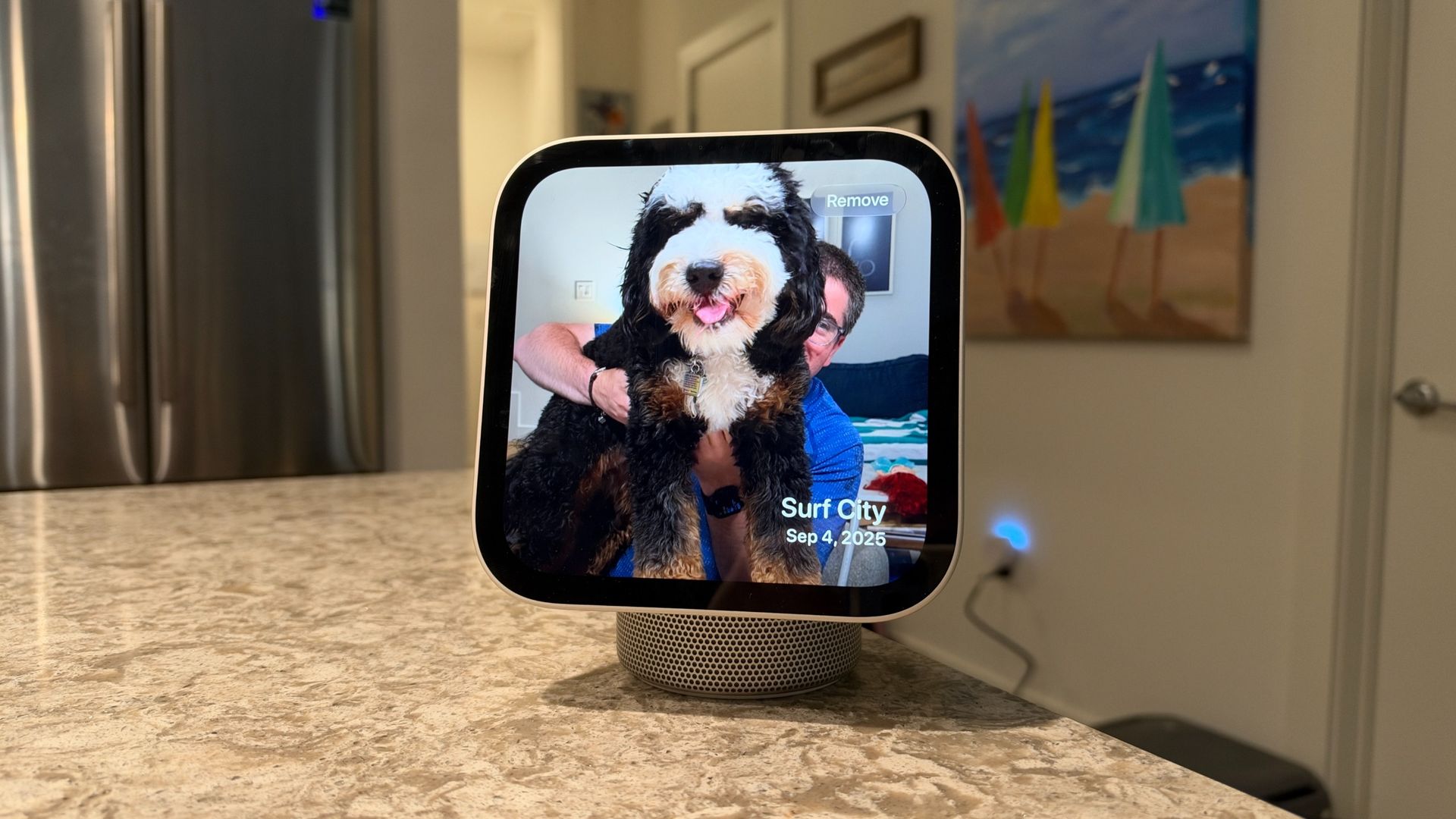
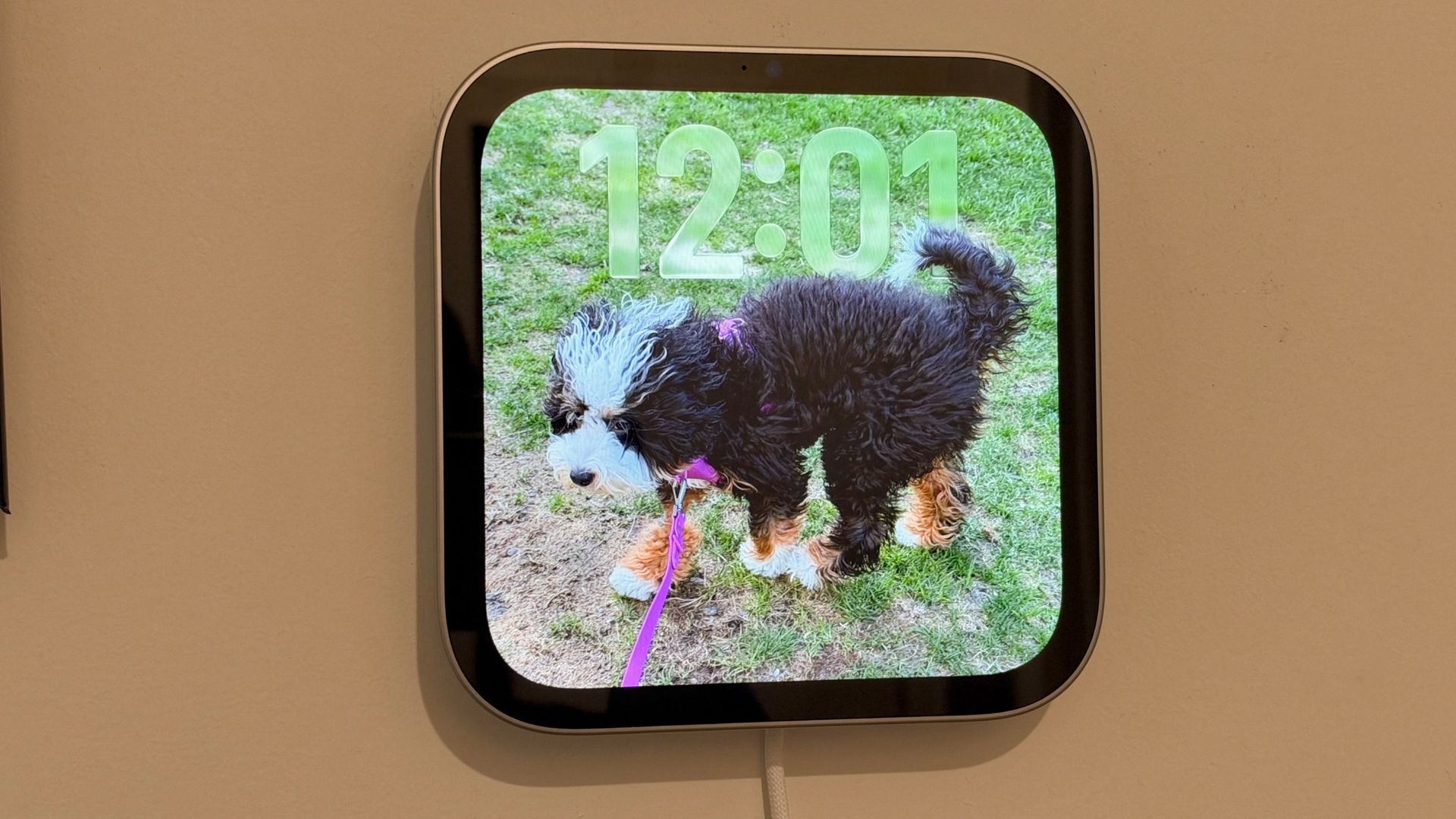
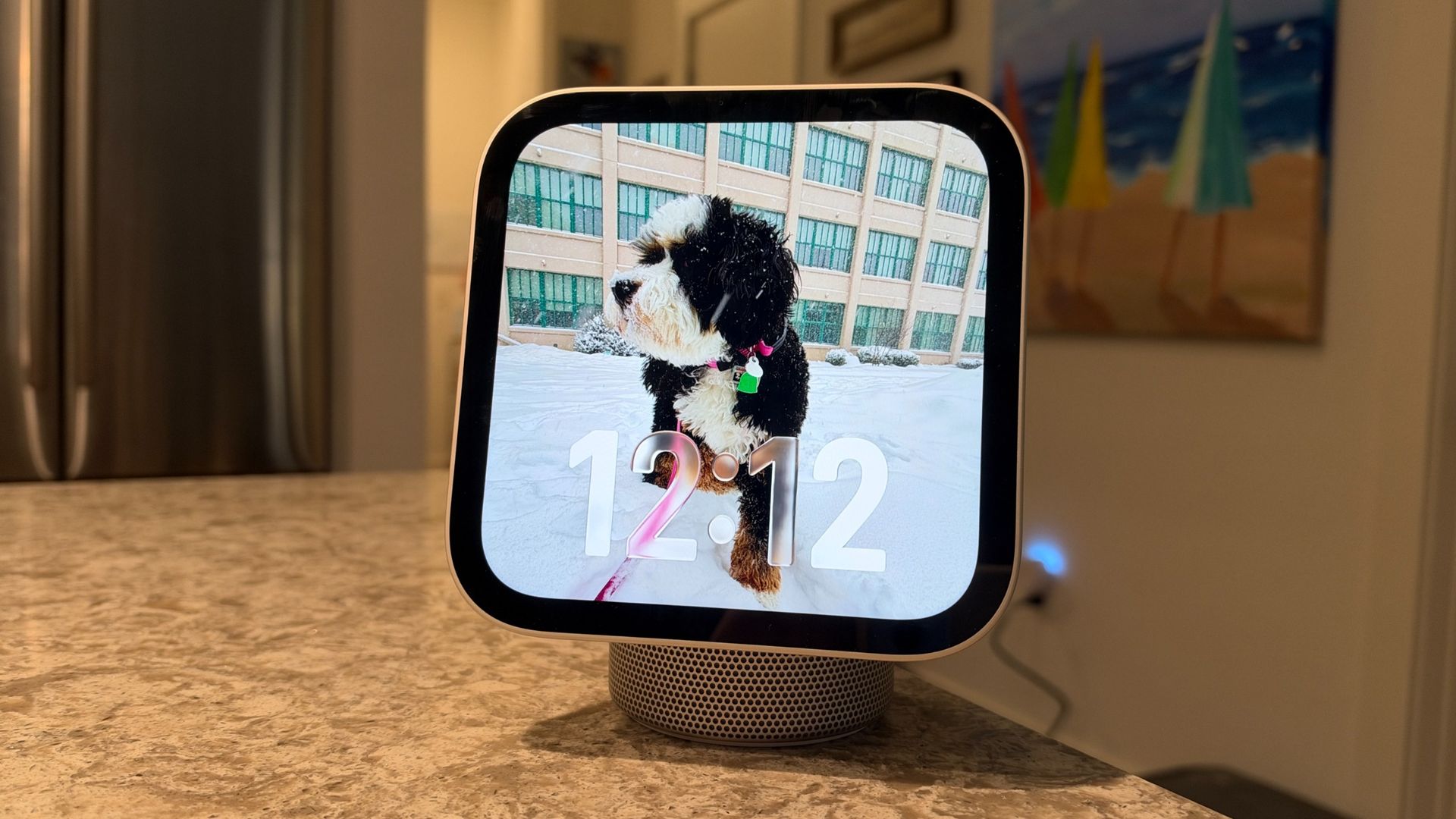
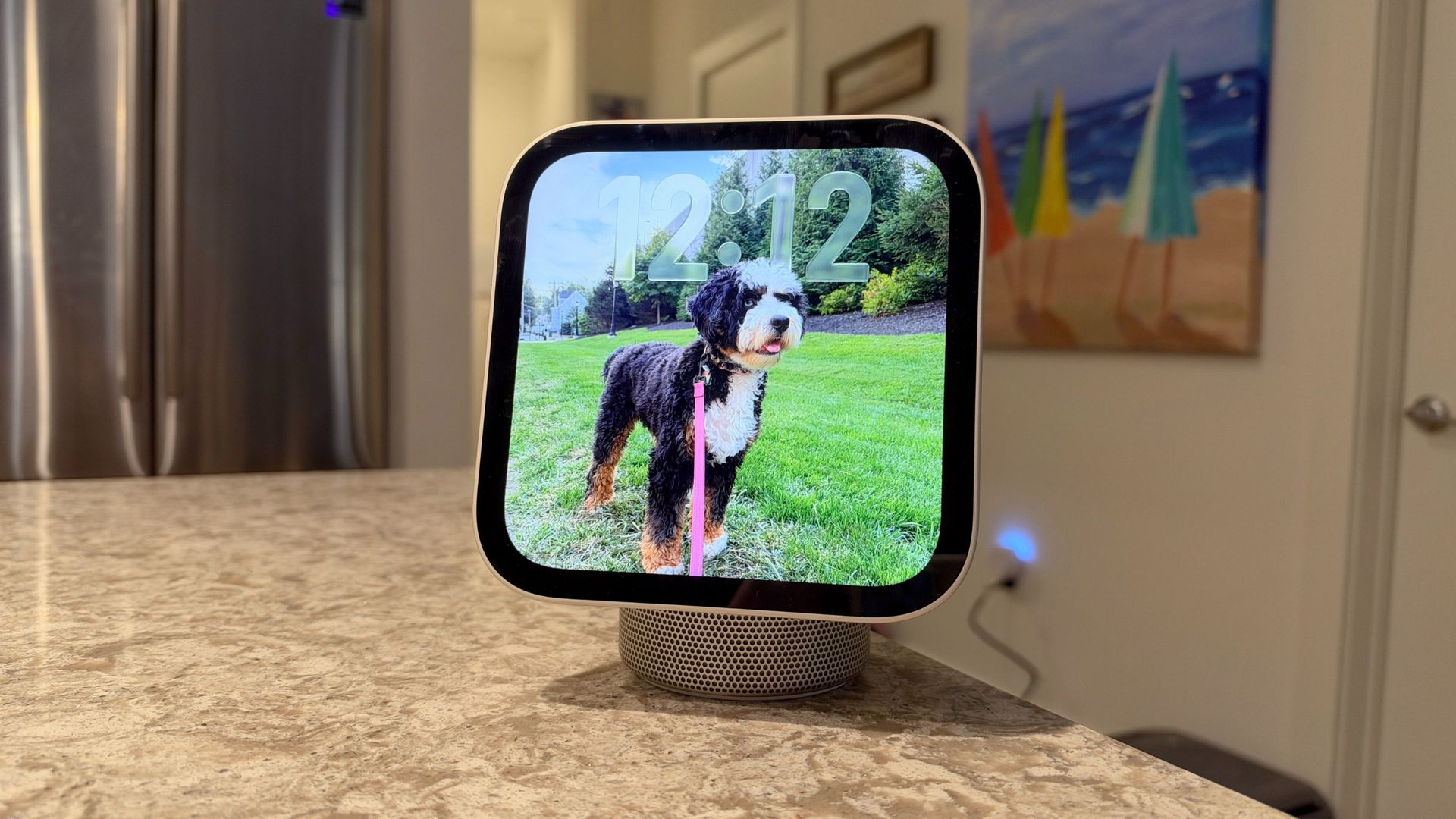
The Photos face is equally impressive, and really shows how personal HomeView can feel. You can select people, places, or pets, and HomeView will intelligently surface and cycle through relevant photos. I chose my dog Rosie during setup, and I love seeing different photos of her throughout the day. You can even tap the screen to see when and where a particular photo was taken.
I could easily see HomeView being a great gift for parents or family members for this feature alone, especially since you can use a shared photo album as the source and have new photos appear as they're added. It turns what could have been a pretty ordinary clock face into something much more personal.
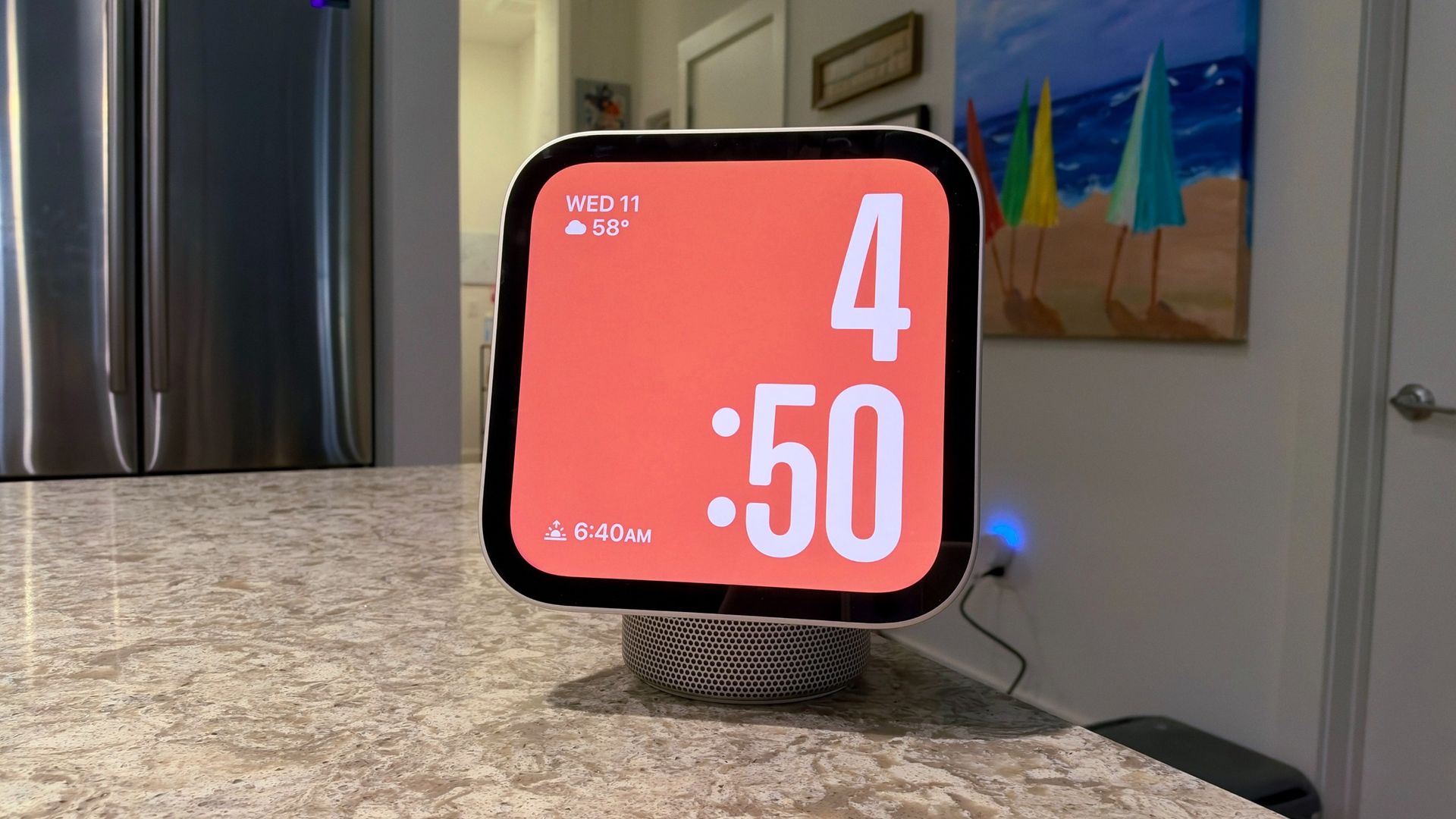
There's also the Modular face, which lets you customize the display with widgets and complications, putting useful information and controls front and center. Between that, Photos, and Snoopy, Apple has done an excellent job making the clock faces feel like more than just a way to tell the time.
In terms of responsiveness, HomeView generally feels quite snappy. Apple's A18 chip is under the hood, complete with the Secure Enclave, which plays an important role in the device's privacy protections. Apple handles processing on-device when possible, while more complex requests can be handled through Private Cloud Compute.
You'll still need your iPhone for the more personalized experiences, though, as HomeView draws on the content and apps connected to your device. And that's what enables some of its most impressive tricks.
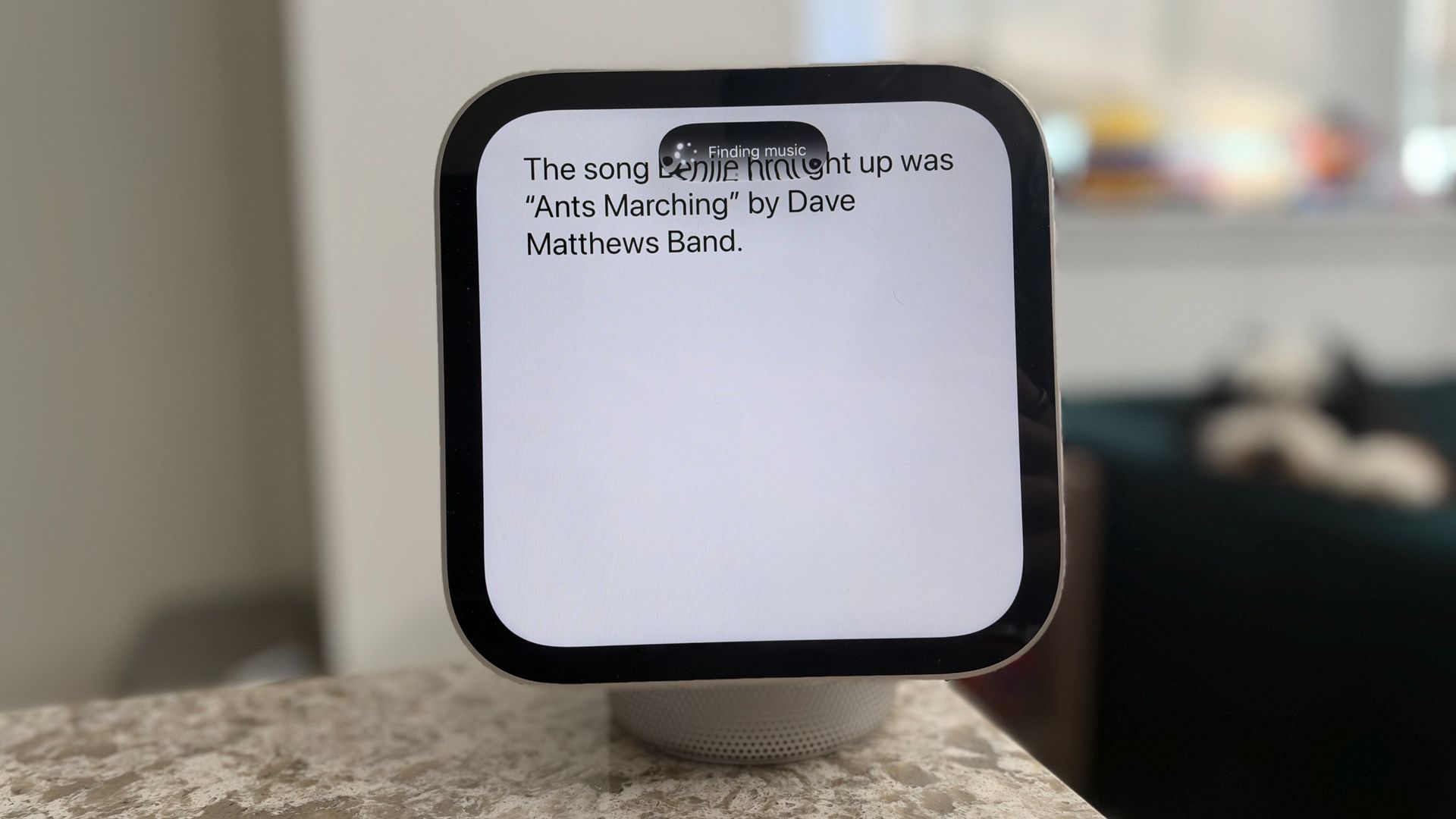
For instance, I asked Siri which Dave Matthews Band song my friend Benjie wanted me hear. HomeView took a moment to think — probably around 10 to 15 seconds — while displaying updates at the top of the screen as it searched through my messages. It eventually came back with the answer: "Ants Marching."
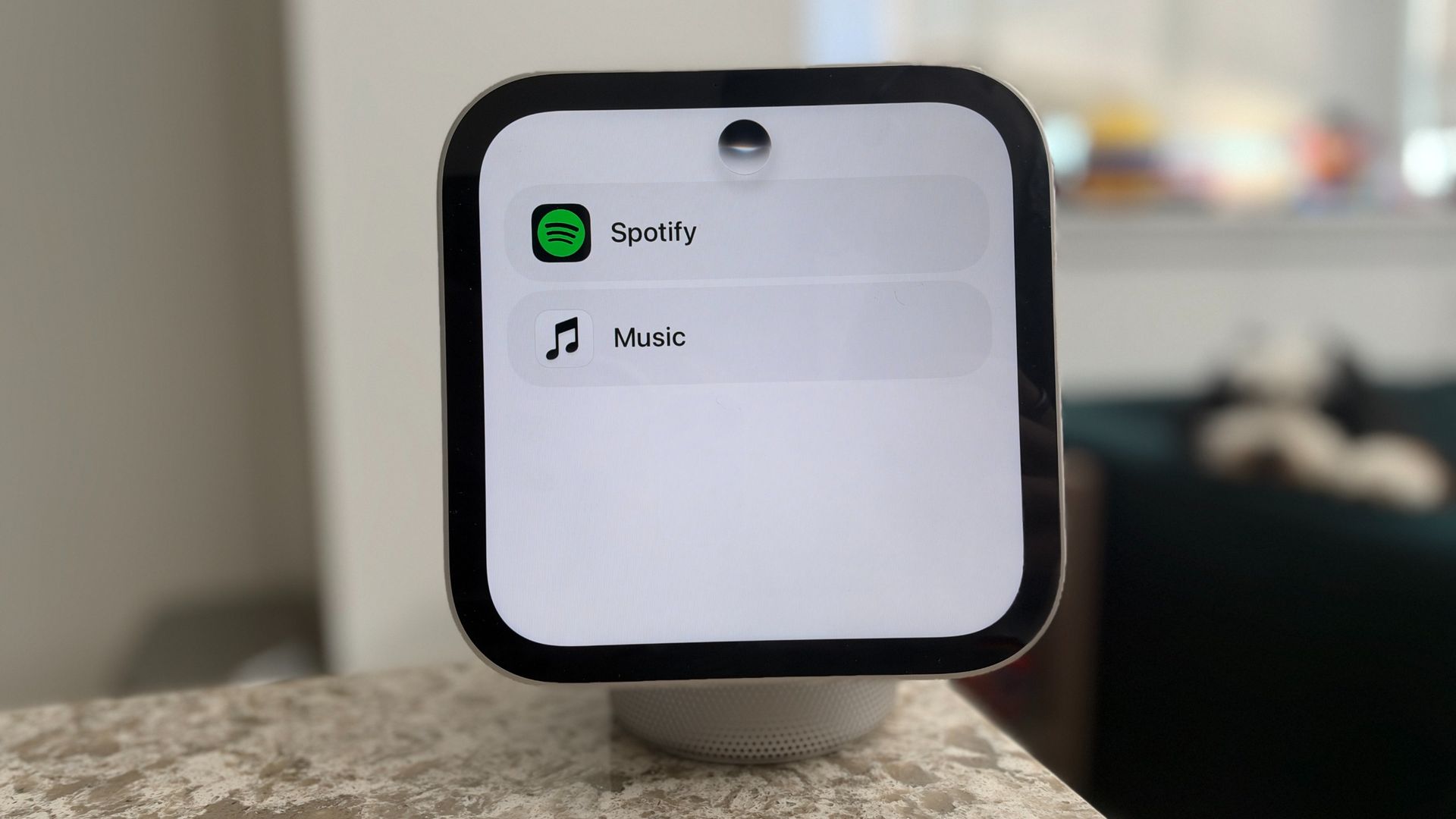
I then asked Siri to play it, and since I have both Spotify and Nugs connected through my iPhone, it asked which service I wanted to use before starting playback.
It's an impressive interaction, even if Siri takes its time, and I appreciate seeing updates on what it's working on. I could also ask Siri to look at my calendar, find an event in the city, and figure out when I need to leave based on traffic. It's another multi-step request that isn't instantaneous, but it gets me to the answer.
Response times can vary quite a bit, though. When I asked Siri to play Ghosts by Bruce Springsteen, it took about 12 seconds before the song started playing through Apple Music, complete with album artwork on the display. A simpler request, like checking the weather in New York City, took closer to two or three seconds.
Smart home requests, thankfully, are considerably quicker. Asking Siri for the temperature in my apartment, pulling data from both HomeViews, multiple sensors, and my Nest thermostat, takes about two seconds, if not less. I can also quickly turn on my Philips Hue lights or adjust the temperature, and those everyday interactions have worked well.
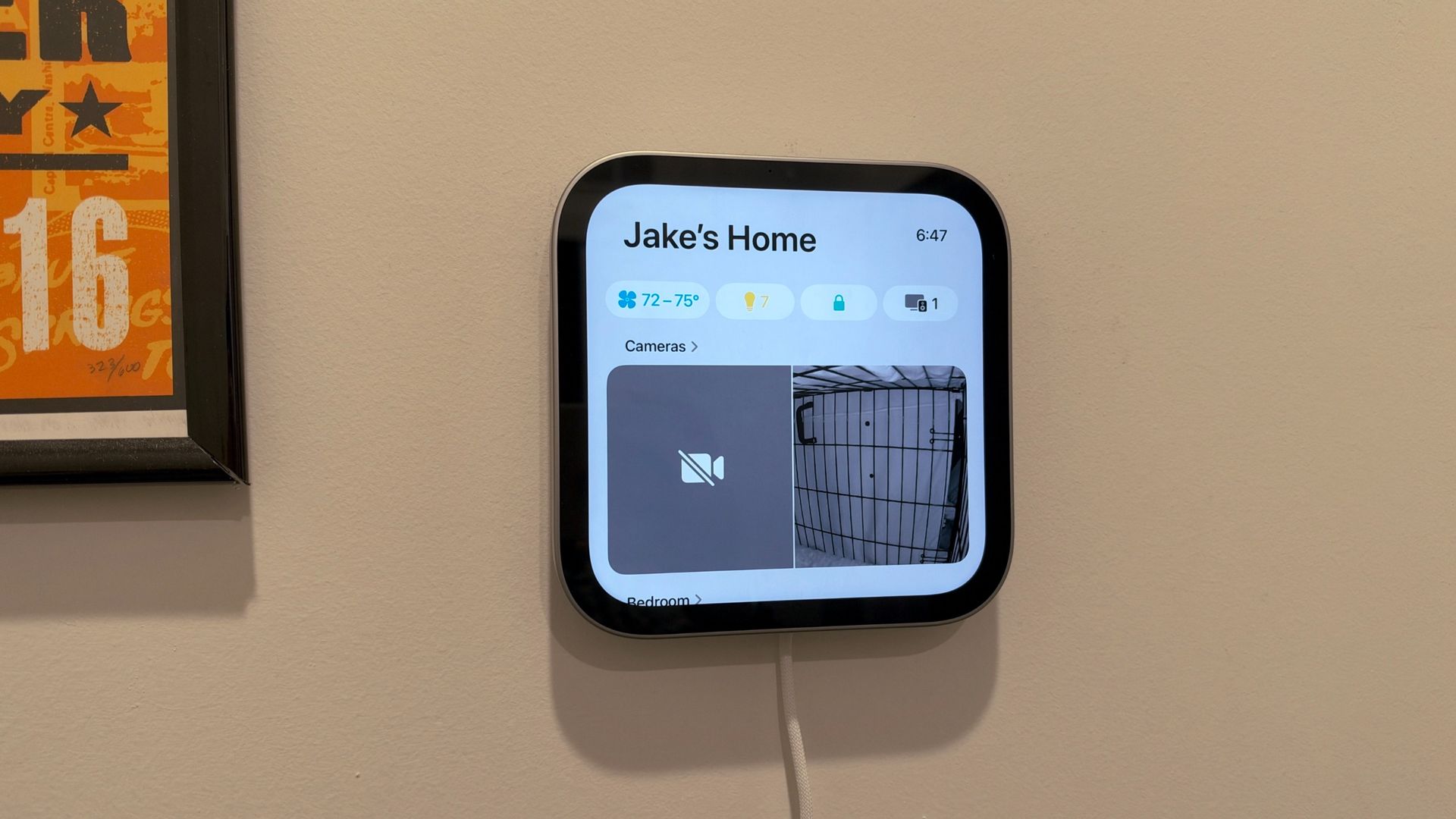
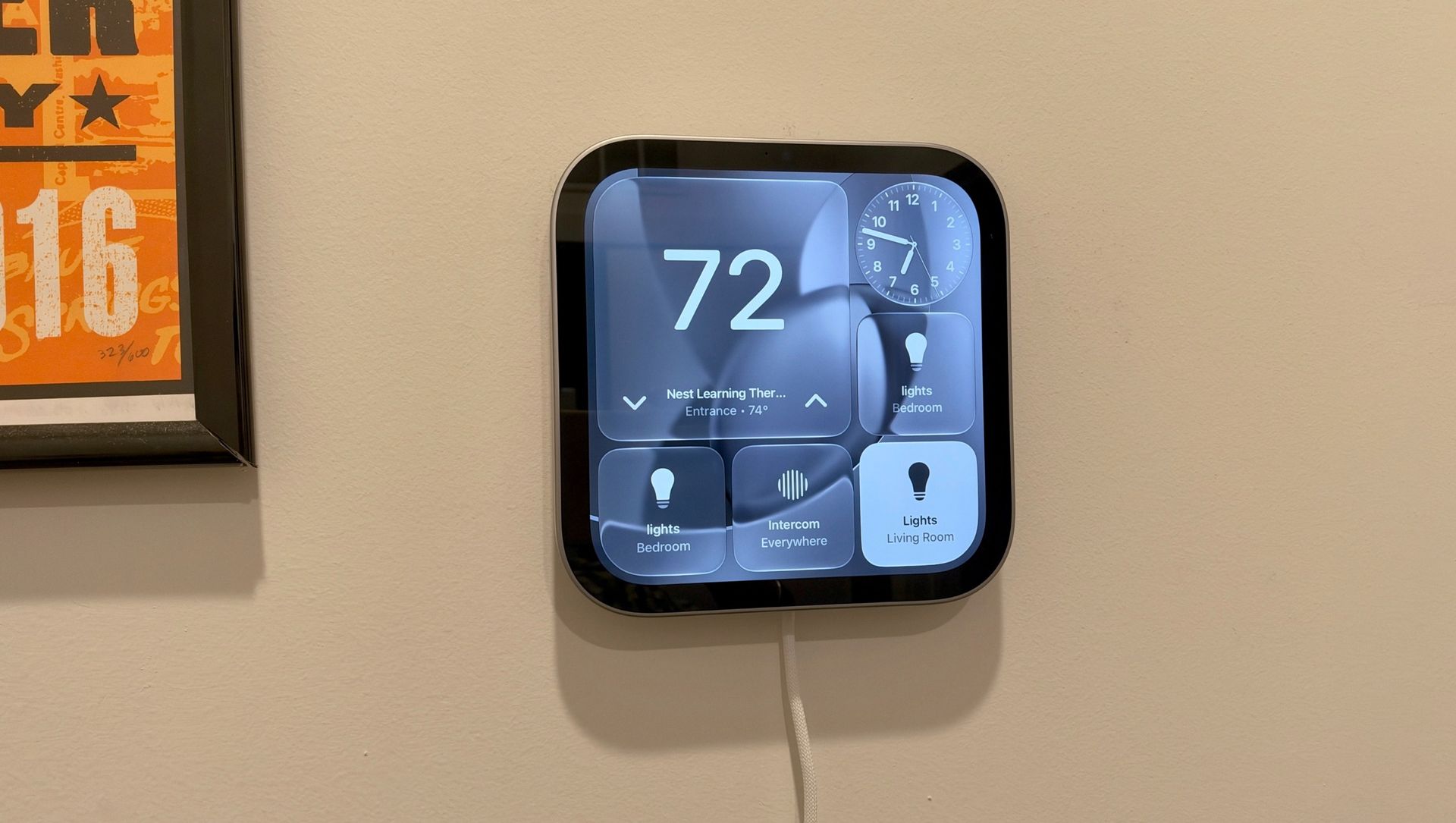
Of course, you don't have to rely on Siri to control your smart home. The HomeView has a dedicated Home app that's similar to what you'll find on your iPhone or iPad, but it's the Home Modular clock face that really turns it into a smart home control panel, especially when wall-mounted. You can customize it with blocks showing key information, like the temperature or readings from connected sensors, alongside easy touch controls for lights, thermostats, and other smart home devices. Everything is in one place, and I've found it especially useful on the HomeView in my entryway, where I can quickly see what's happening around my apartment or make an adjustment without reaching for my iPhone.
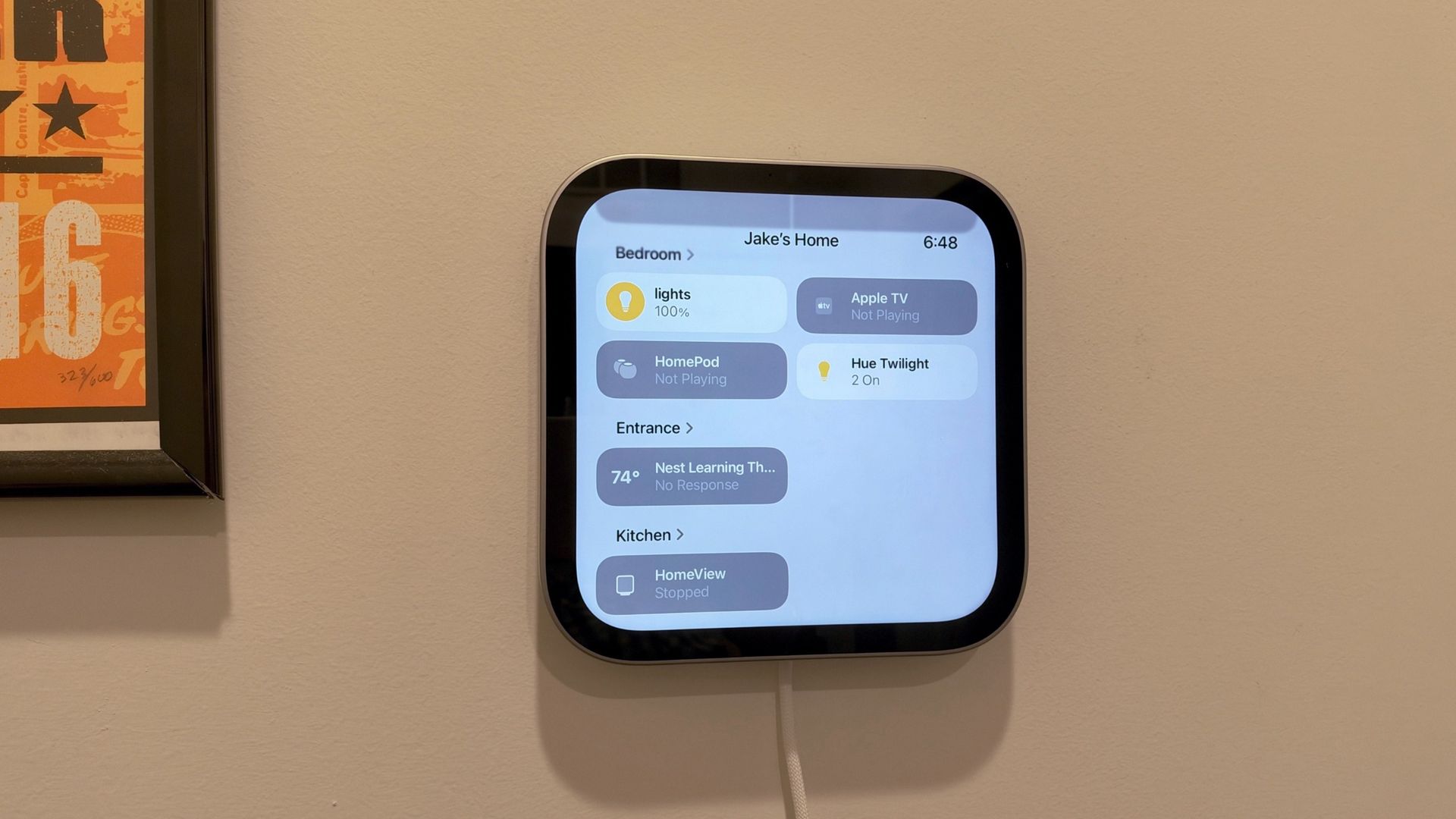
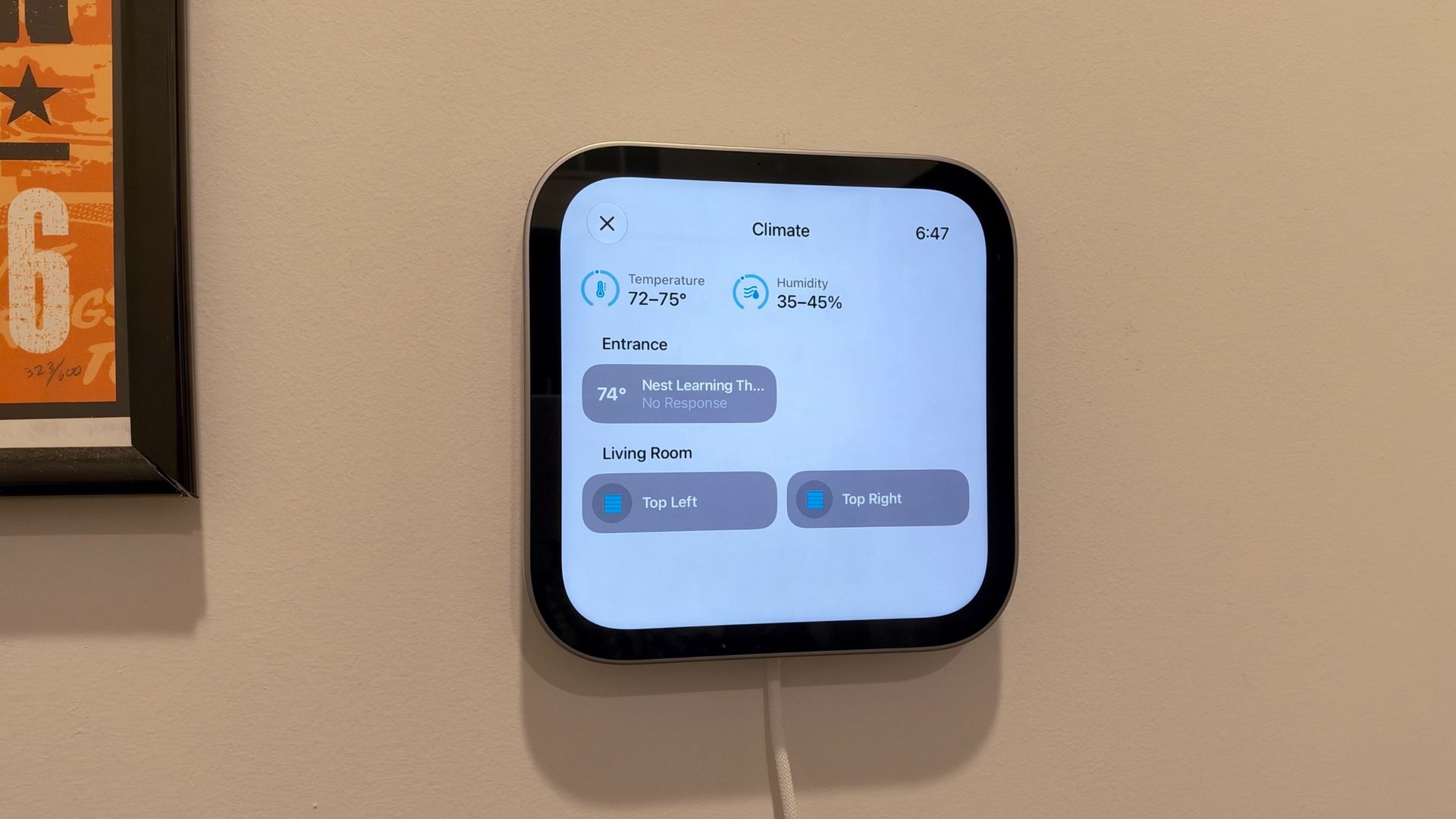
You'll also find automations you've previously created in the Home app, but the HomeView takes things a step further by letting you create new ones simply by asking Siri. These can be single actions or more complex, multi-step routines. For instance, I asked Siri to create an automation that raises the smart blinds in my apartment and turns on the lights every morning at 6am. It handled the request, and just like that, I had a new morning routine without setting it up manually in the Home app.
The broader smart home ecosystem remains somewhat confusing, particularly around compatibility. HomeView works with Apple Home and supports Matter, with Thread connectivity built in, but there's no native Zigbee support. That doesn't rule out Zigbee devices connected through a compatible bridge, though. It's worked well with my existing devices — Philips Hue lights, Google Nest Learning Thermostat 4th Gen, Eve Cam, an Anker Eufy camera, and Ryse Shades — and Apple's own Home Collection is set to arrive in December. Still, it's worth checking which devices will actually integrate before making the jump.
I've also been impressed by the four integrated microphones, which reliably pick up my voice from across the room, even with music playing through a HomeView or the TV on in the background. That's particularly useful in my kitchen, where I can be making coffee or cooking dinner while asking Siri for information, controlling music, or making a FaceTime call without stopping what I'm doing.
FaceTime is another highlight. The 12-megapixel camera delivers good video quality, and Center Stage does a solid job keeping me in frame as I move around the kitchen, though it can only follow me within the camera's field of view.
On the wall-mounted HomeView in my entryway, I've also found myself asking Siri for directions, calendar updates, or simply what I've missed when getting home or starting the day. It's convenient to have that information available in a central location without pulling out my iPhone.
There's also a surprisingly useful Mirror feature, accessible through Control Center, which uses the built-in camera to show a live view of yourself. You can switch between 1x and 2x views, and while it's not something I'd necessarily buy a HomeView for, it's a neat addition for a device mounted near the front door. I've used it for a quick look before heading out.
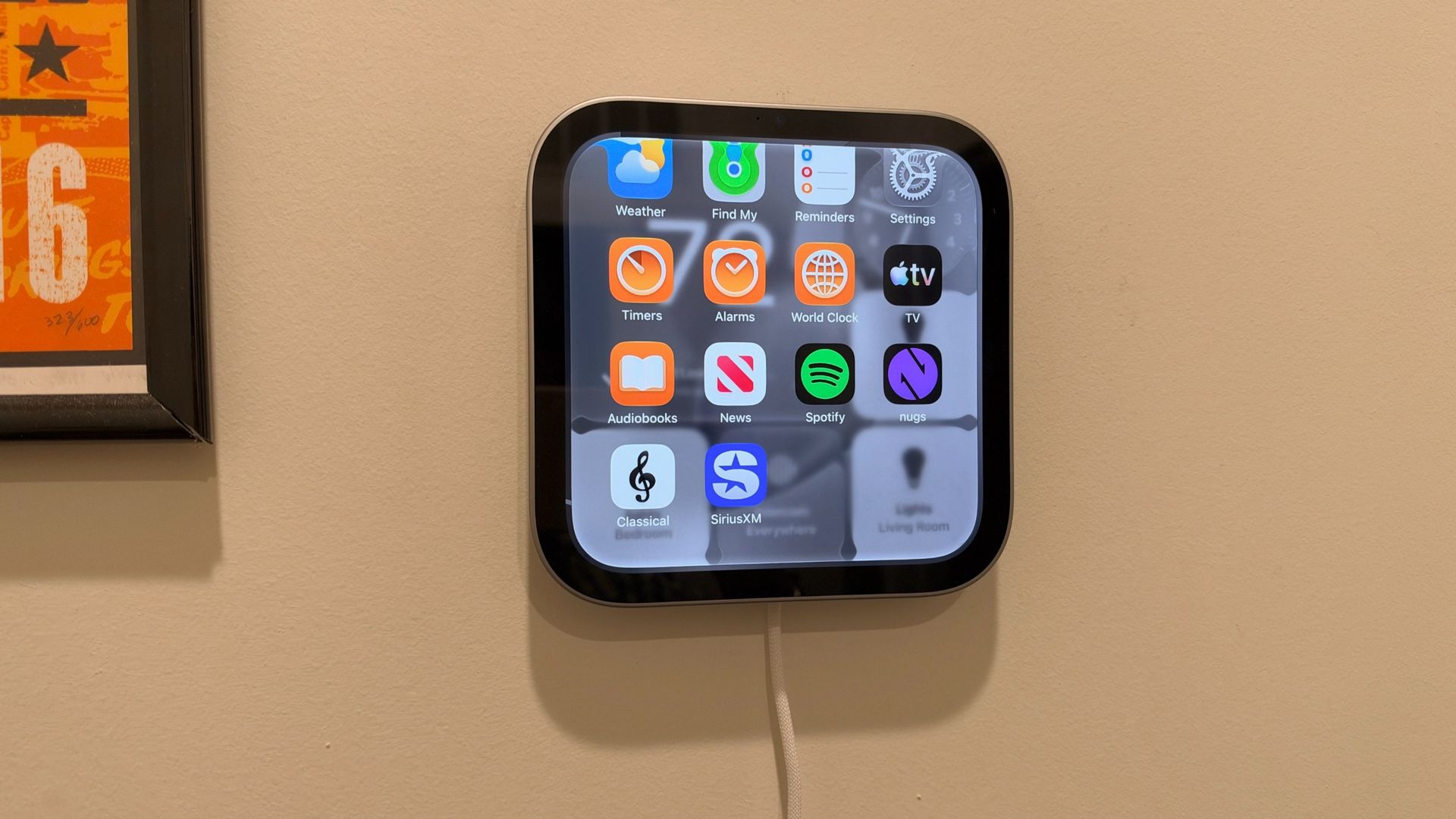
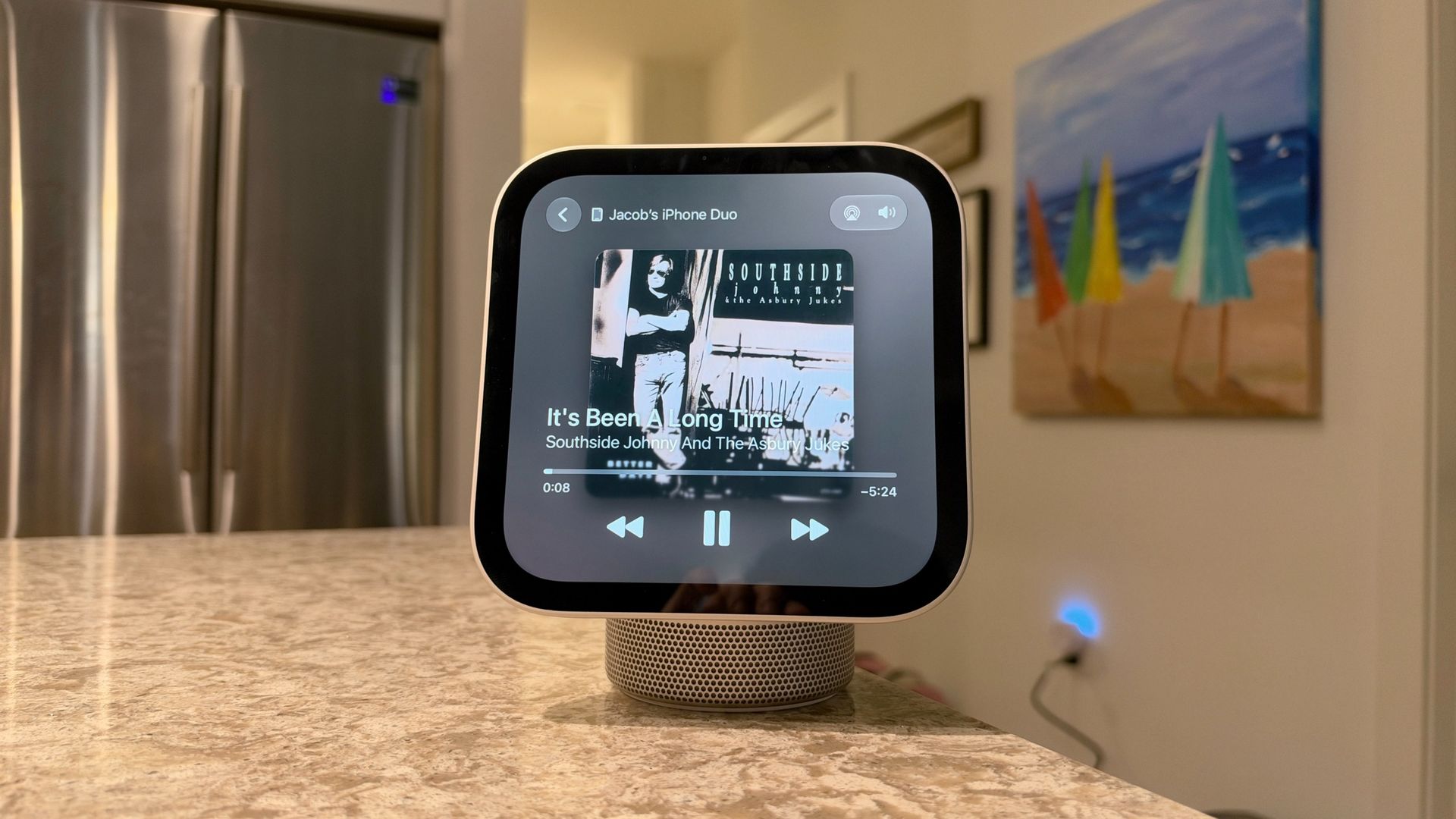
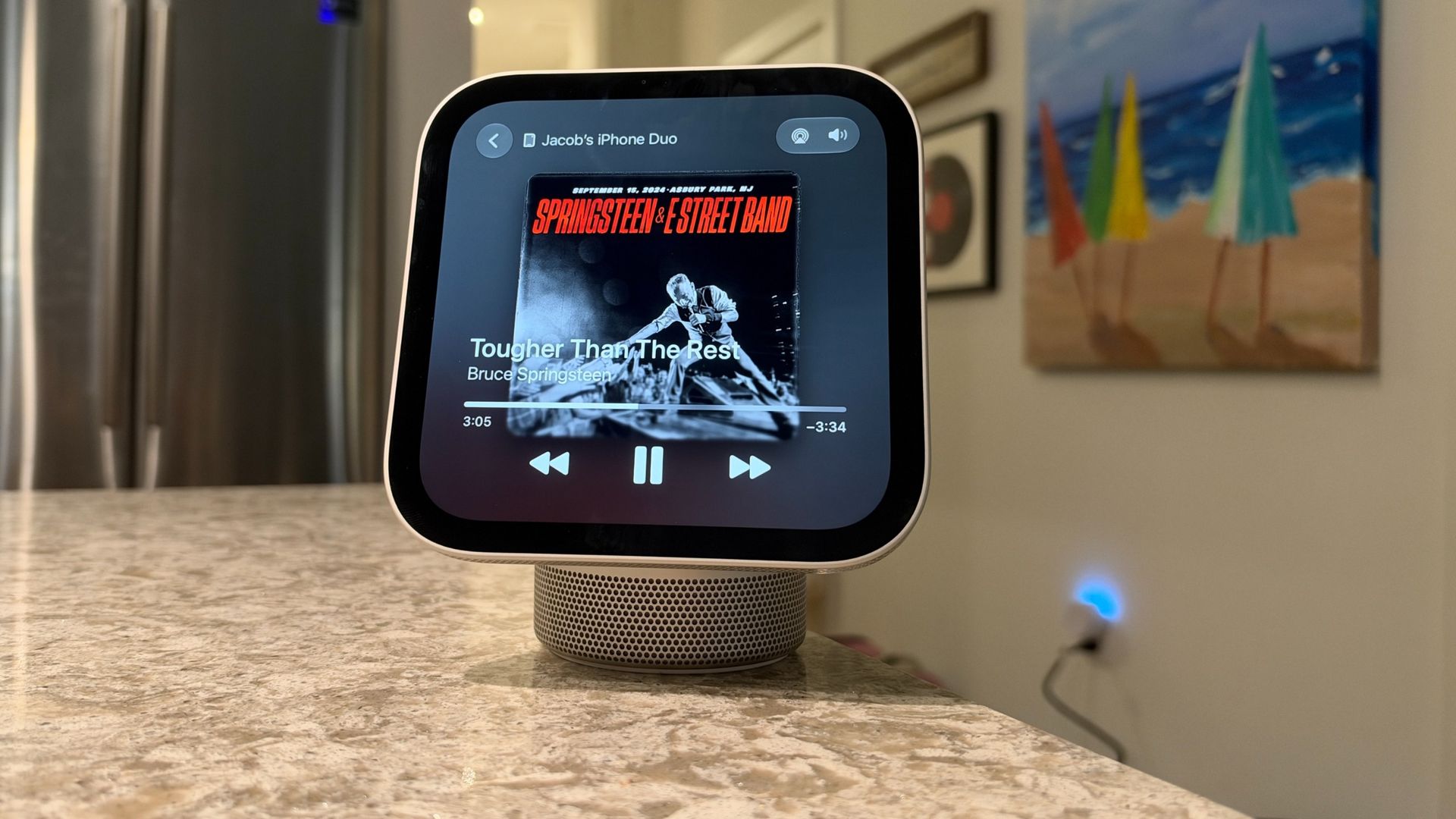
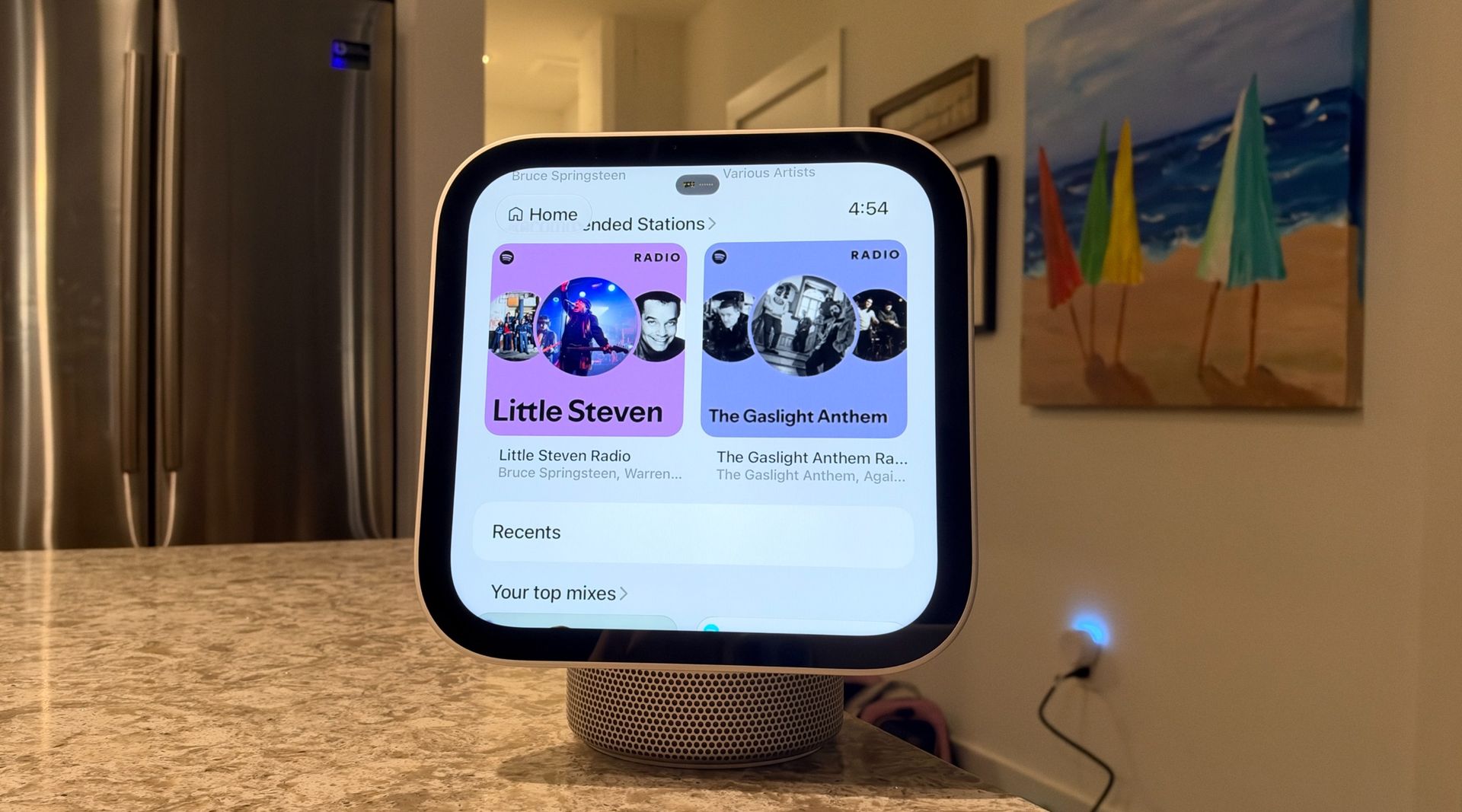
Of course, the HomeView isn't an iPad, and Apple isn't trying to turn it into one. There's no App Store, and third-party app support is limited. Interestingly, Apple is leaning on CarPlay compatibility to bring select audio and video media apps to the HomeView.
I've been able to use Spotify, Nugs, Apple Music Classical, and SiriusXM, though what's available can change depending on whom HomeView recognizes, since it pulls from that person's profile and connected iPhone.
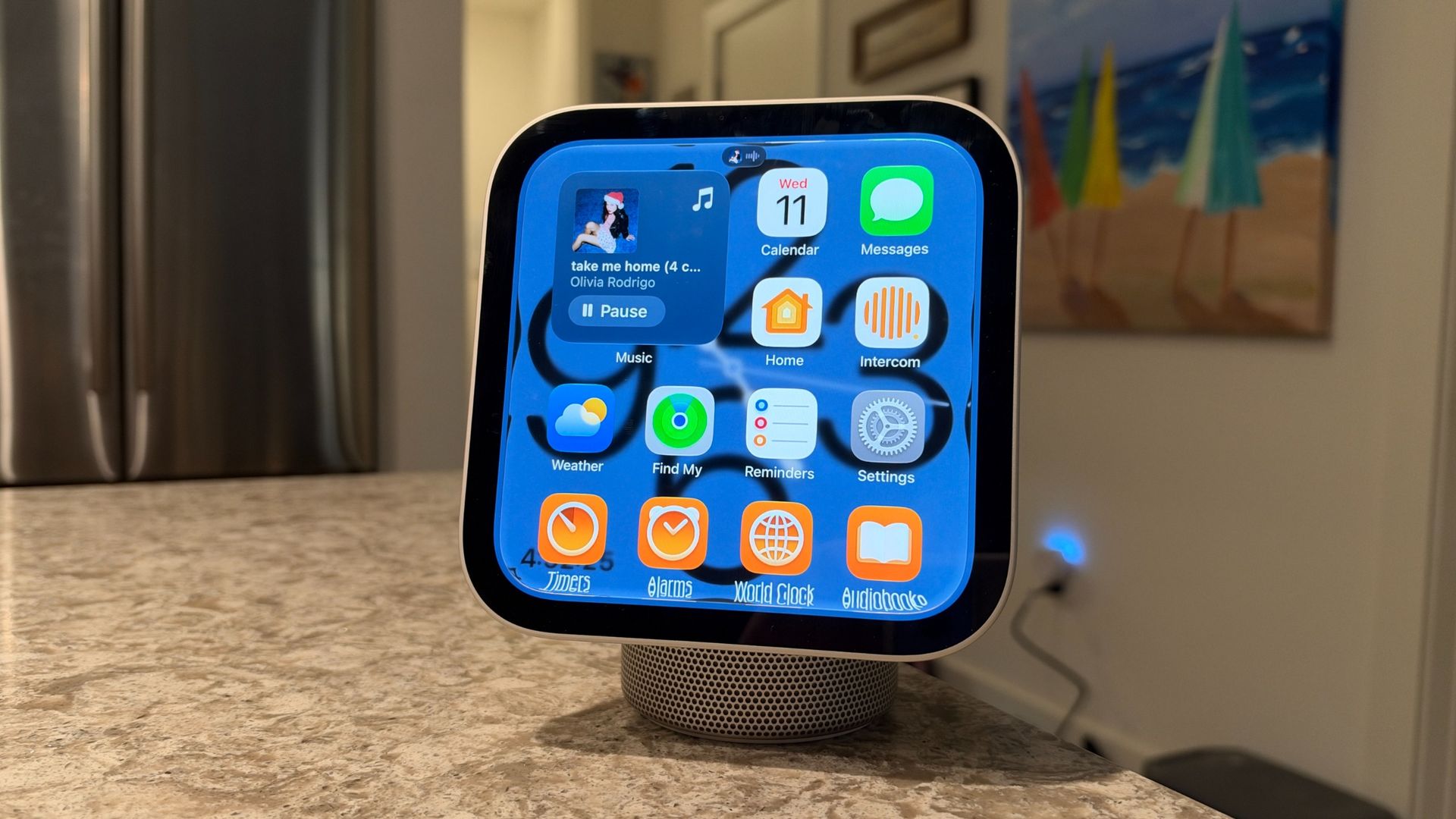
It's a curated experience, and I think that works well here. I get the sense it's meant to avoiding overwhelming you, or becoming another screen that's constantly demanding your attention. Instead, it's arguably Apple's first truly ambient device, designed to surface information when you need it and fade into the background when you don't. It doesn't even feature notifications except for Home alerts or when a call comes into your iPhone.
It's both touch- and voice-enabled, and Apple's mainstay apps are here, including Music, Podcasts, Safari, FaceTime, Calendar, Messages, Home, Intercom, Weather, Find My, Reminders, Alarms, Timers, World Clock, Audiobooks, Apple TV, and Settings. News is also part of the experience, though the selection is still more limited than what you'd find on an iPhone or iPad.
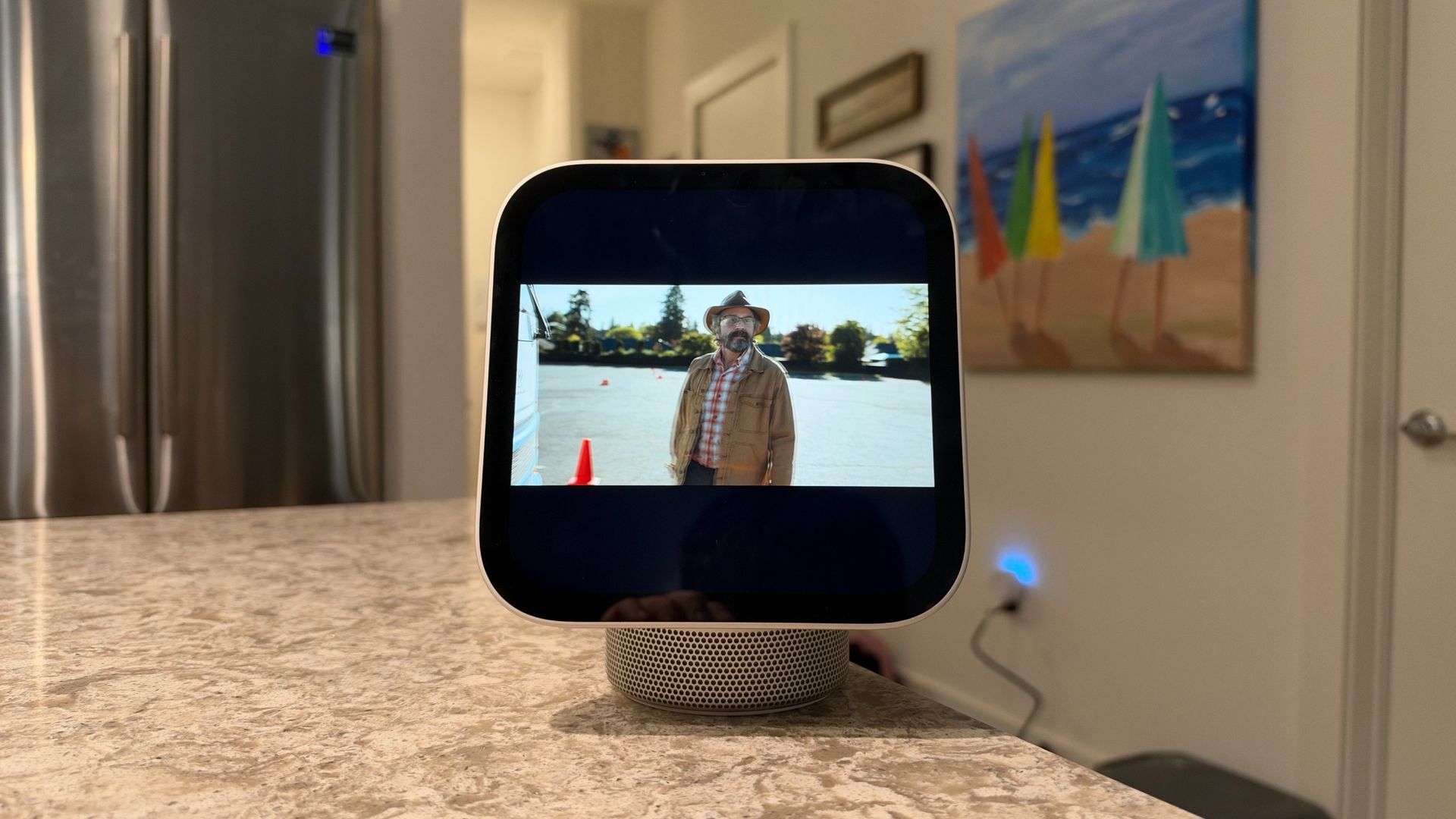
Although the HomeView has Apple TV built in, don't expect it to replace your television or even an iPad. There are no dedicated apps for YouTube, Disney+, Hulu, Peacock, or Netflix, though you can start a YouTube video on your iPhone and bring it close to your HomeView to hand off playback. And with a seven-inch display, substantial black bars, or a zoomed-in picture that crops the action, it's better suited to casual viewing while doing something else than settling in for a full TV episode or movie.
Audio is another major strength, particularly on the standard HomeView. For something so compact, the sound is seriously impressive, with a wide soundstage, remarkably strong bass, and enough volume to outdo the HomePod mini 2. It easily fills both my kitchen and adjoining living room with rich, robust audio, and I've actually found myself using it as my apartment's main speaker.
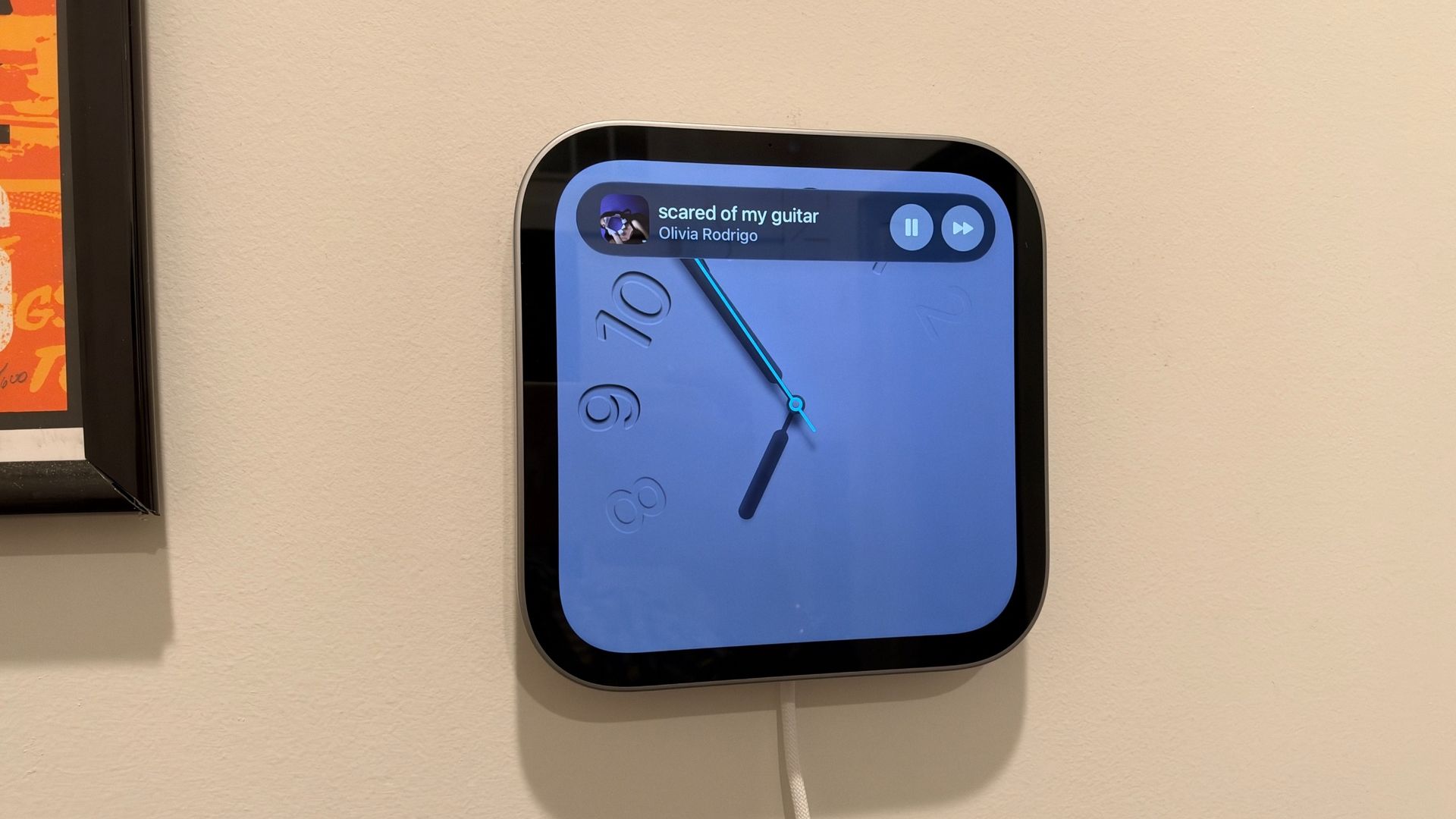
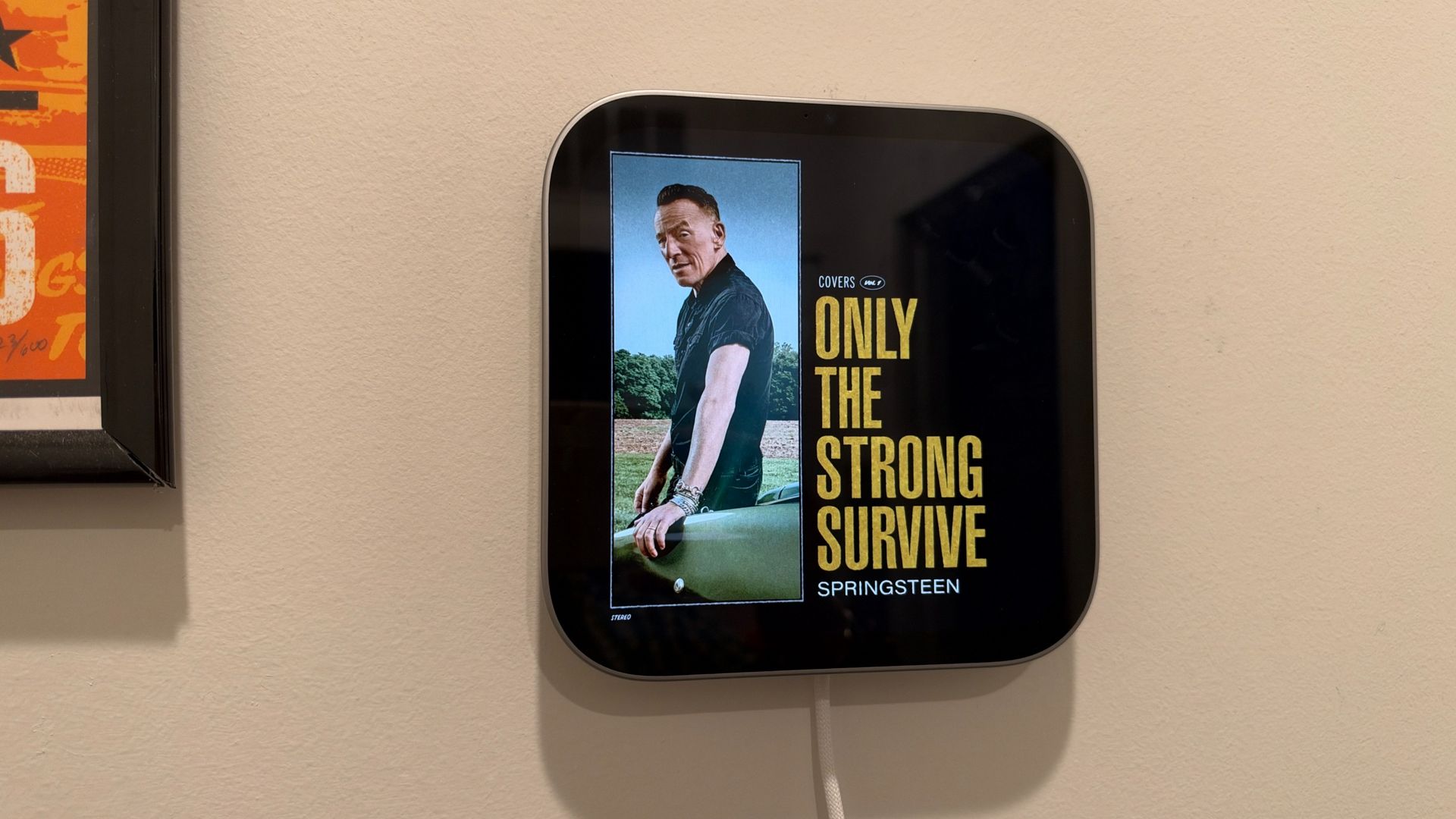
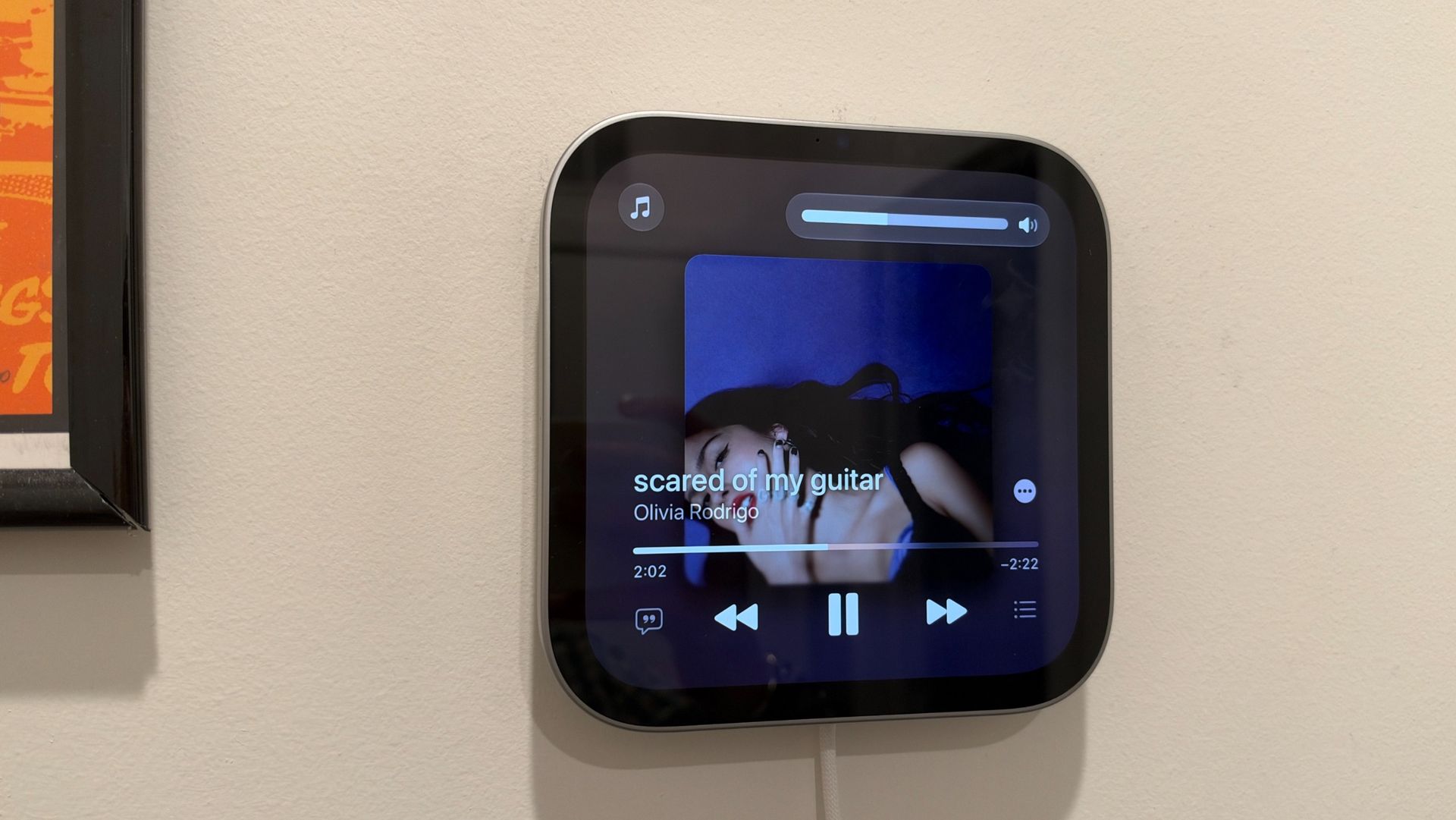
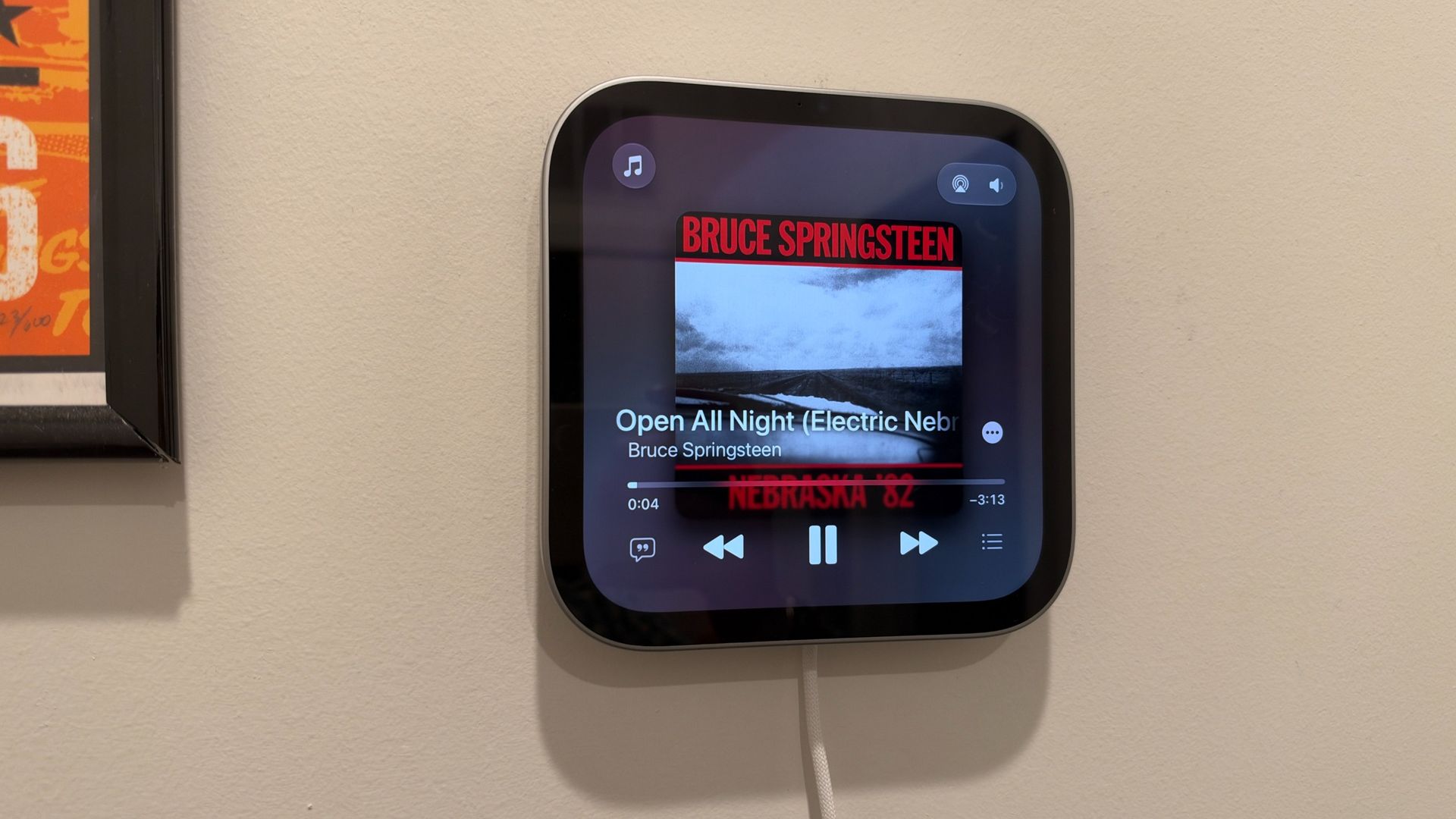
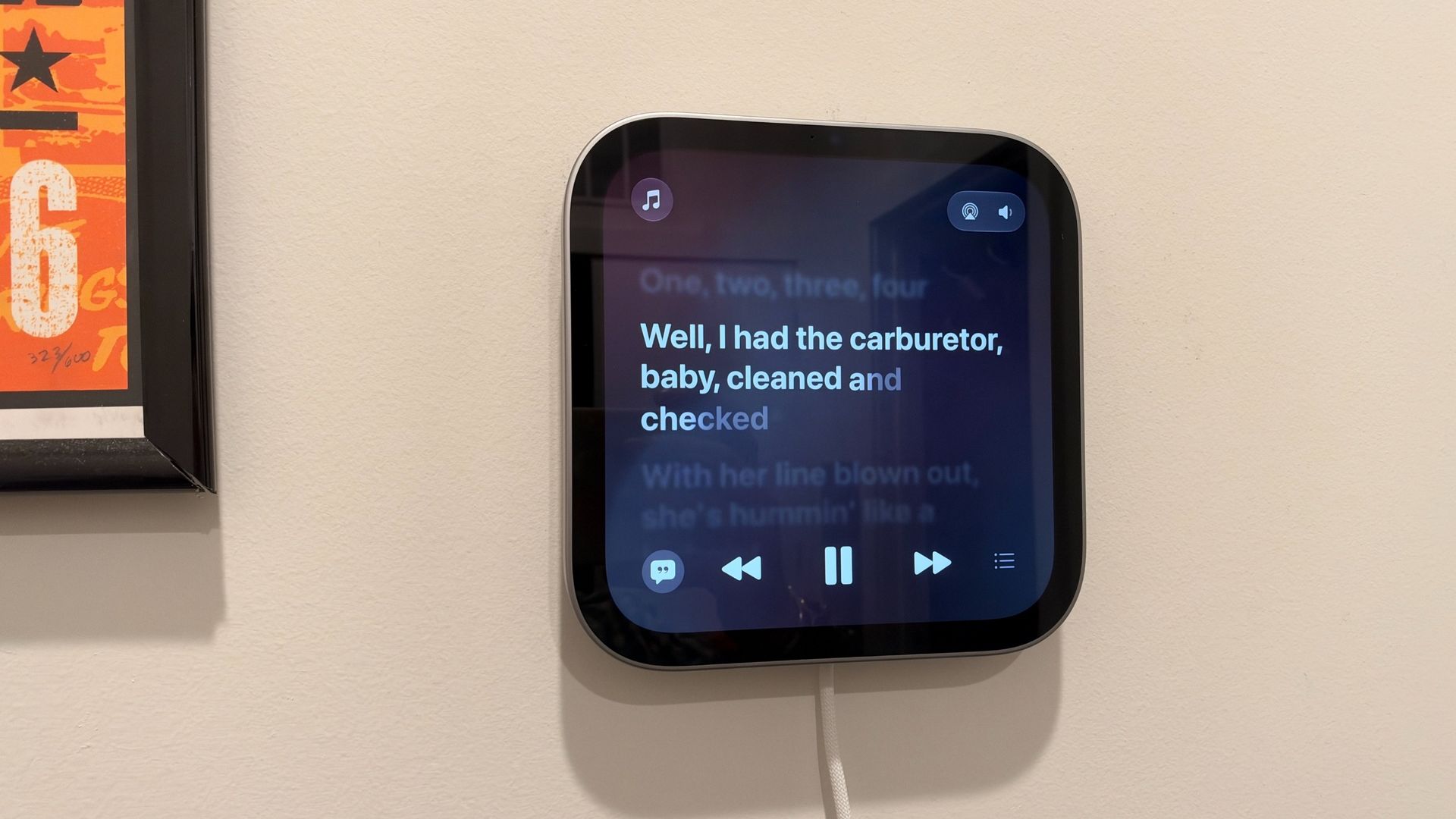
At times, I've also grouped it with the wall-mounted HomeView for music playback across both spaces, and the experience works quite well. The tabletop model definitely has the advantage, though, with fuller sound and considerably more low-end punch. The wall-mounted version still sounds good for its size, but if music is a priority, the standard HomeView is absolutely the one I'd choose.
And while the HomeView is great for controlling my smart home, playing music, following recipes while cooking — especially with multiple pre-set timers — making FaceTime calls, and plenty more, I also appreciate that it doesn't constantly demand my attention. It doesn't make me want to reach for my iPhone, either. Sometimes, I just want to glance over to check the time, see the weather, or enjoy a photo of Rosie, and that's more than enough.
The HomeView is there when I need it and fades into the background when I don't, and I think that's a big part of its appeal.
- Performance score: 4 / 5
Apple HomeView: Specs
Apple HomeView | Apple HomeView (Wall-Mounted) | |
Display | 7-inch Liquid Retina display (LED 1088 x 1088) with TrueTone, 500-nits brightness limit. | 7-inch Liquid Retina display (LED 1088 x 1088) with TrueTone, 500-nits brightness limit. |
Processor | Apple A18 chip | Apple A18 chip |
Camera | 12-megapixel CenterStage Camera | 12-megapixel CenterStage Camera |
Connectivity | Wi-Fi 6E (802.11ax) with MIMO, Bluetooth 6.0, and Thread | Wi-Fi 6E (802.11ax) with MIMO, Bluetooth 6.0, and Thread |
Audio | Two custom full-range drivers, dual force-canceling passive radiators, and a single down-firing woofer | Two custom full-range drivers |
Sensors | Ambient light sensor, an accelerometer, and a combined temperature and humidity sensor | Ambient light sensor, an accelerometer, and a combined temperature and humidity sensor |
Power | 1.5m USB-C to USB-C cable and 30-watt plug included. | Not included. |
Size | 5.73 in x 5.38 - 6.82 in x 3.78 - 5.13 in // 145.5 mm x 136.7–173.2 mm x 96.0–130.3 mm | 5.73 in x 5.73 in x 0.39 in // 145.5 mm x 145.5 mm x 9.9 mm |
Weight | 952 grams (2.1 pounds) | 286 grams (0.63 pounds) |
Price | $299 / £299 / AU$499 | $299 / £299 / AU$499 |
Apple HomeView: Pricing and Availability
Apple’s HomeView is currently up for preorder at $299 in the US, £299 in the UK, and AU$449 in Australia, and will officially launch — and begin shipping — November 13, 2026. The standard HomeView, which has a base to stand on its own and comes with a wall plug, comes in four colors: Silver, Starlight, Rose Pink, and Space Gray.
There’s also the HomeView (Wall-Mounted) for the same price, available in Silver or Space Gray. With that, you’ll need to get a separate wall mount made by Schneider Electric, either one that ends with a USB-C port – a good option for renters – or an AC one, which requires proper installation.
Apple HomeView: Should I Buy?
Buy it if…
You've been waiting for Apple's smart display
It's been a long time coming, and the HomeView checks off many of the boxes you'd expect from a smart home hub. From music playback and quick access to Siri AI to smart home controls and a digital photo frame, Apple has delivered a strong first-generation product.View Deal
You want a communal screen for everyday tasks
The HomeView is excellent for those quick interactions throughout the day, whether that's checking messages, making a FaceTime call, controlling your lights, or glancing at the weather. And with personalized experiences for up to six users, it feels right at home in a shared space.View Deal
Apple HomeView: How I Tested
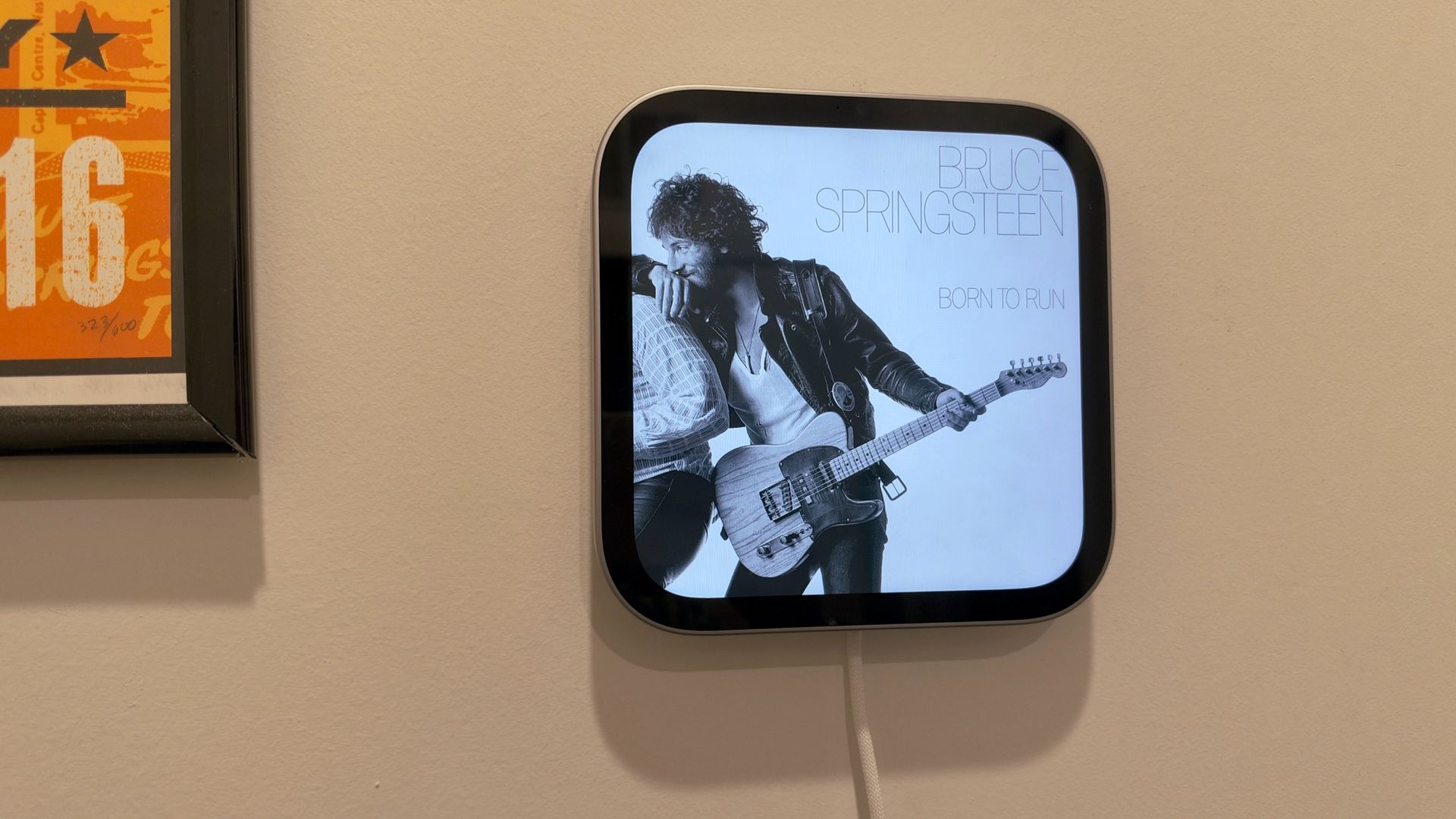
I spent eight days testing two Apple HomeViews in my apartment, with the standard model primarily living on my kitchen island and the wall-mounted version installed in my entryway. I also moved the standard HomeView into my office and bedroom to see how it worked in different spaces.
I used both devices throughout my daily routine, testing everything from Siri AI and Personal Context to smart home controls, music playback, FaceTime calls, messages, and customizable clock faces. I connected HomeView to my existing smart home devices, including Philips Hue lights, a Nest thermostat, and smart blinds, and tested how well it handled everyday requests and more complex tasks.
I also compared the HomeView to Amazon Echo Show and Google Nest Hub smart displays, along with several speakers, including the original HomePod mini, HomePod mini 2, second-generation HomePod, Sonos Move 2, and Sonos Era 100. I paid particular attention to audio quality, responsiveness, ease of use, and how naturally HomeView fit into my daily routine — including those moments when I wasn't actively interacting with it.
First reviewed November 2026.