工作中经常见到大量同事花名被打错的场景,本文分享了我近几年在用的输入法,完美解决了这个问题。
本文适合有以下需求的读者:
- 很在意输入法隐私,不想让第三方知道自己输入了什么
- 很在意打字效率和准确性
- 经常要输入一些自定义词组
在接触到 RIME 之前,我用过很多款中文输入法,从最早的搜狗、到后来的百度、必应Bing输入法(后来改名叫微软拼音输入法)。其中 Windows 上最满意的是必应输入法,无奈 Mac 平台用不了。后来 Mac 上一直使用了好多年百度输入法,打字词库总是缺少一种称手的感觉,又找不到好的代替。
另外考虑到这类国内厂商的输入法基本毫无隐私和安全可言,它们都是免费产品,如果不是为了获取用户数据,那他们开发和持续维护这些输入法的目的是什么呢?
🐭 RIME 鼠须管
Rime(中州韵)是一个开源的输入法引擎,鼠须管是基于 Rime 构建的一款开源输入法,面向 macOS 平台。
我很早就听说过这款输入法的大名,也遇到很多人推荐它,但是被它繁杂的配置劝退了。最近,看到有人做了一套配置集合,整合了很多常用的功能,配合官方的配置管理工具让使用门槛一下子降低了好多。
接下来是一个简明指南,可以帮你快速安装和配置好一个开箱即用的输入法。
继续阅读需要的一些前置要求:
- 了解基本的 linux/unix 命令,例如 cat、vim 用于在命令行查看和编辑文件
- 了解 git 和 brew 这些工具,用于安装必要的程序
安装
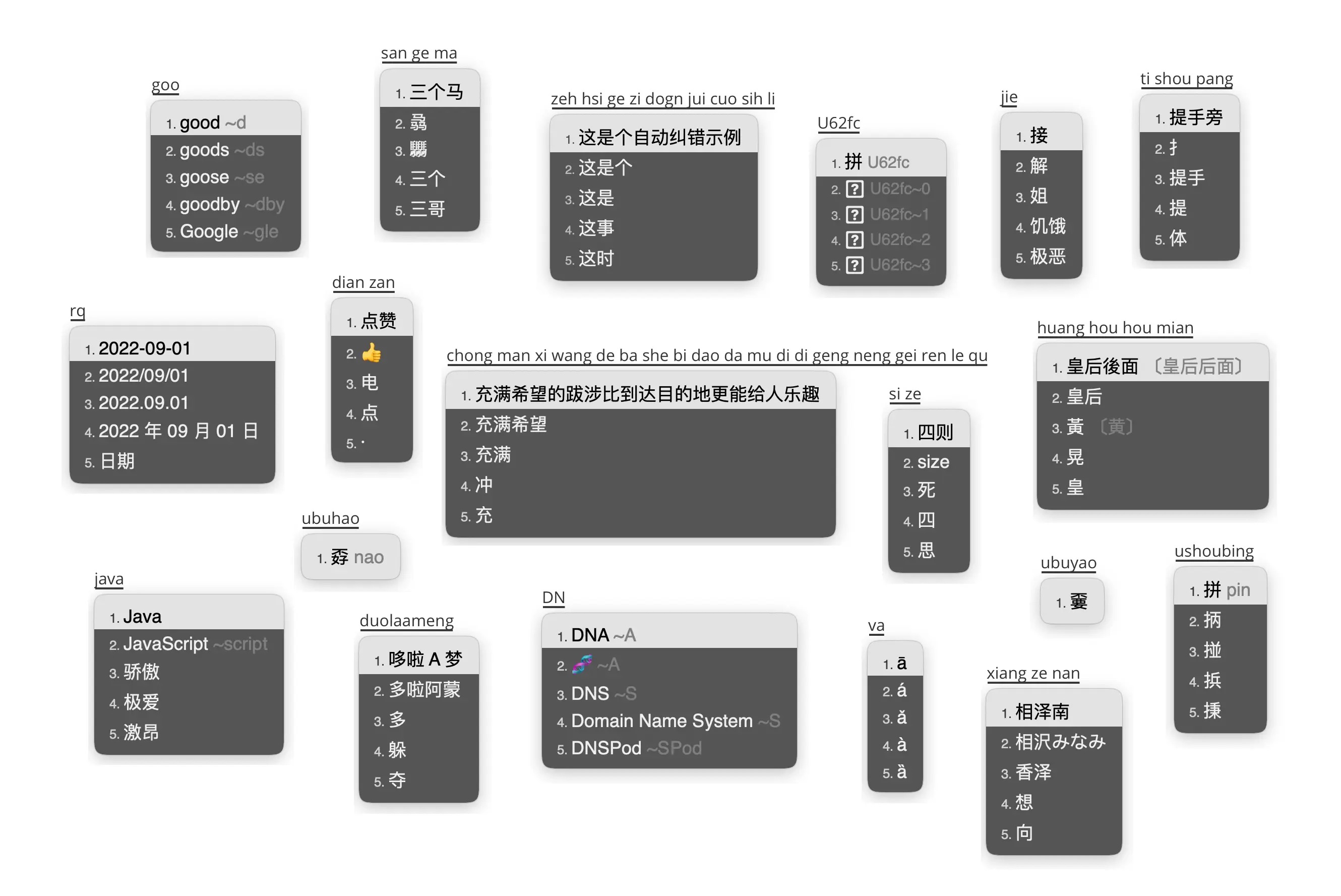
# 回到家目录,可选 cd ~ # 安装 plum,这是 Rime 官方的配置管理工具 git clone --depth=1 https://github.com/rime/plum cd plum # 安装 Rime 配置:雾凇拼音 bash rime-install iDvel/rime-ice:others/recipes/full # 安装 鼠须管 Squirrel,安装之后需要登出系统重新登入才能添加输入法 brew install --cask squirrel 下面是雾凇拼音提供的功能概览图
修改个人配置
鼠须管和默认配置安装好之后,其实已经可以正常使用了。本节的示例教你如何正确的做一些个性化配置。
RIME 设置
执行 vim ~/Library/Rime/default.custom.yaml,填入以下配置,下面的配置主要做了两个事情:
- 输入法方案只保留了全拼(schema: rime_ice),删除了默认启用的双拼方案
- 开启了 ⇧Shift 键切换英文
# Rime Patch settings # encoding: utf-8 patch: # 方案列表 schema_list: - schema: rime_ice # 中西文切换 # # 【good_old_caps_lock】 CapsLock 切换到大写或切换中英。 # (macOS 偏好设置的优先级更高,如果勾选【使用大写锁定键切换“ABC”输入法】则始终会切换输入法) # # 切换中英: # 不同的选项表示:打字打到一半时按下了 CapsLock、Shift、Control 后: # commit_code 上屏原始的编码,然后切换到英文 # commit_text 上屏拼出的词句,然后切换到英文 # clear 清除未上屏内容,然后切换到英文 # inline_ascii 无输入时,切换中英;有输入时,切换到临时英文模式,按回车上屏后回到中文状态 # noop 屏蔽快捷键,不切换中英,但不要屏蔽 CapsLock ascii_composer: good_old_caps_lock: true # true | false switch_key: Caps_Lock: commit_code # commit_code | commit_text | clear Shift_L: commit_code # commit_code | commit_text | inline_ascii | clear | noop Shift_R: commit_code # commit_code | commit_text | inline_ascii | clear | noop Control_L: noop # commit_code | commit_text | inline_ascii | clear | noop Control_R: noop # commit_code | commit_text | inline_ascii | clear | noop 鼠须管设置
鼠须管有很多内置的主题,你可以直接将他们的名字填到下面配置的 color_schema 字段即可,我这里没有使用内置主题,而是从网络上找了两款接近 macOS 原生输入法的主题。
执行 vim ~/Library/Rime/squirrel.custom.yaml,填入以下配置:
# Squirrel Patch settings # encoding: utf-8 # # 内置皮肤展示: https://github.com/NavisLab/rime-pifu # 鼠须管配置指南: https://github.com/LEOYoon-Tsaw/Rime_collections/blob/master/鼠鬚管介面配置指南.md # 鼠须管作者写的图形化的皮肤设计器: https://github.com/LEOYoon-Tsaw/Squirrel-Designer patch: style: color_scheme: macos_light # 将皮肤名称输入在此处 color_scheme_dark: macos_dark # 暗色模式下的皮肤名称 # 皮肤列表 preset_color_schemes: macos_light: name: "MacOS 浅色/MacOS Light" author: 小码哥 font_face: "PingFangSC" # 字体及大小 font_point: 16 label_font_face: "PingFangSC" # 序号字体及大小 label_font_point: 12 comment_font_face: "PingFangSC" # 注字体及大小 comment_font_point: 16 candidate_format: "%c\u2005%@\u2005" # 编号 %c 和候选词 %@ 前后的空间 candidate_list_layout: linear # 候选排布:层叠 stacked | 行 linear text_orientation: horizontal # 行文向: 横 horizontal | 纵 vertical inline_preedit: true # 拼音位于: 候选框 false | 行内 true translucency: false # 磨砂: false | true mutual_exclusive: false # 色不叠加: false | true border_height: 1 # 外边框 高 border_width: 1 # 外边框 宽 corner_radius: 5 # 外边框 圆角半径 hilited_corner_radius: 5 # 选中框 圆角半径 surrounding_extra_expansion: 0 # 候选项背景相对大小? shadow_size: 0 # 阴影大小 line_spacing: 5 # 行间距 base_offset: 0 # 字基高 alpha: 1 # 透明度,0~1 spacing: 10 # 拼音与候选项之间的距离 (inline_preedit: false) color_space: srgb # 色彩空间: srgb | display_p3 back_color: 0xFFFFFF # 底色 hilited_candidate_back_color: 0xD75A00 # 选中底色 label_color: 0x999999 # 序号颜色 hilited_candidate_label_color: 0xFFFFFF # 选中序号颜色 candidate_text_color: 0x3c3c3c # 文字颜色 hilited_candidate_text_color: 0xFFFFFF # 选中文字颜色 comment_text_color: 0x999999 # 注颜色 hilited_comment_text_color: 0xFFFFFF # 选中注颜色 text_color: 0x424242 # 拼音颜色 (inline_preedit: false) hilited_text_color: 0xFFFFFF # 选中拼音颜色 (inline_preedit: false) candidate_back_color: 0xe9e9ea # 候选项底色 # preedit_back_color: # 拼音底色 (inline_preedit: false) hilited_back_color: 0xD75A00 # 选中拼音底色 (inline_preedit: false) border_color: 0xFFFFFF # 外边框颜色 macos_dark: name: "MacOS 深色/MacOS Dark" author: 小码哥 font_face: "PingFangSC" # 字体及大小 font_point: 16 label_font_face: "PingFangSC" # 序号字体及大小 label_font_point: 12 comment_font_face: "PingFangSC" # 注字体及大小 comment_font_point: 16 candidate_format: "%c\u2005%@\u2005" # 编号 %c 和候选词 %@ 前后的空间 candidate_list_layout: linear # 候选排布:层叠 stacked | 行 linear text_orientation: horizontal # 行文向: 横 horizontal | 纵 vertical inline_preedit: true # 拼音位于: 候选框 false | 行内 true translucency: false # 磨砂: false | true mutual_exclusive: false # 色不叠加: false | true border_height: 1 # 外边框 高 border_width: 1 # 外边框 宽 corner_radius: 5 # 外边框 圆角半径 hilited_corner_radius: 5 # 选中框 圆角半径 surrounding_extra_expansion: 0 # 候选项背景相对大小? shadow_size: 0 # 阴影大小 line_spacing: 5 # 行间距 base_offset: 0 # 字基高 alpha: 1 # 透明度,0~1 spacing: 10 # 拼音与候选项之间的距离 (inline_preedit: false) color_space: srgb # 色彩空间: srgb | display_p3 back_color: 0x1f1e2d # 底色 hilited_candidate_back_color: 0xD75A00 # 选中底色 label_color: 0x999999 # 序号颜色 hilited_candidate_label_color: 0xFFFFFF # 选中序号颜色 candidate_text_color: 0xe9e9ea # 文字颜色 hilited_candidate_text_color: 0xFFFFFF # 选中文字颜色 comment_text_color: 0x999999 # 注颜色 hilited_comment_text_color: 0x999999 # 选中注颜色 text_color: 0x808080 # 拼音颜色 (inline_preedit: false) hilited_text_color: 0xFFFFFF # 选中拼音颜色 (inline_preedit: false) candidate_back_color: 0xe9e9ea # 候选项底色 # preedit_back_color: # 拼音底色 (inline_preedit: false) hilited_back_color: 0xD75A00 # 选中拼音底色 (inline_preedit: false) border_color: 0x050505 # 外边框颜色 wechat_light: name: "微信浅色/Wechat Light" author: 小码哥 font_face: "PingFangSC" # 字体及大小 font_point: 16 label_font_face: "PingFangSC" # 序号字体及大小 label_font_point: 13 comment_font_face: "PingFangSC" # 注字体及大小 comment_font_point: 16 candidate_format: "%c\u2005%@\u2005" # 编号 %c 和候选词 %@ 前后的空间 candidate_list_layout: linear # 候选排布:层叠 stacked | 行 linear text_orientation: horizontal # 行文向: 横 horizontal | 纵 vertical inline_preedit: true # 拼音位于: 候选框 false | 行内 true translucency: false # 磨砂: false | true mutual_exclusive: false # 色不叠加: false | true border_height: 1 # 外边框 高 border_width: 1 # 外边框 宽 corner_radius: 5 # 外边框 圆角半径 hilited_corner_radius: 5 # 选中框 圆角半径 surrounding_extra_expansion: 0 # 候选项背景相对大小? shadow_size: 0 # 阴影大小 line_spacing: 5 # 行间距 base_offset: 0 # 字基高 alpha: 1 # 透明度,0~1 spacing: 10 # 拼音与候选项之间的距离 (inline_preedit: false) color_space: srgb # 色彩空间: srgb | display_p3 back_color: 0xFFFFFF # 底色 hilited_candidate_back_color: 0x79af22 # 选中底色 label_color: 0x999999 # 序号颜色 hilited_candidate_label_color: 0xFFFFFF # 选中序号颜色 candidate_text_color: 0x3c3c3c # 文字颜色 hilited_candidate_text_color: 0xFFFFFF # 选中文字颜色 comment_text_color: 0x999999 # 注颜色 hilited_comment_text_color: 0x999999 # 选中注颜色 text_color: 0x424242 # 拼音颜色 (inline_preedit: false) hilited_text_color: 0x999999 # 选中拼音颜色 (inline_preedit: false) candidate_back_color: 0xe9e9ea # 候选项底色 # preedit_back_color: # 拼音底色 (inline_preedit: false) hilited_back_color: 0x79af22 # 选中拼音底色 (inline_preedit: false) border_color: 0xFFFFFF # 外边框颜色 wechat_dark: name: "微信深色/Wechat Dark" author: 小码哥 font_face: "PingFangSC" # 字体及大小 font_point: 16 label_font_face: "PingFangSC" # 序号字体及大小 label_font_point: 13 comment_font_face: "PingFangSC" # 注字体及大小 comment_font_point: 16 candidate_format: "%c\u2005%@\u2005" # 编号 %c 和候选词 %@ 前后的空间 candidate_list_layout: linear # 候选排布:层叠 stacked | 行 linear text_orientation: horizontal # 行文向: 横 horizontal | 纵 vertical inline_preedit: true # 拼音位于: 候选框 false | 行内 true translucency: false # 磨砂: false | true mutual_exclusive: false # 色不叠加: false | true border_height: 1 # 外边框 高 border_width: 1 # 外边框 宽 corner_radius: 5 # 外边框 圆角半径 hilited_corner_radius: 5 # 选中框 圆角半径 surrounding_extra_expansion: 0 # 候选项背景相对大小? shadow_size: 0 # 阴影大小 line_spacing: 5 # 行间距 base_offset: 0 # 字基高 alpha: 1 # 透明度,0~1 spacing: 10 # 拼音与候选项之间的距离 (inline_preedit: false) color_space: srgb # 色彩空间: srgb | display_p3 back_color: 0x151515 # 底色 hilited_candidate_back_color: 0x79af22 # 选中底色 label_color: 0x999999 # 序号颜色 hilited_candidate_label_color: 0xFFFFFF # 选中序号颜色 candidate_text_color: 0xbbbbbb # 文字颜色 hilited_candidate_text_color: 0xFFFFFF # 选中文字颜色 comment_text_color: 0x999999 # 注颜色 hilited_comment_text_color: 0xFFFFFF # 选中注颜色 text_color: 0xbbbbbb # 拼音颜色 (inline_preedit: false) hilited_text_color: 0x999999 # 选中拼音颜色 (inline_preedit: false) candidate_back_color: 0xbbbbbb # 候选项底色 # preedit_back_color: # 拼音底色 (inline_preedit: false) hilited_back_color: 0x79af22 # 选中拼音底色 (inline_preedit: false) border_color: 0x292929 # 外边框颜色 拷贝完之后,右上角输入法切换到 Squirrel 点击 Deploy 让配置生效。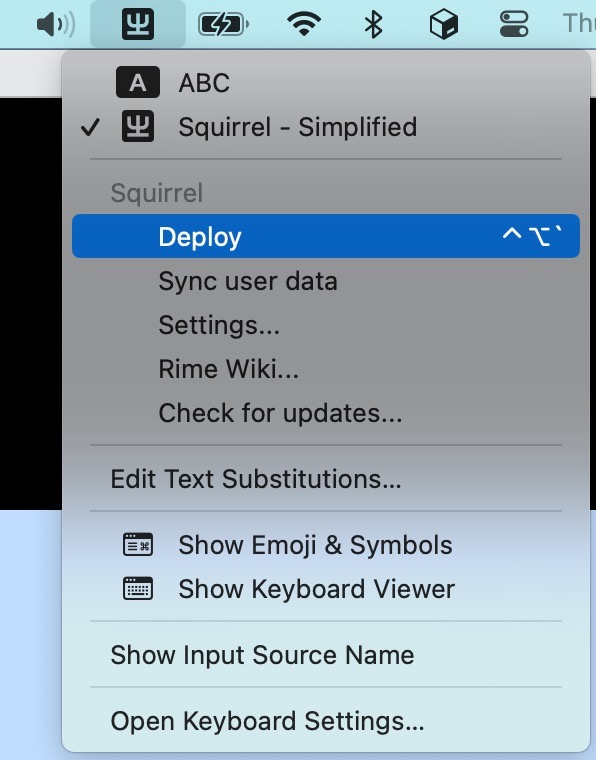
上面我用的配置文件都是 *.custom.yaml 结尾,这种模式称之为打补丁模式,主要是为了避免修改原配置文件,这样以后输入法配置升级就很容易了。
设置同步功能
使用鼠须管自带的用户数据同步功能配合 iCloud 之类的网盘,可以轻松将你的输入法配置和词库跨设备同步,对于多台设备,鼠须管会自动合并用户词库。
- 编辑 installation.yaml 文件
vim ~/Library/Rime/installation.yaml - 修改内容参考如下:
# 本机的 ID 标志,默认是一串 UUID。生成的文件夹是这个名字,可以改成更好识别的名称 installation_id: "mbp16" # 同步的路径,默认如没有设置此属性,则是在当前配置目录的 `sync/` 文件夹 sync_dir: "/Users/YOUR_NAME/Library/Mobile Documents/com~apple~CloudDocs/RimeSync" - 修改好之后,右上角输入法切换到 Squirrel 点击
Sync user data即可完成数据同步,之后改动配置后需要再次重复此操作。目前官方没有提供自动触发同步的功能,因为在同步用户数据期间,输入法会处于不可用状态。
RIME 的同步功能是 配置单向同步 + 用户词库双向同步,举个例子:A 设备开启同步功能后,B 设备并不会自动获得相同的配置,这两个设备只会自动合并用户词库(也就是你的自造词)。

设置自动同步
如果你觉得经常手动同步用户数据比较麻烦,也可以配合 sleepwatcher 在电脑休眠和唤醒的时候自动触发同步,具体做法如下:
brew install sleepwatcher touch ~/.sleep chmod +x ~/.sleep 编辑 ~/.sleep 文件,填入以下内容:
#!/usr/bin/env bash # 触发鼠须管同步用户数据 /Library/Input\ Methods/Squirrel.app/Contents/MacOS/Squirrel --sync 配置好之后,重启 sleepwatcher
brew services restart sleepwatcher 这时候可以休眠电脑等10秒再唤醒,检查 sync_dir 里面的 rime_ice.userdb.txt 文件修改时间是否变了。如果不生效,请检查 ~/.sleep 脚本是否正确,可以手动执行看下效果,以及重启 sleepwatcher.
上面的 ~/.sleep 脚本是在电脑休眠之前执行,根据你的需要还可以定义一个 ~/.wakeup 脚本在唤醒后执行。
配置更新
前面我们用的预设配置是 雾凇拼音 这个项目提供的,后续可以通过下面的命令更新配置以获得新功能和 Bugfix。
更新雾凇拼音:所有配置和词库(更新前建议先备份 ~/Library/Rime 目录,更新后所有非 .custom.yaml 结尾的配置文件会被覆盖)
# 先回到 plum 安装目录,如果你将 plum 安装在了其他目录,这里需要修改 cd ~/plum bash rime-install iDvel/rime-ice:others/recipes/full 更新雾凇拼音:所有词库文件
cd ~/plum bash rime-install iDvel/rime-ice:others/recipes/all_dicts 如果你用下来感觉挺好的没啥问题,那建议只更新词库就行了。
对于自定义的补丁配置文件,尤其是 *.custom.yaml 和自定义字典,建议将其备份到自己的 git 仓库保存,防止配置意外被覆盖或丢失。
使用技巧
RIME 有些很有用的使用技巧新手刚开始不仔细研究可能发现不了,这里我罗列一些非常好用的技巧。
删除不想要的自造词
打字久了很容易在不经意间产生一些错误的自造词,这时候如果不处理就很容易在后续的输入过程中继续使用这些错误的自造词。
要删除不想要的自造词,你可以使用方向键选中要删除的候选词,再按下 Fn+Shift+Delete 即可删除。
手册原文:只能夠從用戶詞典中刪除詞組。用於碼表中原有的詞組時,只會取消其調頻效果。
使用 Tab 键在拼音之间切换光标
当你打了一段话,发现前面的拼音打错了,或者想单独修改前面的某个字,这时候不用狂按退格键,你可以直接按 Tab 键或 Shift + Tab 在拼音中前后切换光标到对应的拼音。

进阶说明
按照上面的步骤操作下来你已经入门了,这时候如果你想让 RIME 输入法更顺手更符合你的习惯偏好就需要了解进阶概念了。
修改配置
如果你想调整一些自定义的设置,可以先查看以下两个文件,可以对整体配置有个概念:
cat ~/Library/Rime/default.yaml这是 Rime 输入法引擎的默认配置文件,大部分跟输入有关的核心配置都在这里
# Rime default settings # encoding: utf-8 # # 小狼毫似乎不支持 Control+Shift 开头的快捷键,可自行修改成别的。 # 鼠须管在 Sublime Text、Telegram 等个别软件中也无法使用 Control+Shift+数字 的快捷键,可暂时用方案选单切换。 config_version: '2023-03-03' # 方案列表 schema_list: - schema: rime_ice - schema: double_pinyin - schema: double_pinyin_flypy # 菜单 menu: page_size: 5 # 候选词个数 # alternative_select_labels: [ ①, ②, ③, ④, ⑤, ⑥, ⑦, ⑧, ⑨, ⑩ ] # 修改候选项标签 # alternative_select_keys: ASDFGHJKL # 如编码字符占用数字键,则需另设选字键 # 方案选单相关 switcher: caption: 「方案选单」 hotkeys: # - F4 # - Control+grave # - Alt+grave - Control+Shift+grave save_options: # 开关记忆,从方案选单(而非快捷键)切换时会记住的选项,需要记忆的开关不能设定 reset - ascii_punct - traditionalization - emoji fold_options: true # 呼出时是否折叠,多方案时建议折叠 true ,一个方案建议展开 false abbreviate_options: true # 折叠时是否缩写选项 option_list_separator: ' / ' # 折叠时的选项分隔符 # 中西文切换 # # 【good_old_caps_lock】 CapsLock 切换到大写或切换中英。 # (macOS 偏好设置的优先级更高,如果勾选【使用大写锁定键切换“ABC”输入法】则始终会切换输入法) # # 切换中英: # 不同的选项表示:打字打到一半时按下了 CapsLock、Shift、Control 后: # commit_code 上屏原始的编码,然后切换到英文 # commit_text 上屏拼出的词句,然后切换到英文 # clear 清除未上屏内容,然后切换到英文 # inline_ascii 无输入时,切换中英;有输入时,切换到临时英文模式,按回车上屏后回到中文状态 # noop 屏蔽快捷键,不切换中英,但不要屏蔽 CapsLock ascii_composer: good_old_caps_lock: true # true | false switch_key: Caps_Lock: clear # commit_code | commit_text | clear Shift_L: noop # commit_code | commit_text | inline_ascii | clear | noop Shift_R: noop # commit_code | commit_text | inline_ascii | clear | noop Control_L: noop # commit_code | commit_text | inline_ascii | clear | noop Control_R: noop # commit_code | commit_text | inline_ascii | clear | noop # punctuator 和 recognizer 由具体方案指定了 punctuator: full_shape: half_shape: symbols: recognizer: patterns: # 快捷键 key_binder: # 以词定字(上屏当前词句的第一个或最后一个字) select_first_character: select_last_character: "grave" bindings: # Tab/Shift+Tab 切换光标至下/上一个拼音 - { when: composing, accept: Shift+Tab, send: Shift+Left } - { when: composing, accept: Tab, send: Shift+Right } # Tab/Shift+Tab 翻页 # - { when: has_menu, accept: Shift+Tab, send: Page_Up } # - { when: has_menu, accept: Tab, send: Page_Down } # 翻页 - = - { when: has_menu, accept: minus, send: Page_Up } - { when: has_menu, accept: equal, send: Page_Down } # 翻页 , . # 需要额外注释掉方案中 recognizer/patterns 下的 url_2 选项(这个会覆盖掉句号的行为) # - { when: paging, accept: comma, send: Page_Up } # - { when: has_menu, accept: period, send: Page_Down } # 翻页 [ ] # - { when: paging, accept: bracketleft, send: Page_Up } # - { when: has_menu, accept: bracketright, send: Page_Down } # numbered_mode_switch: # - { when: always, accept: Control+Shift+1, select: .next } # 在最近的两个方案之间切换 # - { when: always, accept: Control+Shift+2, toggle: ascii_mode } # 切换中英 - { when: always, accept: Control+Shift+3, toggle: ascii_punct } # 切换中英标点 - { when: always, accept: "Control+Shift+4", toggle: traditionalization } # 切换简繁 # - { when: always, accept: Control+Shift+5, toggle: full_shape } # 切换全半角 # key_binder 按键速查 https://github.com/LEOYoon-Tsaw/Rime_collections/blob/master/Rime_description.md cat ~/Library/Rime/squirrel.yaml这是鼠须管输入法的配置,包含主题配色之类的设置
# Squirrel settings # encoding: utf-8 # # 内置皮肤展示: https://github.com/NavisLab/rime-pifu # 鼠须管配置指南: https://github.com/LEOYoon-Tsaw/Rime_collections/blob/master/鼠鬚管介面配置指南.md # 鼠须管作者写的图形化的皮肤设计器: https://github.com/LEOYoon-Tsaw/Squirrel-Designer config_version: '2023-02-27' # options: last | default | _custom_ # last: the last used latin keyboard layout # default: US (ABC) keyboard layout # _custom_: keyboard layout of your choice, e.g. 'com.apple.keylayout.USExtended' or simply 'USExtended' keyboard_layout: default # for veteran chord-typist chord_duration: 0.1 # seconds # options: always | never | appropriate show_notifications_when: appropriate # ascii_mode、inline、no_inline、vim_mode 等等设定,可参考 /Library/Input Methods/Squirrel.app/Contents/SharedSupport/squirrel.yaml app_options: # com.apple.Spotlight...