Platform engineers who support data and AI teams face a recurring challenge: analytics, machine learning (ML), and AI developer teams each need different tools. When each team operates its own tools and infrastructure, governance becomes fragmented. Organizations face duplicated effort and limited collaboration. Data engineers, data scientists, and AI developers might all work with the same underlying data. Yet they navigate separate consoles, manage distinct AWS Identity and Access Management (IAM) configurations, and lack a shared view of each other’s work.
Amazon SageMaker Unified Studio brings these capabilities together in one governed workspace. Every practitioner gets access to the tools they need: SQL editors, JupyterLab notebooks, and the Amazon Bedrock IDE. At the same time, they share a common business data catalog, security model, and project structure, all governed centrally within Amazon SageMaker Unified Studio. Teams collaborate within projects, while access to data, compute, and development artifacts is managed centrally.
Setting up this kind of multi-team environment means coordinating IAM roles, blueprints, project profiles, and user onboarding on top of the initial domain configuration. New user roles and use cases might require enabling new blueprints and combining them into new project profiles to extend the functionality supported by the domain. To keep this repeatable and consistent, we use the Amazon SageMaker Unified Studio Terraform module to codify the entire setup. The module creates three purpose-built project profiles, one for each team, on a shared domain, plus an initial project to get you started. Creating the remaining per-team projects is a single additional sub-module block.
Consider a mid-size technology company with three teams that need cloud-based data and AI capabilities:
| Team | What they need | Key AWS services |
| Data Analytics | Query and transform data across Amazon Simple Storage Service (Amazon S3), Apache Spark jobs, and Amazon Redshift, build and orchestrate data pipelines, manage a data catalog | Amazon SageMaker Lakehouse, Amazon Redshift Serverless, AWS Glue, Amazon Managed Workflows for Apache Airflow (MWAA) |
| Machine Learning | Run experiments, train models, deploy endpoints | Amazon SageMaker AI, MLflow, Amazon EMR Serverless |
| Generative AI | Build chat agents, knowledge bases, prompt flows, and guardrails | Amazon Bedrock |
A common issue today is that customers don’t have a unified strategy to deploy and manage their infrastructure. The analytics team has a standalone Amazon Redshift cluster, the ML team provisions SageMaker notebooks ad hoc, and the generative AI team experiments with Bedrock through the console. Each team runs its own infrastructure. Because these environments are separate, there’s no shared data catalog, no consistent access control, and no central visibility into what’s running or what it costs.
The goal: a single unified environment where each team gets exactly the capabilities they need, with shared data access, consistent security, and infrastructure you define entirely as code.
Solution overview
We use the Amazon SageMaker Unified Studio Terraform module to create a single domain with three project profiles, one per team. A project profile is a collection of blueprints which are configurations used to create projects, while the domain provides shared governance, IAM roles, and networking.
Key module capabilities:
- Dual provider: Uses both the AWS provider and AWS Cloud Control (AWSCC) provider for full Amazon SageMaker Unified Studio resource coverage.
- Service role flexibility: All IAM roles are auto-created with least-privilege policies, or you can supply existing roles to be used by Amazon SageMaker Unified Studio.
- Domain and project level access using AWS Identity and Access Management (IAM), single sign-on (SSO) with AWS IAM Identity Center or both.
- KMS encryption: Optionally encrypt domain metadata with a customer-managed AWS Key Management Service (AWS KMS) key using
kms_key_identifier. - Model governance: The domain module automatically provisions a model governance project for Generative AI administrators to be added to. Members of the project can enable or disable specific models accessible in the domain.
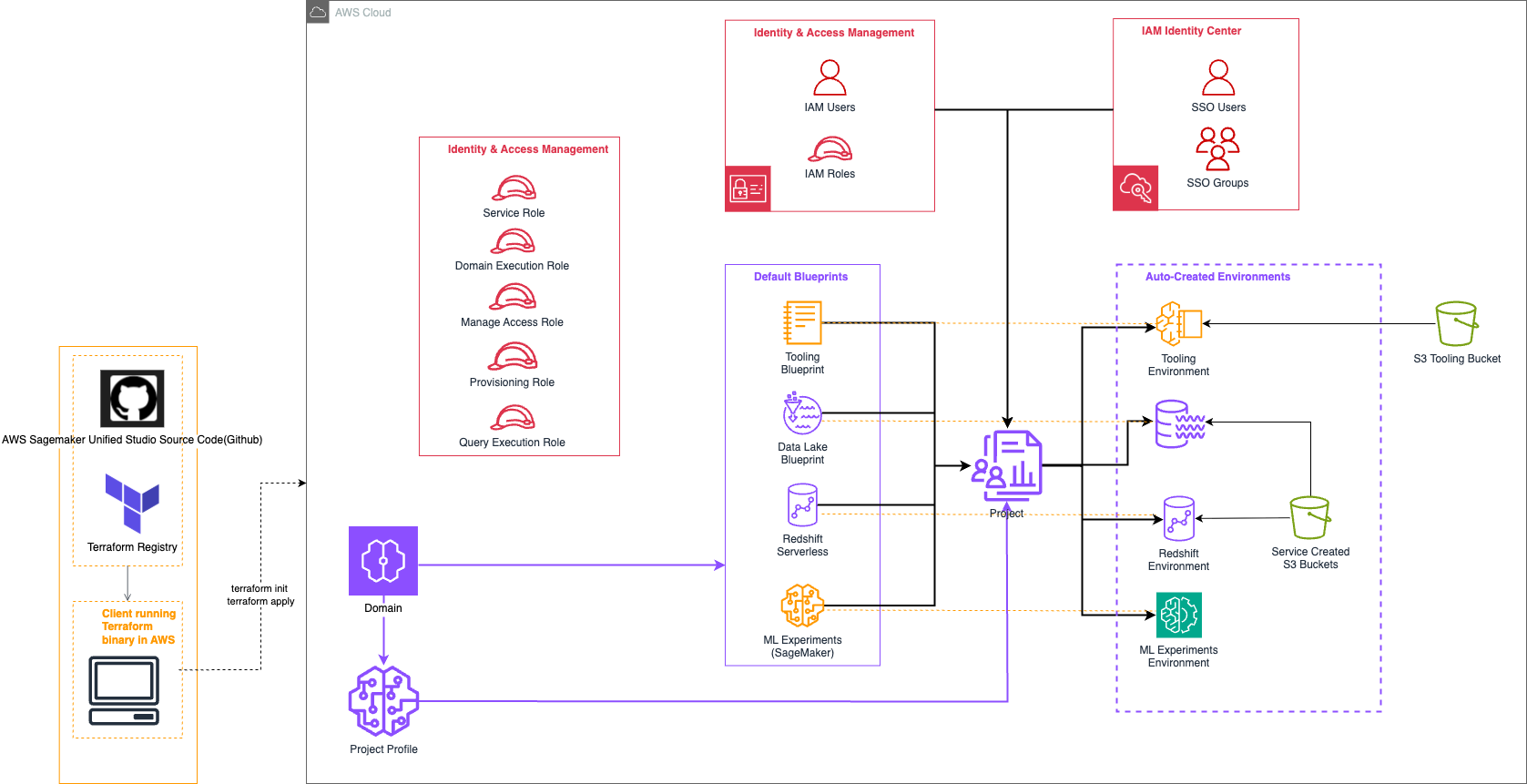
Figure 1: Multi-team Amazon SageMaker Unified Studio architecture
The Terraform module follows a layered architecture with four composable modules:
Layer 1: Domain module. Creates the domain, Tooling blueprint, IAM roles, and S3 bucket:
Layer 2: Blueprint module. Enables individual blueprints on the domain using for_each:
Layer 3: Project profile module. Composes blueprints into team-specific profiles:
Layer 4: Project and Project membership module. Creates a project and assigns members:
At a high level, the deployment mentioned in this post performs the following:
- Terraform creates the Amazon SageMaker Unified Studio domain with shared IAM roles and networking.
- Terraform enables all required blueprints on the domain (DataLake, RedshiftServerless, Bedrock services, EMR, and so on).
- Terraform composes three project profiles (one per team), selecting the appropriate blueprints and parameters.
- Terraform creates a project from the first available profile (All Capabilities profile).
- Project members (SSO users, SSO groups, IAM users, or IAM roles) are assigned as owners or contributors to the created project.
What each team gets
After deployment and teams are assigned to their respective projects, each team can:
- Data Analytics team (SQL Analytics profile):
- Query data across Amazon S3 and Amazon Redshift using SageMaker Lakehouse.
- Manage a shared data catalog with AWS Glue.
- Create and share SQL notebooks and dashboards.
- Machine Learning team (All Capabilities profile):
- Run ML experiments with MLflow integration.
- Process data at scale with Amazon EMR Serverless.
- Access all SQL analytics and generative AI capabilities.
- Build end-to-end ML pipelines with Workflows.
- Generative AI team (Generative AI profile):
- Build chat agents and knowledge bases with Amazon Bedrock.
- Create and test prompt flows and guardrails.
- Evaluate model performance with Bedrock Evaluation.
- Deploy serverless AI functions.
All three teams share the same governed domain, data catalog, IAM policies, and networking. This eliminates the silos that existed before. Team isolation is achieved by assigning users or groups to projects created from the appropriate project profile.
Prerequisites
Before you begin, verify the following:
- An AWS account with permissions to create and manage Amazon DataZone, AWS Identity and Access Management (IAM), Amazon Simple Storage Service (Amazon S3), Amazon Elastic Compute Cloud (Amazon EC2), and Amazon Virtual Private Cloud (Amazon VPC) resources. See Changing permissions for an IAM user for guidance.
- Terraform version >= 1.7.
- AWS Command Line Interface (AWS CLI) configured with credentials that have access to the target account and AWS Region.
- Amazon SageMaker Unified Studio available in your target Region.
- AWS IAM Identity Center configured (required only if using SSO-based project membership). If using IAM-only membership, Identity Center isn’t required.
Solution walkthrough
We complete the setup in four steps:
- Clone the module repository.
- Configure the Terraform variables for each team.
- Apply the Terraform configuration.
- Verify the platform and onboard teams.
Step 1: Clone the repository
Clone the Amazon SageMaker Unified Studio Terraform module and navigate to the quick-setup example:
The module directory structure:
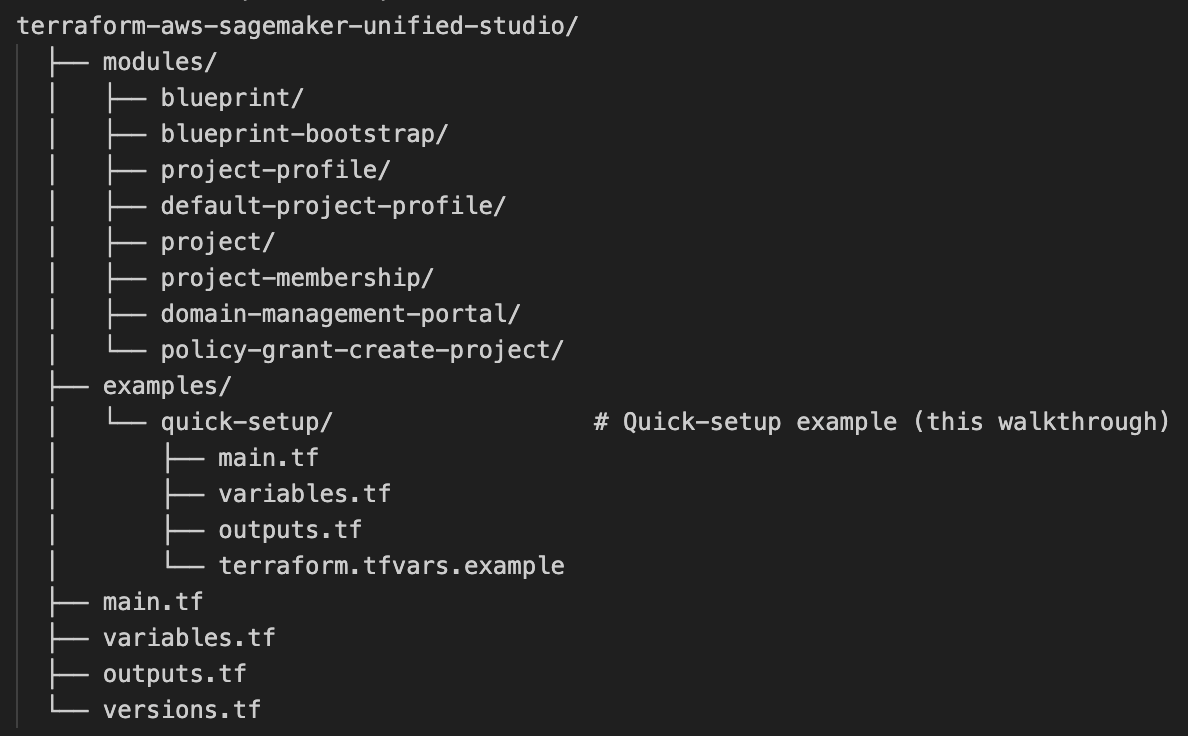
Figure 2: Directory structure of the Amazon SageMaker Unified Studio Terraform module
Change into the quick-setup example directory:
Step 2: Configure the Terraform variables
Copy the example variables file and edit it:
For our multi-team scenario, we enable all three project profiles:
Here’s what each profile creates:
| Variable | Team | Blueprints enabled |
enable_sql_analytics | Data Analytics | DataLake, LakehouseCatalog, RedshiftServerless |
enable_generative_ai | Generative AI | BedrockChatAgent, BedrockEvaluation, BedrockFlow, BedrockFunction, BedrockGuardrail, BedrockKnowledgeBase, BedrockPrompt |
enable_all_capabilities | ML (full access) | All of the preceding + EMR Serverless, EMR on EC2, MLExperiments, Workflows |
Internally, the toggles build a dynamic map of blueprints that gets passed to the blueprint module’s for_each:
Network auto-discovery: If you don’t specify vpc_id and subnet_ids, the module automatically discovers and uses your default VPC and its subnets.
Customizing blueprint parameters: The quick-setup example uses recommended defaults. For production, you can customize Amazon Redshift capacity, Glue database names, or deployment modes in the sql_analytics_blueprint_config and generative_ai_blueprint_config locals in main.tf. For example, to increase Redshift Serverless max capacity:
Step 3: Apply the Terraform configuration
Configure your AWS CLI credentials for the target account and Region, then:
- Run
terraform initto download the modules and providers. - Run
terraform planand review the output to verify:- An Amazon SageMaker Unified Studio domain will be created.
- Three IAM roles will be created (domain execution, manage access, provisioning).
- An S3 bucket for tooling storage will be created.
- All selected blueprints will be enabled on the domain.
- Three project profiles will be created (SQL Analytics, Generative AI, All Capabilities).
- A project will be created from the first available profile.
- Project memberships will be configured for SSO identities, IAM principals or both.
- Run
terraform applyand allow the apply to complete.
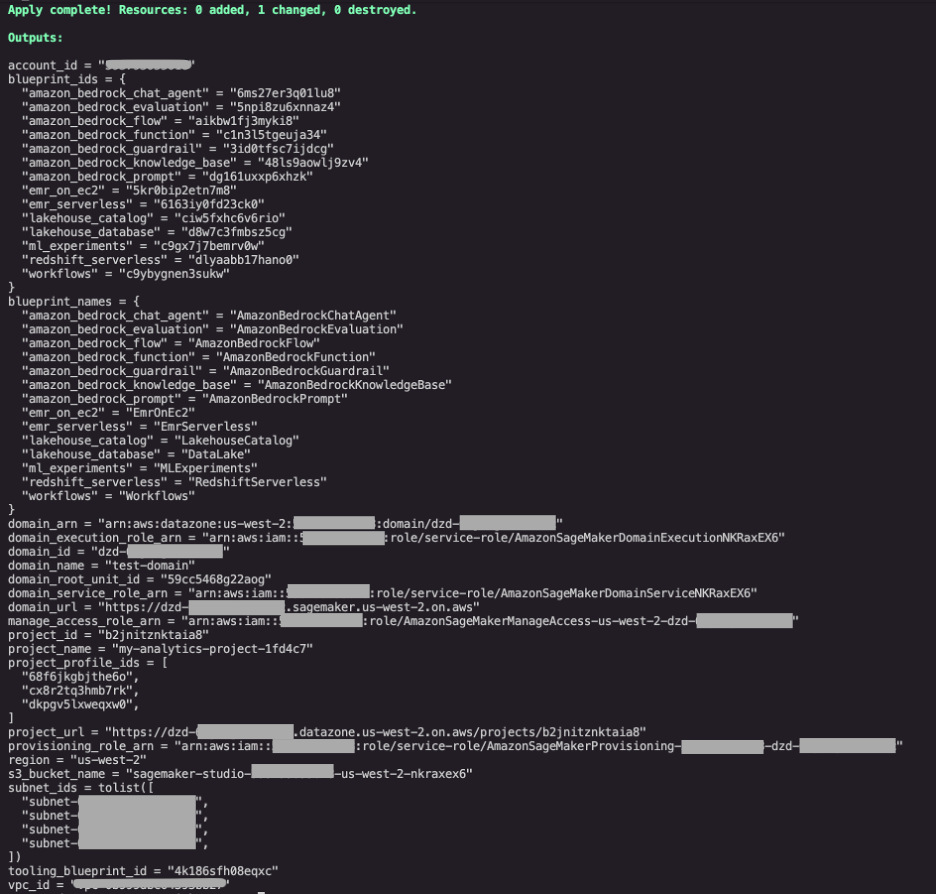
Figure 3: Successful terraform apply output showing the domain URL, project ID, and project profile IDs
View the key outputs:
Step 4: Verify the platform and onboard teams
Verify the deployment. Confirm the environment is healthy before onboarding teams:
- Open the
domain_urlfrom the Terraform output and confirm the Amazon SageMaker Unified Studio portal loads, and you can sign in using a principal that was added to the project. - In the portal, confirm the three project profiles (SQL Analytics, Generative AI, All Capabilities) appear under the domain.
- Confirm the initial project created by
terraform applyis listed and project members can access the project interface. - Cross-check the Terraform outputs (
terraform output blueprint_ids,terraform output project_profile_ids) against the blueprints and profiles you expected.
Access the portal: Open the domain_url from the Terraform output. Any user added as an owner or member of the project can sign in immediately and access their project.
Create team-specific projects: The initial terraform apply creates one project. To create additional projects for each team, add more "project" sub-moduleblocks referencing different profiles:
You can also create projects from the Amazon SageMaker Unified Studio portal using the available profiles.
Onboard additional users: To isolate teams, create separate projects using the appropriate project profiles as shown earlier, then add members (SSO users, SSO groups, IAM users, or IAM roles) to each project using the project_membership module. Each principal type can be used independently or in combination. This restricts each team to the capabilities defined by their project profile. For details on adding IAM principals, see the next section.
Adding IAM principals to projects
Amazon SageMaker Unified Studio uses project membership to control who can access a project’s resources (data, environments, and development artifacts). The Terraform module supports four principal types for project membership:
- SSO users: Individual IAM Identity Center users.
- SSO groups: IAM Identity Center groups (all members inherit access).
- IAM users: Native IAM user ARNs.
- IAM roles: IAM role ARNs (assumed by humans, services, or automation).
Project membership defines which principals are authorized to access a project. It also sets what actions they are allowed to perform as either project owners or contributors. When a principal is added to a project through project membership, they are automatically added to the domain membership list and are authorized to access the interface.
Why add IAM principals to projects?
While Identity Center users and groups cover most human access patterns, IAM principals unlock additional use cases:
| Use Case | Principal Type | Example |
| Continuous integration and continuous delivery (CI/CD) pipeline deploys environments in a project | IAM Role | arn:aws:iam::123456789012:role/GitHubActionsDeployRole |
| Service account runs automated data pipelines | IAM Role | arn:aws:iam::123456789012:user/etl-service-account |
| Organization without Identity Center needs project access | IAM User/Role | Any IAM principal in the account |
Configuration
The project_owners and project_contributors variables accept any combination of principal types:
Project members can be defined as owners or contributors. The AWS caller identity that runs this Terraform code is added as a project owner so that it has permission to manage project resources and update team membership. To know what permissions each of these roles have please refer to the full documentation here.
How the module registers principals
The module automatically creates the required domain-level profile for each principal before assigning membership. No manual pre-registration is needed. The module handles the full lifecycle.
IAM identity prerequisite: IAM roles and users must have the AWS managed SageMakerStudioUserIAMConsolePolicy (or equivalent) attached to access the Amazon SageMaker Unified Studio interface. This policy provides permissions for domain listing, project creation, and other portal operations. The module doesn’t automatically attach this policy to IAM roles.
Example: Granting a CI/CD pipeline access to a project
The pipeline role can now create and manage environments within the project scope, without domain-wide access.
Example: IAM-only project membership
Organizations that don’t use Identity Center can manage project membership entirely through IAM principals by setting enable_sso = false in the domain module.
Note: Currently, only IAM principals within the same AWS account as the domain can access the Amazon SageMaker Unified Studio portal. Cross-account IAM role access might be limited. Verify cross-account support in your Region before relying on it for production access patterns.
Additional considerations
As you move this setup toward production, consider the following areas.
Scaling to multiple environments
For production readiness, deploy separate domains for development, staging, and production using Terraform workspaces or separate state files:
Cost management
The base infrastructure (domain, IAM roles, S3 bucket) has minimal ongoing costs. Primary charges occur when teams create and use environments:
- Redshift Serverless: Pay per RPU-hour when queries are running.
- EMR Serverless: Pay per vCPU and memory per second.
- Bedrock: Pay per input and output token.
- S3: Standard storage pricing.
Use the parameter_overrides in blueprint configurations to set capacity limits (for example, redshiftMaxCapacity) and control costs.
Security and governance
The module creates least-privilege service roles by default. For additional permissions, attach custom policies to the user role:
You can also configure VPC endpoints for private connectivity and enable AWS CloudTrail for audit logging of all Amazon DataZone API calls.
DevOps best practices
- Version control: Store configurations in a code repository with automated CI/CD pipelines.
- Module registry: Publish organization-specific module compositions to a private Terraform registry.
Cleanup
To destroy all resources:
Warning: This deletes all resources including the domain, projects, and any data stored in the S3 bucket. Additionally, extra resources created manually within the console won’t be affected by this terraform destroy.
Conclusion
In this post, we walked through a real-world scenario: building a multi-team AI and analytics unified environment where data analysts, ML engineers, and generative AI developers each get tailored capabilities on a shared, governed domain. Terraform provisions and manages the full set of Amazon SageMaker Unified Studio resources, including the domain, blueprints, project profiles, and an initial project. As your needs grow, you can extend the configuration by adding projects per team through the project sub-module.
Key benefits of this approach:
- Team-specific profiles: Each team gets exactly the blueprints they need, nothing more.
- Shared governance: One domain, one set of IAM roles, one data catalog, consistent policies.
- Infrastructure as Code: Repeatable, auditable, version-controlled deployments.
- Auto-discovery: Minimal configuration required; VPC, subnets, and instance details are discovered automatically.
- Scalable: Add teams, environments, or accounts by extending the same Terraform configuration.
- Flexible membership: Add SSO users, IAM users, IAM roles, or any combination as project members.
The Terraform module and examples are available in the Amazon SageMaker Unified Studio Terraform module repository.
Have questions or feedback? Leave us a comment or open an issue in the GitHub repository.
Additional resources
- Amazon SageMaker Unified Studio documentation
- Amazon SageMaker Unified Studio Terraform module
- Authorization in Amazon SageMaker Unified Studio
- Terraform by HashiCorp
- Automate Amazon S3 File Gateway on Amazon EC2 with Terraform


